
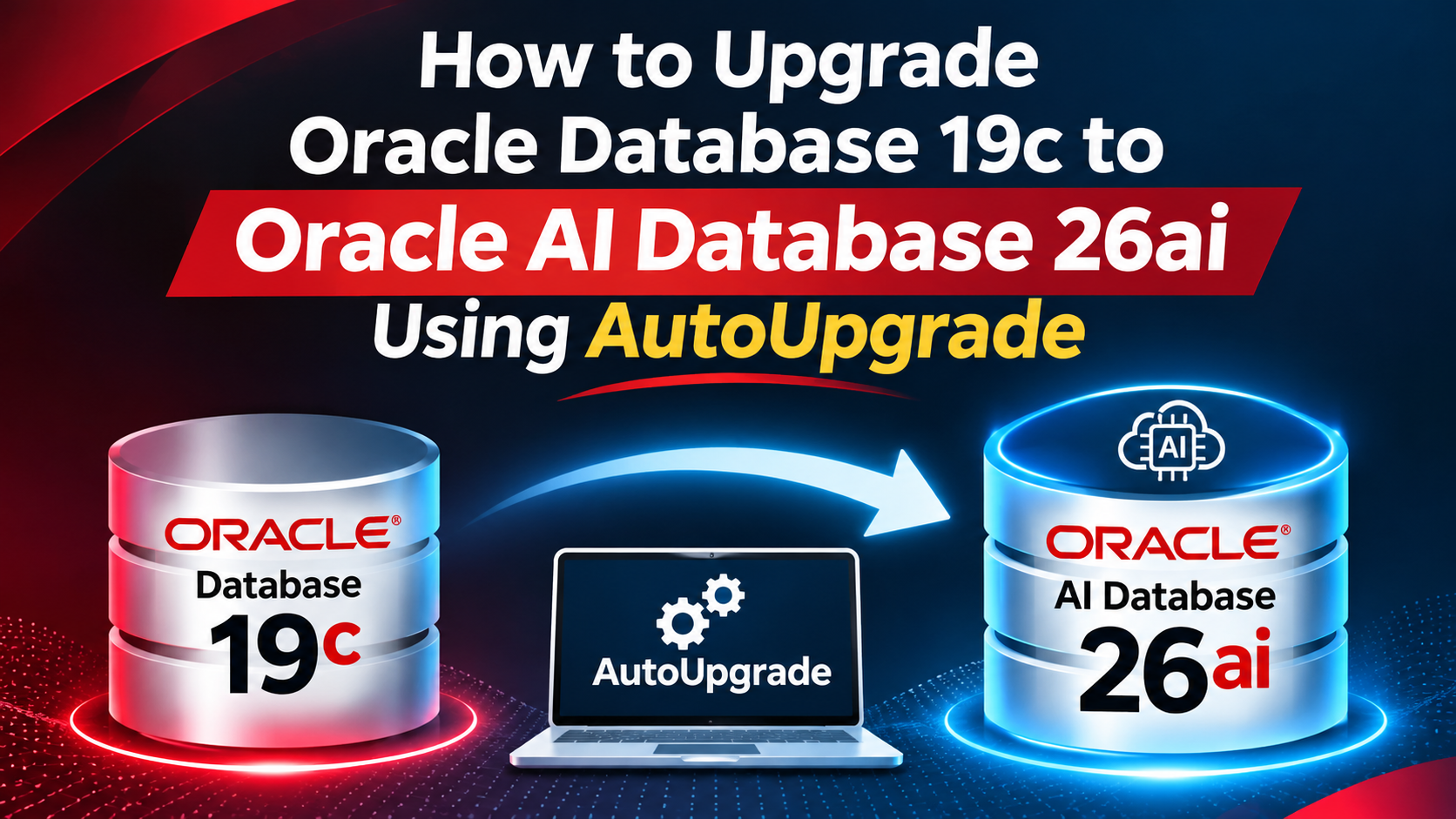
1. Introduction
Oracle Database 19c has been one of the most widely deployed Oracle database releases in enterprise environments. Many organizations continue to operate critical production workloads on Oracle 19c, including banking applications, financial systems, ERP platforms and large-scale transactional databases.
With the introduction of Oracle AI Database 26ai, organizations have an opportunity to modernize their database infrastructure and take advantage of new database capabilities.
However, upgrading a production Oracle database is not simply a matter of installing new software and restarting the database. It involves changes to the Oracle data dictionary, database components, internal metadata, configuration and potentially application behavior.
For DBAs managing mission-critical environments, a successful upgrade requires careful preparation, testing, execution and post-upgrade validation.
Oracle provides AutoUpgrade, a utility that automates many of these activities and simplifies the database upgrade process.
In this article, we will walk through a practical upgrade scenario covering Oracle Database 19c to Oracle AI Database 26ai using AutoUpgrade.
We will cover:
- Oracle Database 26ai upgrade architecture.
- Supported upgrade paths.
- Upgrade prerequisites.
- Oracle Home preparation.
- AutoUpgrade configuration.
- Analyze and Fixups modes.
- Upgrade deployment.
- Parallel upgrade processing.
- Upgrade monitoring and troubleshooting.
- Post-upgrade validation.
- Backup and rollback considerations.
The examples use a single-instance CDB environment. RAC, Data Guard and other configurations require additional environment-specific preparation.
2. Understanding Oracle Database Upgrade Architecture
Before starting the upgrade, it is important to understand how Oracle Database handles version changes.
An Oracle database installation consists of two major components:
1. Oracle Home (Database Software)
The Oracle Home contains:
- Oracle database executable binaries.
- Database libraries.
- SQL scripts.
- Upgrade utilities.
- Configuration files.
- Supporting software components.
2. Database (Data Dictionary and Data Files)
The database contains:
- SYSTEM tablespace.
- SYSAUX tablespace.
- USER tablespaces.
- Data dictionary metadata.
- Database objects.
- Internal database components.
- Application data.
These two components must be compatible.
For example:
| Component | Before upgrade | After upgrade |
|---|---|---|
| Oracle Home | Oracle 19c | Oracle AI Database 26ai |
| Data Dictionary | 19c | 26ai |
| Database components | 19c versions | Target release versions |
Installing Oracle AI Database 26ai software does not automatically upgrade the existing 19c data dictionary.
The upgrade process must execute the required internal scripts and dictionary modifications.
This is one of the main responsibilities handled by AutoUpgrade.
Why is an out-of-place upgrade recommended?
For production environments, an out-of-place upgrade is a preferred strategy.
Instead of modifying the existing Oracle Home, install the new database release into a separate directory.
Example:
Existing Oracle Home:
/u01/app/oracle/product/19c/dbhome_1

New Oracle Home:
/u01/app/oracle/product/26ai/dbhome_1
The advantages include:
- Existing Oracle Home remains available.
- Cleaner software installation.
- Easier separation between source and target software.
- Better control over upgrade preparation.
- Improved operational flexibility during the maintenance process.
Remember that retaining the old Oracle Home does not automatically guarantee database rollback. Recovery must be planned separately.
3. Supported Upgrade Path: Oracle 19c to 26ai
Before starting, verify that your current database release supports a direct upgrade.
According to Oracle’s 26ai Database Upgrade Guide, the supported direct upgrade source releases include:
- Oracle Database 19c.
- Oracle Database 21c.
Therefore, Oracle Database 19c can be upgraded directly to Oracle AI Database 26ai without requiring an intermediate database release.
If your current database is older than 19c, an intermediate upgrade may be necessary.
For this demonstration, we will use:
Source Database : Oracle Database 19c
Target Database : Oracle AI Database 26ai
Upgrade Utility : Oracle AutoUpgrade
Upgrade Method  : Out-of-place upgrade
Always verify the exact source release, target release update, platform and patch requirements against the applicable Oracle documentation.
4. Understand Oracle AutoUpgrade
Oracle AutoUpgrade is an Oracle-provided Java utility designed to simplify database upgrades.
It automates activities before, during and after the upgrade.
Some of its important capabilities include:
- Upgrade readiness analysis.
- Automatic upgrade fixups.
- Database upgrade execution.
- Parallel upgrade processing.
- Post-upgrade validation.
- Configuration migration.
- Upgrade log generation.
Oracle AutoUpgrade supports several processing modes.
| Mode | Purpose |
|---|---|
| Analyze | Identify upgrade readiness issues |
| Fixups | Analyze and perform supported prerequisite corrections |
| Deploy | Execute the complete configured upgrade workflow |
| Upgrade | Execute the database upgrade workflow with a more limited set of preparatory actions |
For a normal production upgrade, the recommended workflow is to perform Analyze, review and resolve issues, and then execute Deploy.
Important: Always download the latest AutoUpgrade utility from Oracle’s Database Upgrades and Migrations resources rather than assuming the version bundled with an older Oracle Home is current.
5. Pre-Upgrade Planning and Prerequisites
This is one of the most important stages.
A successful upgrade depends heavily on the quality of pre-upgrade preparation.
Before executing AutoUpgrade, review the following requirements.
5.1 Verify the existing database version
Connect to the source database:
SELECT banner_full
FROM v$version;
Check database information:
SELECT name,
       dbid,
       open_mode,
       database_role,
       platform_name
FROM v$database;
Check the database instance:
SELECT instance_name,
       host_name,
       version,
       status
FROM v$instance;
These queries establish the current database environment.
5.2 Verify database compatibility
Check the current COMPATIBLE parameter:
SHOW PARAMETER compatible;Oracle requires the source database COMPATIBLE setting to be at least 19.0.0 for a direct upgrade to Oracle AI Database 26ai.
Example:
compatible = 19.0.0Do not increase COMPATIBLE simply because you are upgrading the database.
Oracle recommends raising it to the target release level only after completing upgrade testing.
Increasing COMPATIBLE can remove downgrade and Flashback Database recovery options to earlier states.
5.3 Check database components
Identify the installed database components:
SET LINESIZE 200

COLUMN comp_name FORMAT A45
COLUMN version FORMAT A15
COLUMN status FORMAT A15

SELECT comp_id,
       comp_name,
       version,
       status
FROM dba_registry
ORDER BY comp_name;
Pay attention to invalid or non-VALID components.
For example:
- Oracle JVM.
- Oracle XML Database.
- Oracle Spatial.
- Oracle Text.
- Oracle Data Vault.
- Oracle OLAP.
Installed components must be evaluated for target-release compatibility.
5.4 Check invalid database objects
Execute:
SELECT owner,
       object_type,
       COUNT(*) AS invalid_count
FROM dba_objects
WHERE status = 'INVALID'
GROUP BY owner, object_type
ORDER BY owner, object_type;
Existing invalid objects should be investigated before the upgrade.
After the upgrade, some objects may require recompilation.
5.5 Check database size and available storage
Identify tablespace utilization:
SELECT tablespace_name,
       ROUND(SUM(bytes)/1024/1024/1024,2) AS size_gb
FROM dba_data_files
GROUP BY tablespace_name
ORDER BY tablespace_name;
Check free space:
SELECT tablespace_name,
       ROUND(SUM(bytes)/1024/1024/1024,2) AS free_gb
FROM dba_free_space
GROUP BY tablespace_name
ORDER BY tablespace_name;
At the operating system level:
df -hAlso verify available space for:
- New Oracle Home installation.
- AutoUpgrade logs.
- Temporary upgrade operations.
- Archive logs.
- Flashback logs, if using a guaranteed restore point.
- RMAN backup storage.
5.6 Verify time zone information
Check the current database time zone file version:
SELECT filename,
       version
FROM v$timezone_file;
A time zone file upgrade may be required depending on the target release and the source database configuration.
Do not assume that the time zone upgrade is unnecessary. Review the AutoUpgrade analysis report and application requirements.
5.7 Verify database backup
Before starting the upgrade, take a valid RMAN backup.
Example:
RMAN> BACKUP DATABASE PLUS ARCHIVELOG;Check the backup summary:
RMAN> LIST BACKUP SUMMARY;Also verify that the recovery strategy is documented and that the backup is usable.
For production environments, validate the recovery procedure rather than relying only on successful backup completion.
6. Install Oracle AI Database 26ai Software
Once the preparation is complete, install Oracle AI Database 26ai into a separate Oracle Home.
Example directory structure:
/u01/app/oracle/product/
    |
    |-- 19c/
    |    |
    |    |-- dbhome_1
    |
    |-- 26ai/
         |
         |-- dbhome_1
After installing the software, verify the target Oracle Home.
export ORACLE_HOME=/u01/app/oracle/product/26ai/dbhome_1

export PATH=$ORACLE_HOME/bin:$PATH

sqlplus -v
Check the software version:
$ORACLE_HOME/bin/sqlplus -vEnsure that the target Oracle Home has the required Release Update and other applicable patches installed.
For production systems, review the latest recommended patch combination, including relevant OPatch, RU and OJVM requirements.
Do not assume that a base software installation is ready for production deployment.
7. Download and Prepare AutoUpgrade
Download the latest AutoUpgrade JAR from Oracle.
Place the utility in a dedicated directory.
Example:
mkdir -p /home/oracle/autoupgrade

cd /home/oracle/autoupgrade
Verify the downloaded file:
ls -lh autoupgrade.jarCheck the utility version using the supported AutoUpgrade version command:
java -jar autoupgrade.jar -versionKeep the AutoUpgrade utility and its configuration files in a location accessible to the Oracle software owner.
Create a separate log directory:
mkdir -p /home/oracle/autoupgrade/logs/CDB1For better administration, maintain separate directories for:
- Configuration files.
- AutoUpgrade logs.
- Upgrade reports.
- Backup records.
- Execution history.
8. Create the AutoUpgrade Configuration File
Now create the AutoUpgrade configuration file.
For this example, we will use:
CDB1.cfgConfiguration:
global.global_log_dir=/home/oracle/autoupgrade/logs/CDB1

upg1.source_home=/u01/app/oracle/product/19c/dbhome_1

upg1.target_home=/u01/app/oracle/product/26ai/dbhome_1

upg1.sid=CDB1
Explanation of configuration parameters
global.global_log_dir
Defines the location where AutoUpgrade stores its logs.
upg1.source_home
Specifies the existing Oracle 19c software installation.
upg1.target_home
Specifies the new Oracle AI Database 26ai Oracle Home.
upg1.sid
Specifies the database SID that needs to be upgraded.
For more complex environments, additional parameters can be configured for PDB selection, target version, Data Guard and other upgrade requirements.
For example, the masterclass also demonstrates:
upg1.timezone_upg=no

upg1.run_dictionary_health=full
These parameters must be selected according to the actual upgrade scenario and the AutoUpgrade version being used.
Do not blindly copy demonstration values into a production configuration.
9. Execute AutoUpgrade Analyze Mode
This is the first major execution stage.
Analyze mode checks the source database and identifies issues that could affect the upgrade.
Execute:
java -jar autoupgrade.jar \
-config CDB1.cfg \
-mode analyze
AutoUpgrade performs a series of checks against the source database.
The analysis helps identify:
- Database configuration issues.
- Invalid database objects.
- Tablespace and storage-related problems.
- Database component issues.
- Deprecated or desupported features.
- Time zone considerations.
- Upgrade prerequisites.
- Potential upgrade blockers.
One important advantage is that Analyze mode is designed to perform read-only analysis against the database.
Therefore, it can be executed during normal business hours, subject to the operational impact of running the checks.
Review the analysis reports
After the execution completes, review the AutoUpgrade log directory.
Example:
cd /home/oracle/autoupgrade/logs/CDB1Locate the generated analysis reports and review all warnings and errors.
Do not proceed directly to production deployment without understanding the reported issues.
Classify the findings into:
- Critical issues requiring correction.
- Warnings requiring investigation.
- Recommended configuration changes.
- Informational messages.
Resolve the upgrade blockers before proceeding.
10. Execute AutoUpgrade Fixups Mode
After reviewing the Analyze results, execute Fixups mode.
java -jar autoupgrade.jar \
-config CDB1.cfg \
-mode fixups
Fixups mode performs prerequisite analysis and applies supported automatic corrections.
However, not every issue can be resolved automatically.
Some findings require manual intervention by the DBA.
For example:
- Application schema corrections.
- Unsupported feature remediation.
- Storage configuration changes.
- Manual component-related corrections.
- Changes requiring application owner approval.
After completing the fixups, review the reports again.
The objective is to ensure that the source database is ready for the upgrade.
DBA recommendation: Keep a record of every manual correction made during the preparation stage. This will be useful for the final implementation report and future troubleshooting.
11. Execute AutoUpgrade Deploy Mode
Once the source database is ready, execute the actual upgrade.
Command:
java -jar autoupgrade.jar \
-config CDB1.cfg \
-mode deploy
Deploy mode coordinates the complete upgrade workflow.
The major stages include:
| Stage | Description |
|---|---|
| SETUP | Initialize upgrade configuration |
| GRP | Create a Guaranteed Restore Point when configured |
| PREUPGRADE | Run pre-upgrade scripts |
| PRECHECKS | Perform upgrade readiness checks |
| PREFIXUPS | Execute required pre-upgrade fixups |
| DRAIN | Prepare the database for upgrade |
| DBUPGRADE | Execute database dictionary upgrade |
| POSTCHECKS | Perform post-upgrade checks |
| POSTFIXUPS | Apply post-upgrade corrections |
| POSTUPGRADE | Execute post-upgrade operations |
| SYSUPDATES | Complete applicable system updates |
The exact stages and behavior depend on the AutoUpgrade version and configuration.
What happens during DBUPGRADE?
This is the main database upgrade stage.
The Oracle data dictionary is upgraded to the target release.
Internal upgrade scripts execute changes to database objects, metadata and components.
The masterclass highlights the scale of these operations when upgrading from 19c to 26ai.
Its example illustrates approximately:
- 20,000 CREATE OR REPLACE statements.
- 7,000 CREATE statements.
- 1,500 ALTER TABLE statements.
- 300 ALTER TYPE statements.
- 7,000 ALTER SESSION statements.
These are illustrative upgrade-script counts from the presentation, not guaranteed counts for every database.
This explains why an Oracle database upgrade can take considerable time, particularly when upgrading large or complex database environments.
12. Understanding Parallel Upgrade Processing
One of the important features of Oracle AutoUpgrade is parallel upgrade processing.
For CDB environments, multiple upgrade operations can be executed concurrently.
The masterclass illustrates the following default behavior:
| Component | Parallel execution |
|---|---|
| CDB$ROOT | 8 threads |
| Each PDB | 2 threads |
| Concurrent PDB upgrades | CPU_COUNT / 2 |
These values can be overridden using the catctl_options parameter.
Example:
upg1.catctl_options=-N 8
upg1.catctl_options=-n 4
Here:
-Ncontrols the number of threads used for upgrade operations.-ncontrols the number of PDBs upgraded concurrently.
Should DBAs increase parallelism?
Increasing parallelism can reduce upgrade duration, but it also increases resource consumption.
Before modifying the default values, evaluate:
- Available CPU resources.
- PGA memory availability.
- Storage IOPS.
- Storage throughput.
- Temporary tablespace capacity.
- Number of PDBs.
- Application and infrastructure resource requirements.
For large CDB environments, test different parallel settings before selecting the production configuration.
13. Monitor AutoUpgrade Progress
Monitoring is essential during the deployment stage.
AutoUpgrade generates several logs that help DBAs understand the current upgrade status.
Monitor the configured log directory:
cd /home/oracle/autoupgrade/logs/CDB1Review the generated files and the AutoUpgrade console.
You should monitor:
- Current processing stage.
- Database upgrade progress.
- PDB upgrade progress.
- Errors and warnings.
- Individual phase execution times.
- Post-upgrade operations.
Monitor database activity
While upgrade operations are running, database sessions can be inspected.
Example:
SELECT sid,
       serial#,
       username,
       status,
       event,
       program
FROM v$session
WHERE username IS NOT NULL
ORDER BY sid;
Monitor long operations:
SELECT sid,
       serial#,
       opname,
       sofar,
       totalwork,
       units,
       elapsed_seconds,
       time_remaining
FROM v$session_longops
WHERE totalwork > 0
AND sofar < totalwork
ORDER BY start_time;
These queries provide additional visibility into database activity, although not every AutoUpgrade operation is represented as a long-running operation.
Important troubleshooting recommendation
If the upgrade appears to be taking longer than expected, do not immediately terminate the AutoUpgrade process.
First:
- Review the AutoUpgrade logs.
- Identify the current upgrade phase.
- Check database alert logs.
- Review active database sessions.
- Check operating system CPU and memory utilization.
- Check storage latency and available space.
- Review any reported errors.
A long-running dictionary operation does not necessarily indicate an upgrade failure.
14. Post-Upgrade Validation
Completing AutoUpgrade deployment does not mean the entire application environment is ready for production.
The DBA must perform post-upgrade validation.
14.1 Verify database version
SELECT banner_full
FROM v$version;
14.2 Verify database status
SELECT name,
       open_mode,
       database_role
FROM v$database;
14.3 Verify instance status
SELECT instance_name,
       version,
       status
FROM v$instance;
14.4 Verify database components
SET LINESIZE 200

COLUMN comp_name FORMAT A45
COLUMN version FORMAT A15
COLUMN status FORMAT A15

SELECT comp_id,
       comp_name,
       version,
       status
FROM dba_registry
ORDER BY comp_name;
Confirm that the installed components have the expected status.
14.5 Check invalid objects
SELECT owner,
       object_type,
       COUNT(*) AS invalid_count
FROM dba_objects
WHERE status = 'INVALID'
GROUP BY owner, object_type
ORDER BY owner, object_type;
Where required, execute:
@?/rdbms/admin/utlrp.sqlAfter recompilation, check the invalid objects again.
14.6 Check PDB status
For a CDB environment:
SHOW PDBS;Alternatively:
SELECT con_id,
       name,
       open_mode,
       restricted
FROM v$pdbs
ORDER BY con_id;
Confirm that all required PDBs are opened in the expected mode.
14.7 Check time zone version
SELECT filename,
       version
FROM v$timezone_file;
Verify that the time zone configuration is appropriate for the target release and application requirements.
14.8 Verify database services
SELECT name,
       network_name,
       pdb
FROM cdb_services
ORDER BY name;
For non-CDB environments, use the appropriate service views.
Check listener registration and application connectivity.
14.9 Check database parameters
SELECT name,
       value
FROM v$parameter
WHERE name IN (
    'compatible',
    'processes',
    'sessions',
    'sga_target',
    'pga_aggregate_target',
    'db_block_size',
    'db_recovery_file_dest'
)
ORDER BY name;
Review the parameters against the approved pre-upgrade configuration.
14.10 Gather dictionary statistics
Oracle recommends gathering dictionary statistics after completing an upgrade to help maintain good database performance.
Example:
EXEC DBMS_STATS.GATHER_DICTIONARY_STATS;Review the database’s statistics maintenance requirements before executing any additional statistics operations.
14.11 Validate application functionality
This is one of the most important activities.
Perform application testing covering:
- Application login.
- Critical business transactions.
- Batch processing.
- Database connectivity.
- SQL execution.
- PL/SQL procedures.
- Scheduled jobs.
- Database links.
- Integration services.
- Reporting applications.
For banking and financial systems, perform business-critical transaction validation before handing the upgraded database back to application teams.
15. Important Considerations for Oracle RAC and Data Guard
The procedure demonstrated in this article is based on a single-instance upgrade scenario.
RAC and Data Guard environments require additional planning.
Oracle RAC
For Oracle RAC environments, validate:
- Grid Infrastructure compatibility.
- Database Oracle Home configuration.
- All RAC nodes.
- Cluster resources.
- Database services.
- Shared storage.
- Interconnect connectivity.
- Database patch levels.
All RAC instances must use a consistent COMPATIBLE setting.
Do not assume that completing the database upgrade on one node completes all RAC-related activities.
Oracle Data Guard
For Data Guard environments, establish the upgrade strategy before starting.
Review:
- Primary and standby database roles.
- Redo transport configuration.
- Apply lag.
- Transport lag.
- Broker configuration.
- Standby compatibility.
- Backup and recovery requirements.
The masterclass discusses different approaches to database upgrades with Data Guard, including standby-related techniques.
Always test the complete upgrade or migration procedure in a representative environment.
16. Rollback and Recovery Planning
Rollback planning is essential for every production database upgrade.
Keeping the old Oracle Home is useful, but it is not a complete rollback strategy.
Consider the following recovery methods.
Option 1: Guaranteed Restore Point
Where the environment and upgrade workflow support it, a Guaranteed Restore Point can provide a Flashback Database recovery option.
This must be configured before the upgrade.
Example:
CREATE RESTORE POINT BEFORE_26AI_UPGRADE
GUARANTEE FLASHBACK DATABASE;
Check the restore point:
SELECT name,
       guarantee_flashback_database,
       time
FROM v$restore_point;
Monitor Fast Recovery Area capacity and ensure sufficient archive and flashback log storage.
Do not remove the restore point until the upgrade has been accepted and the recovery strategy has been finalized.
Option 2: RMAN Backup and Restore
A valid RMAN backup provides another recovery option.
Example:
BACKUP DATABASE PLUS ARCHIVELOG;If a recovery is required, restore and recover the database using the approved recovery procedure.
The recovery duration depends on database size, backup location, storage performance and available archive logs.
Option 3: Preserve the Original Environment
Maintaining the original Oracle Home and documenting the source database configuration can help during recovery planning.
However, after the data dictionary has been upgraded, simply switching back to the old Oracle Home is not a valid downgrade procedure.
Always establish a tested rollback plan before starting the upgrade.
17. Common Upgrade Problems and Troubleshooting
Here are some common areas DBAs should investigate during Oracle database upgrades.
| Problem | Recommended investigation |
|---|---|
| Analyze mode reports errors | Review AutoUpgrade analysis reports |
| Fixups cannot resolve an issue | Investigate the manual prerequisite |
| Upgrade takes longer than expected | Review upgrade phase logs and database activity |
| Invalid objects after upgrade | Review component status and execute recompilation where appropriate |
| PDB does not open | Review PDB upgrade logs and alert logs |
| Insufficient storage | Check filesystem, tablespaces and recovery area |
| Application connectivity failure | Verify services, listener and application configuration |
| Component status is not VALID | Investigate the affected component and its upgrade logs |
Troubleshooting commands
Check the database alert log location:
SELECT value
FROM v$diag_info
WHERE name = 'Diag Trace';
Check the component status:
SELECT comp_id,
       comp_name,
       status
FROM dba_registry;
Check invalid objects:
SELECT owner,
       COUNT(*)
FROM dba_objects
WHERE status = 'INVALID'
GROUP BY owner;
Always investigate the underlying error rather than repeatedly executing upgrade commands.
18. Final Production Upgrade Checklist
Before declaring the upgrade successful, complete the following checklist.
Pre-upgrade
- Verify source database version.
- Confirm direct upgrade support.
- Verify COMPATIBLE parameter.
- Review installed database components.
- Check invalid objects.
- Verify time zone requirements.
- Check storage and filesystem capacity.
- Install Oracle AI Database 26ai software.
- Apply required patches.
- Download the latest AutoUpgrade utility.
- Take a valid RMAN backup.
- Execute Analyze mode.
- Review and resolve upgrade findings.
- Execute Fixups mode.
Upgrade execution
- Confirm application maintenance window.
- Verify database backup and recovery readiness.
- Validate AutoUpgrade configuration.
- Execute Deploy mode.
- Monitor AutoUpgrade logs.
- Monitor database alert logs.
- Check operating system resources.
- Confirm successful completion.
Post-upgrade
- Verify Oracle Database 26ai version.
- Verify database open mode.
- Check database components.
- Check invalid objects.
- Recompile invalid objects where necessary.
- Verify PDB status.
- Check database services.
- Validate database parameters.
- Gather dictionary statistics.
- Validate application connectivity.
- Perform application testing.
- Verify backup configuration.
- Document the upgrade completion.
19. Conclusion
Upgrading Oracle Database 19c to Oracle AI Database 26ai is an important modernization activity for organizations running enterprise database workloads.
Oracle AutoUpgrade simplifies this process by automating upgrade readiness checks, prerequisite fixups, database upgrade operations and post-upgrade activities.
However, successful production upgrades still depend on proper planning, backup validation, resource assessment, testing and application-level verification.
For DBAs, the most important lesson is to treat a database upgrade as a complete lifecycle rather than simply executing a single command.
By following a structured approach using Analyze, Fixups and Deploy modes, organizations can improve upgrade reliability and reduce operational risk.
A successful Oracle database upgrade is not just about reaching the target database version. It is about ensuring that the entire database and application environment continues to operate reliably after the upgrade.
References and Further Reading
Disclaimer: This article is intended for educational purposes. Validate all configuration parameters, upgrade procedures and recovery requirements against the specific Oracle Database release update, platform and environment before performing production activities.