

Upgrading an Oracle database is one of those tasks that every DBA respects—and sometimes fears. With Oracle introducing Oracle 26ai (AI Database), many teams running stable Oracle 19c environments are now planning their upgrade path.
In this blog, I’ll walk you through a real Oracle 19c to Oracle 26ai database upgrade using DBUA (Database Upgrade Assistant), based on an actual upgrade execution. This guide is simple, practical, and easy to follow, even if you’re performing a major version upgrade for the first time.
Why Upgrade from Oracle 19c to Oracle 26ai?
Oracle 19c is a Long-Term Support (LTS) release and still widely used. However, Oracle 26ai brings significant enhancements:
- Built-in AI-driven optimizations
- Improved CDB/PDB architecture
- Better performance and memory management
- Enhanced security defaults
- Long-term roadmap alignment
If your organization is planning future workloads, analytics, or AI-driven features, Oracle 26ai is the next logical step.
Why Use DBUA for the Upgrade?
Oracle provides multiple upgrade methods:
- Manual upgrade scripts
- AutoUpgrade
- DBUA (Database Upgrade Assistant)
For this upgrade, DBUA was chosen because:
- GUI-driven and easy to follow
- Built-in prerequisite checks
- Automatic component upgrades
- Integrated rollback options
- Clear progress and logging
⚠️ Note: Oracle has announced that DBUA is deprecated starting from Oracle 23c, but it is still available and functional in 26ai for now.
Environment Overview
Source Database
- Version: Oracle 19.0.0.0.0
- Type: CDB with PDB
- Name:
test - PDB:
ORCLPDB
Target Database
- Version: Oracle 26ai (23.0.0.0.0 internal base)
- New Oracle Home:
/u01/app/oracle/product/23.26.0.0/dbhome_1
Step 1: Selecting the Source Database
DBUA automatically detects databases running on the server.
In this case, the Oracle 19c CDB was selected along with SYS credentials.

DBUA connects to the database, validates access, and prepares metadata for upgrade analysis.
Step 2: Pluggable Database Selection
Since this is a Container Database (CDB), DBUA lists available PDBs.

ORCLPDBwas selected- Status: NORMAL
- Open Mode: READ WRITE
This confirms that the PDB is healthy and ready for upgrade.
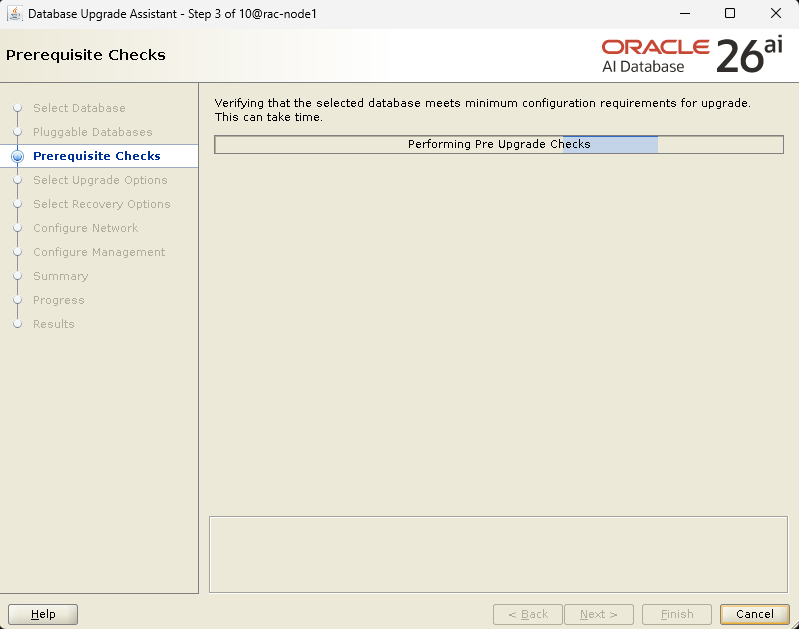
Step 3: Prerequisite Checks (Very Important!)
DBUA performs pre-upgrade checks, which may take some time.
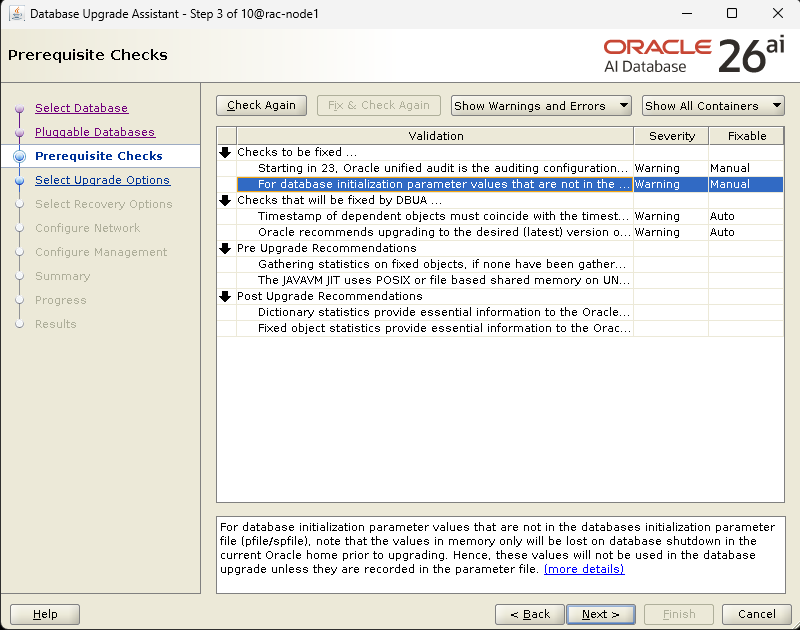
Common warnings seen:
- Initialization parameters not recorded in SPFILE
- Unified Auditing changes
- Recommendations to gather dictionary statistics
- Timezone data upgrade advisory
✔️ These were warnings, not blockers
✔️ Some were auto-fixable, others manual
💡 Tip: Always review warnings carefully. Ignoring them blindly can cause post-upgrade performance issues.
Step 4: Selecting Upgrade Options
Recommended options were enabled:
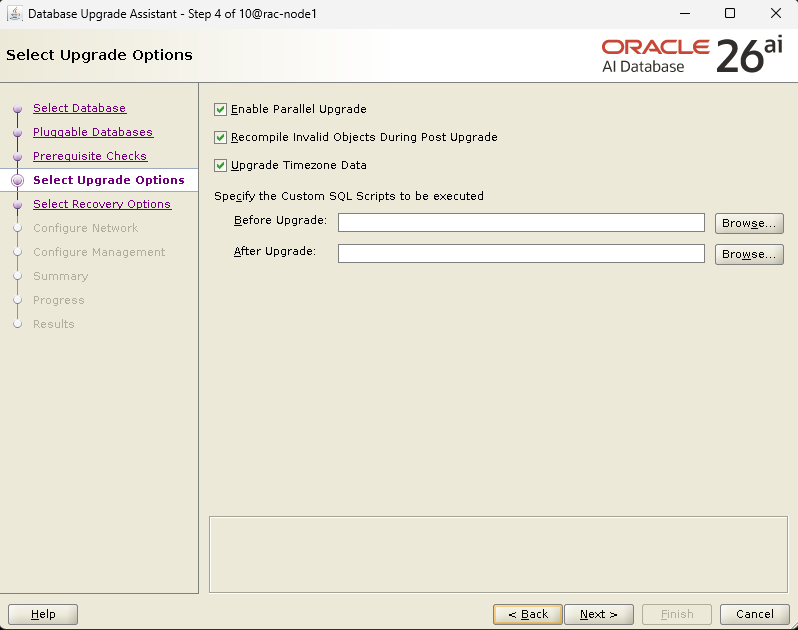
- ✅ Enable Parallel Upgrade
- ✅ Recompile Invalid Objects Post Upgrade
- ✅ Upgrade Timezone Data
Parallel upgrade significantly reduces downtime, especially for component-heavy databases.
Step 5: Recovery Strategy – Safety First
DBUA provides multiple rollback options.
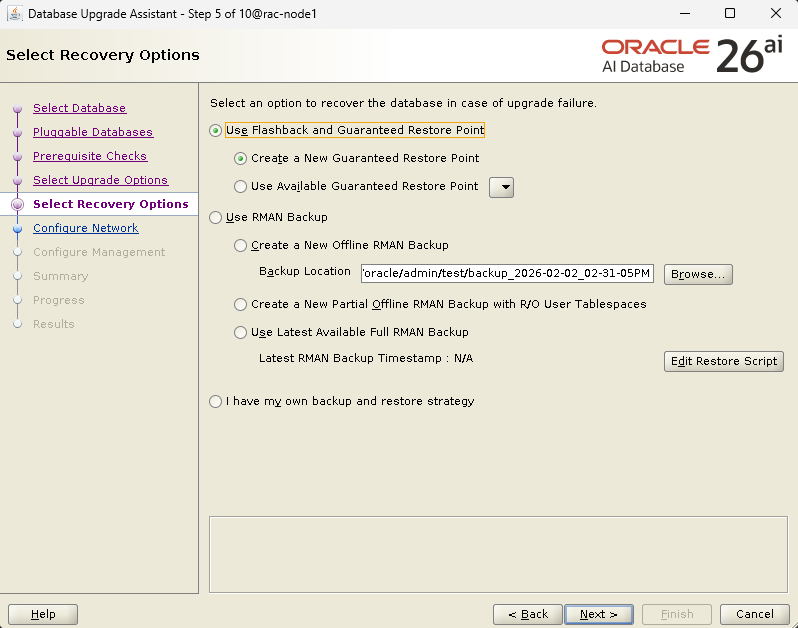
In this upgrade:
- Flashback with Guaranteed Restore Point was selected
This allows you to:
- Instantly roll back if the upgrade fails
- Avoid full RMAN restores
- Reduce risk during major version changes
This is highly recommended for production environments.
Step 6: Network Configuration
DBUA detected the existing listener:
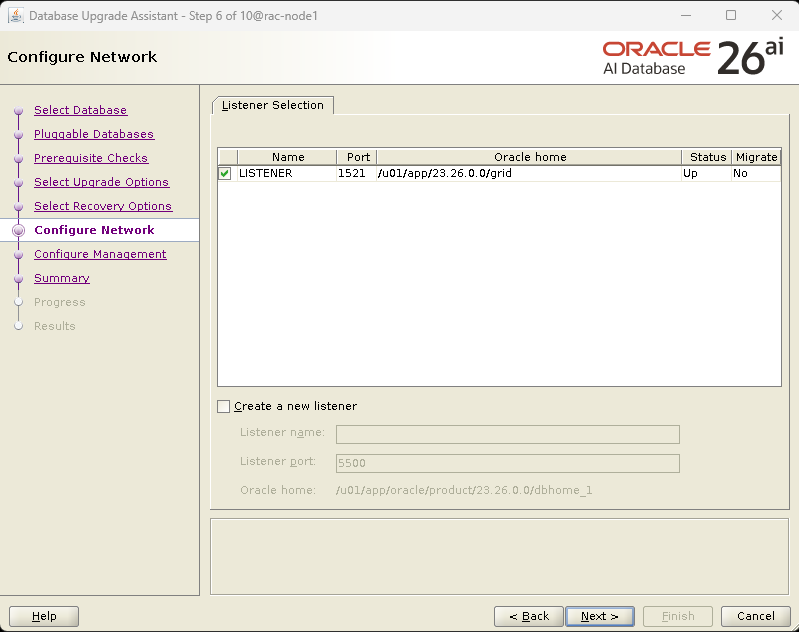
- Listener:
LISTENER - Port:
1521 - Oracle Home: Grid Infrastructure
No changes were required, which is typical when upgrading in-place.
Step 7: Management Configuration
Enterprise Manager (EM) registration was skipped.
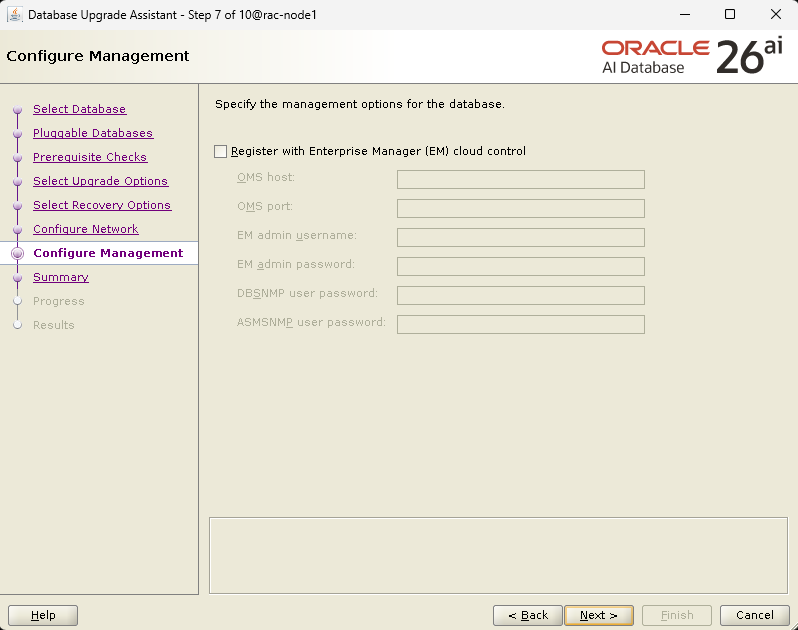
This is optional and depends on your monitoring strategy.
Step 8: Upgrade Summary Review
Before execution, DBUA presents a full summary, including:

- Source and target versions
- Oracle homes
- Selected PDBs
- Pre-upgrade recommendations
This is your last checkpoint. Always review it carefully before clicking Finish.
Step 9: Upgrade in Progress – What Happens Behind the Scenes?
During the upgrade, DBUA performs:

- CDB root upgrade
- PDB$SEED upgrade
- PDB upgrade
- Component upgrades
Components upgraded successfully:
- Oracle Server
- OLAP Analytic Workspace
- Oracle Java Packages
- Oracle Text
- Oracle Database Vault
- JVM (Java Virtual Machine)
- Oracle Multimedia
- Oracle Label Security

Progress is shown clearly, with time taken per component, which is extremely useful for future planning.
Final Results: Upgrade Completed Successfully 🎉
The upgrade finished with zero errors.

Final status:
- Database:
test - Version: Oracle 26ai
- PDB
ORCLPDB: NORMAL - Database ready for use
DBUA also provides a detailed log directory for audit and troubleshooting purposes.
Post-Upgrade Best Practices
After any major upgrade, always perform:
utlrp.sql– recompile invalid objects- Gather dictionary and fixed object statistics
- Verify application connectivity
- Validate PDB open modes
- Review alert logs
- Test backup and recovery
Key Takeaways
✔ DBUA still works reliably for 19c → 26ai upgrades
✔ Pre-check warnings are normal—review them carefully
✔ Flashback restore points add strong safety
✔ Parallel upgrade saves significant downtime
✔ Component upgrade visibility is excellent
Final Thoughts
Upgrading from Oracle 19c to Oracle 26ai may sound intimidating, but with DBUA, the process becomes structured, transparent, and manageable.
If you prepare properly, review prerequisites, and choose the right recovery strategy, DBUA can deliver a smooth, low-risk upgrade experience, even for large CDB/PDB environments.


