

If you’re working with Oracle GoldenGate 19c Microservices Architecture (MA), one of the most important components you’ll interact with is the Distribution Server. It plays a key role in transporting trail files from the source deployment to the target deployment—reliably, securely, and at scale.
This guide is written in a simple, humanized style to help DBAs, developers, and data engineers understand what the Distribution Server does, how it works, and how to configure and manage it using both the web interface and AdminClient.

We’ll also highlight best practices, supported protocols, and real-world usage patterns.

What Is the Distribution Server in Oracle GoldenGate MA?
The Distribution Server is a networked data distribution agent in GoldenGate Microservices Architecture.
Think of it as a modern, flexible replacement for the classic Data Pump, but with more intelligence and control.
In GoldenGate 19c MA, the Distribution Server handles:
- Movement of trail files from source to target
- Assignment and management of paths
- Lightweight data and object filtering
- Secure communication over modern protocols
- Dispatching multiple data streams concurrently
- Interoperability with both MA and Classic deployments
Its design makes it scalable, reliable, and perfect for modern replication environments, especially hybrid and multi-cloud setups.
Why the Distribution Server Exists (Data Pump Replacement)
In traditional GoldenGate architecture, Data Pump processes were used to move data from local trails to remote trails. These had limitations:
- One pump per trail
- Hard-coded architecture
- No built-in web interface
- No modern encryption or protocols
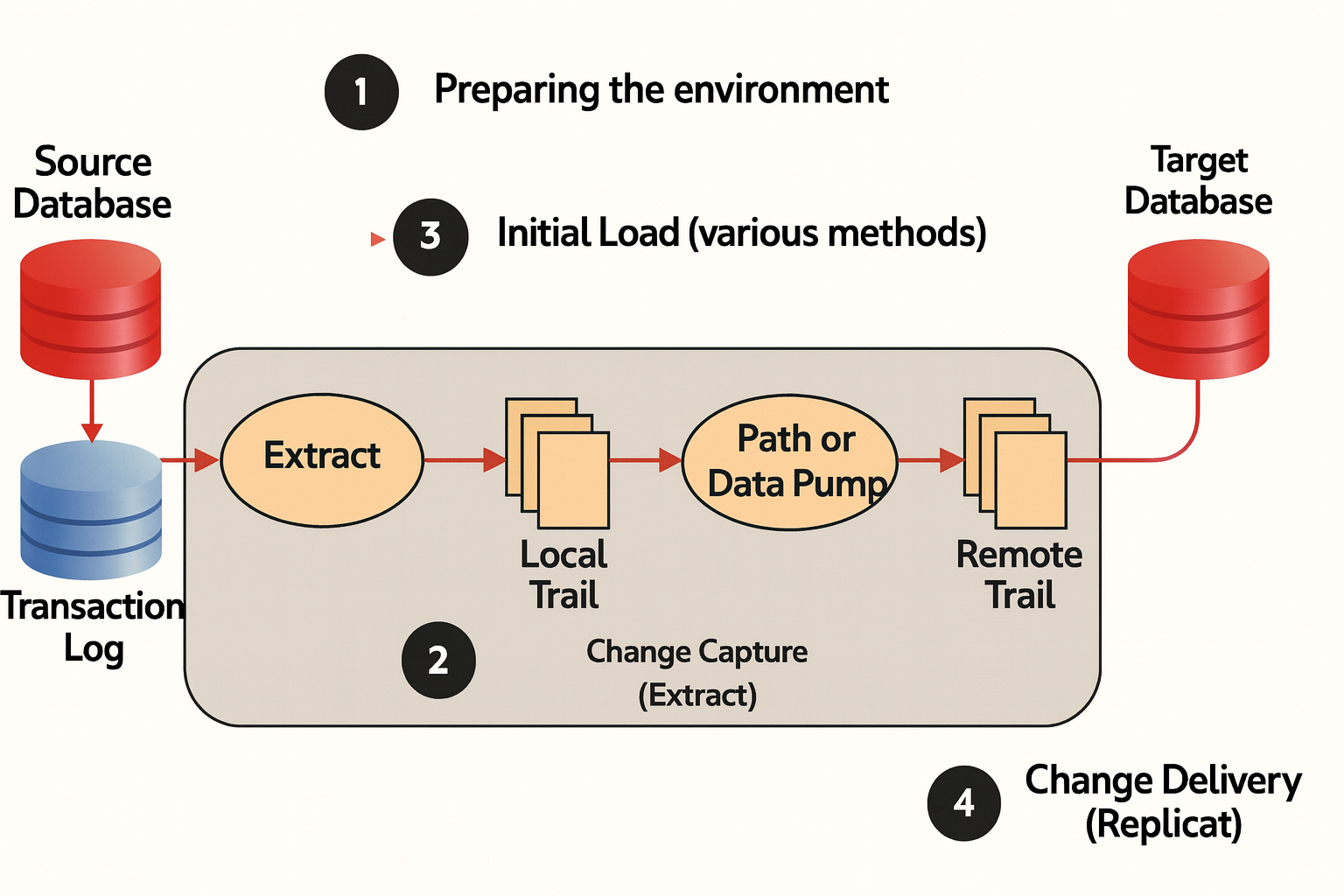
The Distribution Server replaces all of this with a single high-performance instance capable of:
- Handling multiple source and target trails
- Routing data to multiple Receiver Servers
- Supporting filtering and content rules
- Integrating with cloud environments
- Connecting to both Classic and MA deployments
Supported Communication Protocols
One reason GoldenGate MA is so powerful is its support for modern, secure, and high-performance protocols.
1. Oracle GoldenGate Protocol (ogg)
Used for MA → Classic / Classic → MA interoperability.
Efficient and widely compatible.
2. WebSockets (ws / wss)
Ideal for cloud environments.
Supports SSL/TLS and browser-like connectivity.
3. UDT (UDP-based Data Transport)
Perfect for high-speed WAN transfers.
Lower latency than TCP.
Great for distributed replication or geo-replication.
4. Proxy Support
- CKS5 — generic and supports any protocol
- TTP — for WebSocket-only HTTP-type protocols
This allows the Distribution Server to run securely behind enterprise proxies.
(Insert Image 3: Multiple Protocols Slide)
Distribution Server Functionality
The Distribution Server is more than just a data mover. It provides a rich set of features:
✔ Create and manage data paths
A Path defines the connection between source trail files and target trail files.
✔ Start and stop paths
Control data movement easily from the UI.
✔ Reposition trail file offsets
Useful when reprocessing or skipping transactions.
✔ Apply filtering
Define rules and conditions to process only specific data.
✔ Embedded web server
No client installation needed — everything runs in a browser.
(Insert Image 4: Distribution Server Functionality Slide)
Using the Embedded Web Server
GoldenGate MA provides an embedded web application for the Distribution Server.
Benefits include:
- No need for local installs
- Accessible from any browser
- Clear dashboards for monitoring
- Easy path creation and management
- Secure communication configured via
oggca.sh
From the Service Manager homepage, you can open the Distribution Server dashboard with one click.
(Insert Image 5: Embedded Web Server Slide)
Web Page Overview: Understanding the Interface
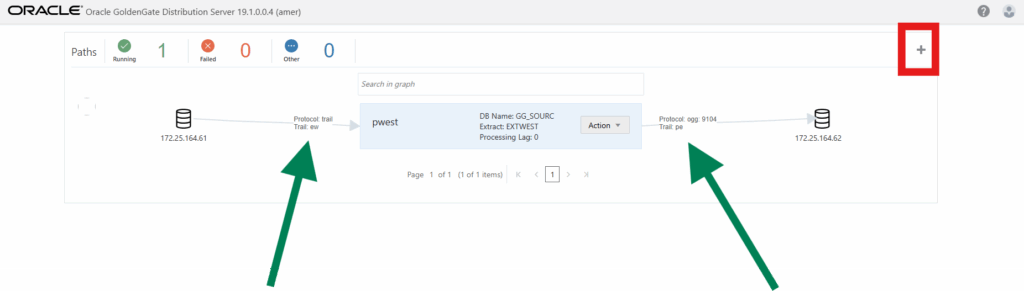
The Distribution Server UI gives you a clear, visual overview of all configured Paths.
You will see:
- Trail sources (left section)
- Currently configured Paths
- Trail targets (right section)
- “+” button to add new Paths
- Action menu for each Path
This makes path management intuitive and operator-friendly.
How to Add a Path Using the Distribution Server
A Path defines how trail files flow from the Extract to the Receiver/target.
Step-by-step:
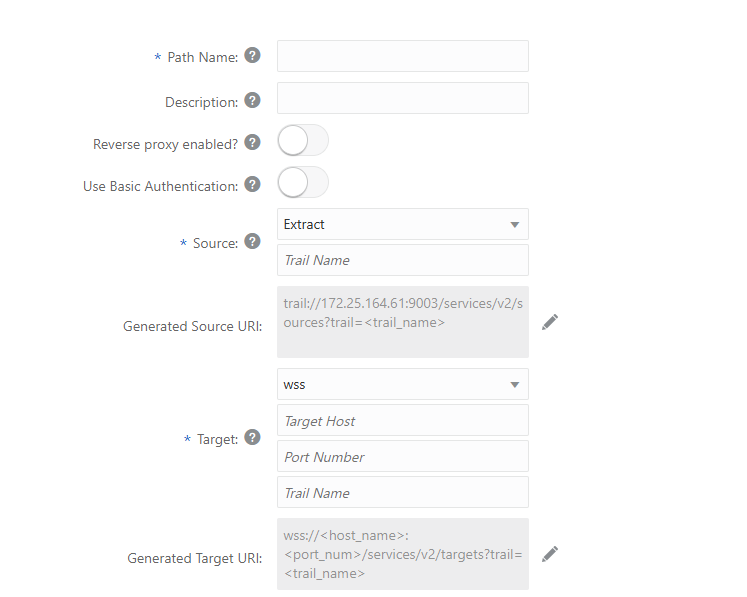
- Click the “+” icon to add a Path
- Provide the Path name and description
- Select the Source Trail Name : Select the Extract name from the drop-down list, which populates the trail name automatically. If it doesn’t, enter the trail name that you provided while adding the Extract.
- Configure Generated Source URI : A URI is automatically generated for the trail based on the Extract information you provided.
- Select whether to use Reverse Proxy
- Configure the Target :Enter the target endpoint of the Path. From the drop-down list, select your data transfer protocol. The default option is wss.
- Select authentication options
- Verify the Generated Target URI
Path creation also supports:
Rule Configuration and Trail Options
While adding or editing a Path, you can configure:
- Configure Trail Format: You can optionally toggle this switch to select one of these types Plain Text, XML, or SQL.
- Begin: Select the point from where you need to log data. You can select the following options from the drop-down list: Now, Custom Time, Position is Log (default)
- Source Sequence Number: Select the sequence number of the trail from source deployment Extract.
- Source RBA Offset: This setting provides the RBA of the record for the source deployment.
- Critical: The default value is false. If set to true, this indicates that the distribution Path is critical to the deployment.
- Auto Restart: The default value is false. If set to true, the distribution Path is restarted automatically when killed.
- Rule Configuration Description: Enable filtering If you enable filtering by selecting it from the toggle button and click the Add Rule button, you’ll see the Rule Definition dialog box.
- Rule Action: Select either Exclude or Include
- Filter Type: Select from the following list of options:
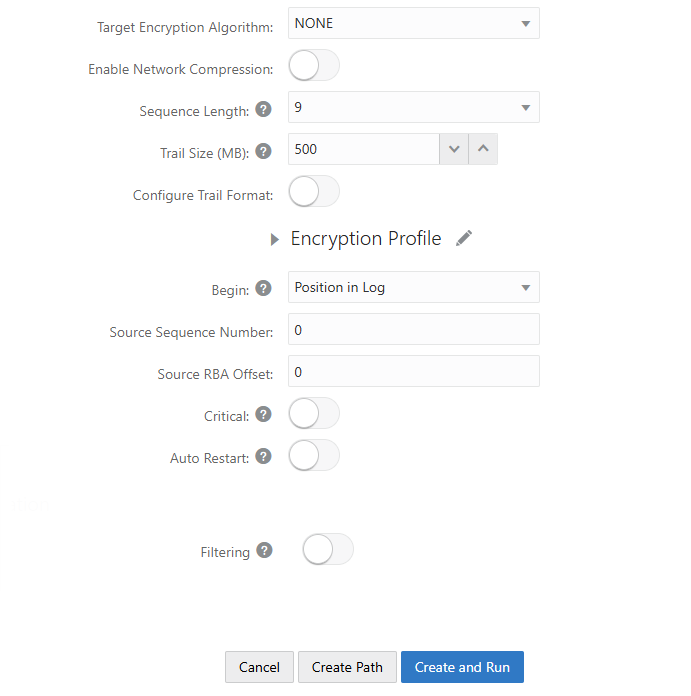
These advanced settings allow fine-grained control of replication traffic.
Managing Paths Using the Distribution Server UI
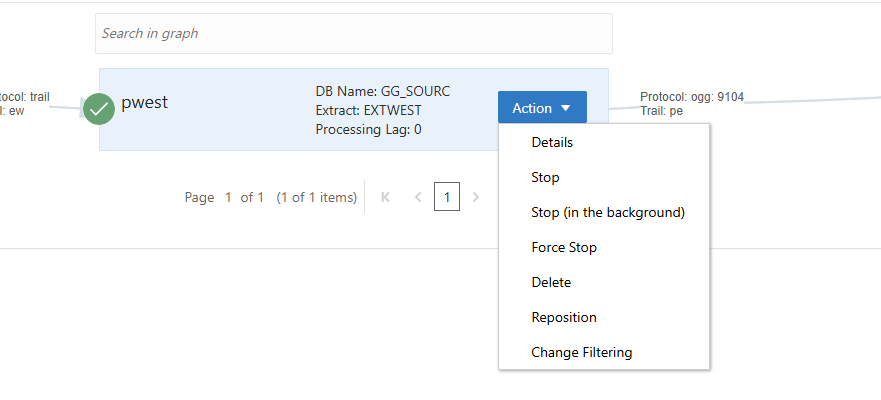
Each Path has an Action menu, allowing you to:
- Start
- Stop
- Stop in Background
- Force Stop
- Delete
- Reposition
- Change Filtering
This is where you’ll spend most of your operational time.
Monitoring Path Statistics
GoldenGate MA provides very detailed statistics for every Path.
You can monitor:
- Logical Change Records (LCRs)
- LCR Sent
- LCR Filtered
- DDL activity
- Procedure calls
- Inserts / Updates / Deletes
It also breaks down statistics per table, giving insights into replication performance.

Summary
The Oracle GoldenGate 19c MA Distribution Server is a powerful, modernized replacement for the classic Data Pump. It simplifies trail file routing, supports multiple high-performance protocols, and provides intuitive management via both the web UI and AdminClient.
With features like filtering, repositioning, and detailed monitoring, the Distribution Server is essential for building scalable, resilient, and secure replication architectures in Oracle environments.
Whether you’re migrating databases, building real-time data pipelines, or replicating across cloud environments, the Distribution Server makes the process smoother and more efficient.
Related Blog Posts
- What Is Oracle GoldenGate? A Beginner-Friendly Introduction
- Oracle GoldenGate 19c Microservices Architecture (MA) – Software Installation Guide
- Oracle GoldenGate 19c Microservices Architecture – Creating Certificates
- Oracle GoldenGate 19c Microservices Architecture – Configuring MA Deployment Using oggca.sh
- How to Create an Extract in Oracle GoldenGate MA (Microservices Architecture)
- Oracle GoldenGate 19c MA Distribution Server: A Complete Beginner-Friendly Guide
- Oracle GoldenGate Microservices Architecture: Receiver Server (Complete Guide)



Comments 1