

Oracle GoldenGate Microservices Architecture (MA) provides a modern, browser-based interface for managing your replication environment. One of the first steps in configuring GoldenGate MA is creating an Extract, which captures changes from the source database and writes them to trail files.
In this blog, we walk through how to create an Extract using the MA Administration Server, along with screenshots and clear explanations.

What Is an Extract in GoldenGate MA?
An Extract is the GoldenGate process that:
- Connects to the source database
- Captures committed transactional changes
- Writes them into a trail file
- Sends those trail files to the target
In the Microservices Architecture, Extracts are created and managed through the Administration Server UI, making the setup much easier than classic GoldenGate.
MA Administration Server: Webpage Overview
When you log into the Administration Server, you will see the dashboard showing all Extract and Replicat processes configured on the system.
This interface allows you to:
- View the status of Extracts and Replicats
- Add new Extracts
- Monitor errors and notifications
- Access logs and statistics
To add a new Extract, click the “+” icon under the Extracts section.
Creating an Extract in GoldenGate MA
When you click the Add Extract button, GoldenGate brings up the configuration wizard.
You will now choose the Extract type and provide all required details.

Step 1: Choose the Extract Type
GoldenGate MA offers three Extract types:

1. Integrated Extract (Default)
The Integrated Extract is the default option and is the most commonly used type in modern Oracle GoldenGate deployments.
It uses:
- LogMiner inside the Oracle Database
- ora_ms background processes from the database kernel
- The Extract process running outside the database
Key advantage:
✔ Works with both CDB (Container Databases) and Non-CDB architectures.
This is the preferred Extract type for Oracle 12c and above.
2. Classic Extract
The Classic Extract is another available option, but it comes with an important restriction:
❌ Cannot be used with Container Databases (CDB).
✔ Only supported for Non-CDB environments.
This type is typically used for older Oracle versions or non-integrated workflows.
3. Initial Load Extract
Used when you want to perform a one-time bulk data load before enabling real-time replication.
This Extract captures entire tables rather than transactional changes.
Click Next to continue.
Step 2: Configure Extract Options

On this page, you provide the key parameters needed to register your Extract.
You will configure:
- Extract Group Name
- Database Credentials
- Trail File Name and Location
- Extract Size Parameters
- Registration Options
Make sure the database user has the required GoldenGate privileges before proceeding.
PDB Container Name
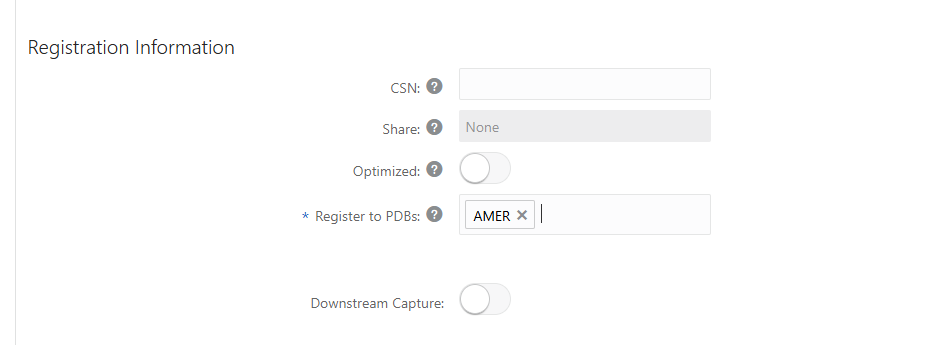
After completing all fields, click Next.
Step 3: Review and Modify Extract Parameters
In the Extract details page, navigate to the Parameters tab.
Here, you can:
- View the auto-generated parameter file
- Click the pencil icon to modify parameters
- Add table or schema-level capture rules
- Adjust performance settings
Example parameters include:
TABLE HR.EMPLOYEES;
TABLE ARB.WEST.ACCOUNT_TRANS;
TABLE ARB.WEST.BRANCH_ATM;
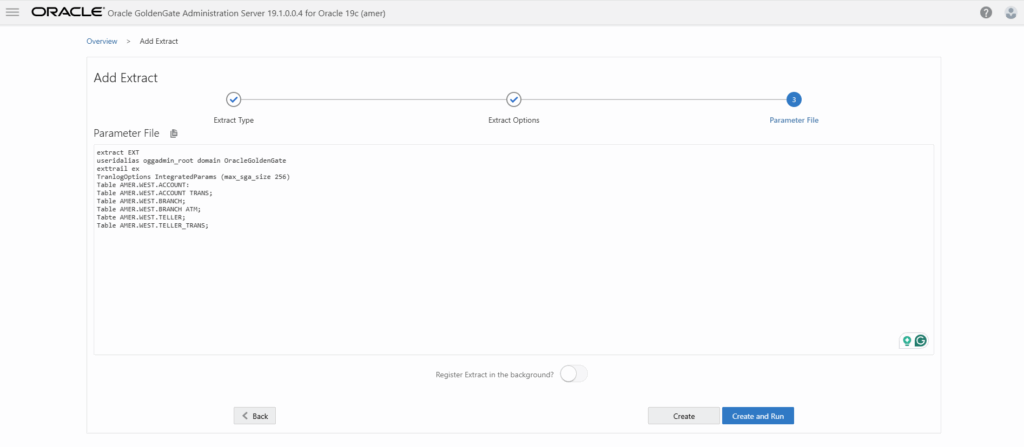
This gives you full control over what data GoldenGate captures.
Step 4: Review Extract Report
Switch to the Report tab to view:
- Extract startup information
- Version details
- Database compatibility
- Lag metrics
- Errors and warnings

This report is essential for troubleshooting and confirming correct configuration before you start the Extract.
Step 5: Start the Extract
Once the configuration is complete:
- Go back to the Overview dashboard
- Select your newly created Extract
- Click Start
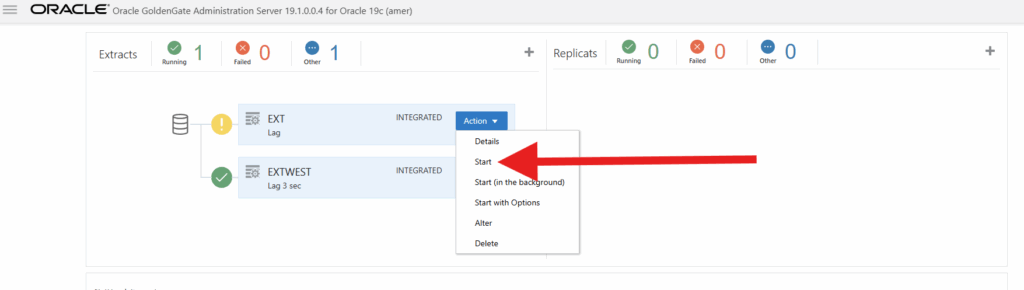
The Extract will begin capturing changes and writing trail files immediately.
Final Thoughts
Creating an Extract in Oracle GoldenGate Microservices Architecture is simpler and more intuitive than ever thanks to the browser-based Admin Server UI.
With just a few clicks, you can:
- Choose your Extract type
- Configure essential parameters
- Modify specific rules
- Validate configuration via automatic reports
This modern approach significantly reduces setup time and minimizes human error—making GoldenGate MA ideal for both small and enterprise-scale deployments.
Related Blog Posts
- What Is Oracle GoldenGate? A Beginner-Friendly Introduction
- Oracle GoldenGate 19c Microservices Architecture (MA) – Software Installation Guide
- Oracle GoldenGate 19c Microservices Architecture – Creating Certificates
- Oracle GoldenGate 19c Microservices Architecture – Configuring MA Deployment Using oggca.sh
- How to Create an Extract in Oracle GoldenGate MA (Microservices Architecture)
- Oracle GoldenGate 19c MA Distribution Server: A Complete Beginner-Friendly Guide



Comments 2