
Oracle Enterprise Manager 24ai Release 1 supports Management Agents on multiple operating system platforms, including Oracle Solaris on SPARC (64-bit). When the OMS server does not have direct Internet connectivity to My Oracle Support, the required Agent Software can be downloaded separately and imported into Enterprise Manager using EM CLI.
This article demonstrates how to make the Oracle Solaris on SPARC (64-bit) 24ai Management Agent available through the Enterprise Manager 24ai Self Update console in an offline environment.

Oracle’s documentation states that the required Agent Software for a platform must be downloaded and applied through Self Update before the Add Host Targets wizard can deploy an Agent to that platform. Oracle Documentation
Environment
The example environment used in this procedure is:
| Component | Version / Platform |
|---|---|
| Oracle Enterprise Manager | 24ai Release 1 |
| OMS Version | 24.1.0.0.0 |
| Target Platform | Oracle Solaris on SPARC (64-bit) |
| Agent Version | 24.1.0.0.0 |
| Self Update Mode | Offline |
| EM CLI | 24ai |
| Agent Installation Directory | /u01/app/oracle/emagent_24ai |
The goal is to make the following Agent Software available:
Agent Software - Agent Software (24.1.0.0.0)
for Oracle Solaris on SPARC (64-bit)
1. Why is Agent Software unavailable?
When adding a new host through Enterprise Manager 24ai, you may see:
Oracle Solaris on SPARC (64-bit): Agent Software UnavailableThis happens when the Agent Software for the target platform has not been downloaded and applied to the Enterprise Manager Software Library.
Oracle explains that only the Agent Software matching the OMS platform is downloaded and applied by default. For other platforms, the required Agent Software must be acquired through Self Update.
For example, if the OMS is running on Linux x86-64 and the target host is Solaris SPARC, the Solaris SPARC Agent Software must be separately made available.
2. Open Self Update
From the Enterprise Manager console, navigate to:
Setup
   ↓
Extensibility
   ↓
Self Update
In your environment, Self Update is configured in:
Connection Mode: OfflineOracle documents Setup → Extensibility → Self Update as the location for acquiring and applying Management Agent software.
3. Select Agent Software
From the Self Update page, select:
Agent SoftwareThen click:
OpenYou will see the available Agent Software platforms.
In the example environment, Solaris SPARC appears as:
Oracle Solaris on SPARC (64-bit)Initially, the 24ai Agent Software may not be downloaded.
4. Check the Agent Software version
The required version should match the Enterprise Manager OMS version.
For Enterprise Manager 24ai Release 1:
OMS Version:
24.1.0.0.0
Required Agent:
Agent Version:
24.1.0.0.0
The Self Update console should eventually show:
Status: Applied

OS Platform:
Oracle Solaris on SPARC (64-bit)

Version:
24.1.0.0.0
This is important because Oracle’s 24ai documentation states that the latest Agent Software for the target platform should be downloaded and applied before deploying or upgrading an Agent on that platform. Oracle Documentation
5. Download Agent Software in Offline Mode
Because the Enterprise Manager environment is in offline mode, clicking Download does not directly download the software from Oracle.
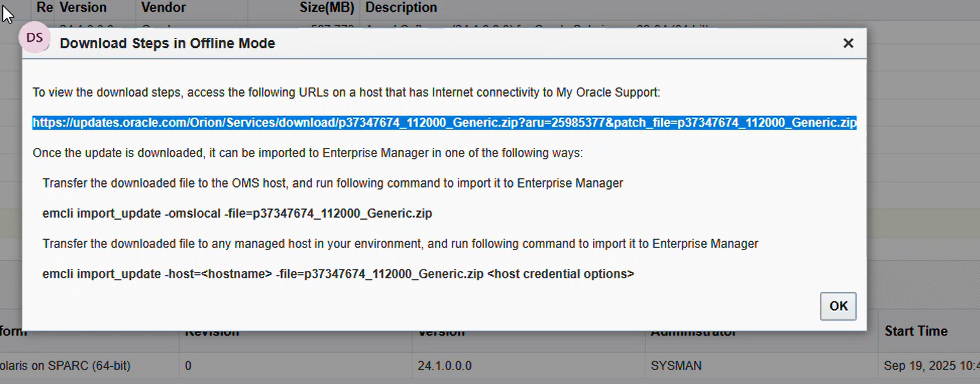
Instead, Enterprise Manager displays a Download Steps in Offline Mode window.
In this example, Enterprise Manager provided the following download information:
p37347674_112000_Generic.zipThe screenshot shows the Oracle update URL and the instructions for importing the downloaded archive into Enterprise Manager.
Download the ZIP file
Using a server that has Internet connectivity and access to Oracle Support, download:
p37347674_112000_Generic.zipThen transfer the file to the OMS server.
For example:
scp p37347674_112000_Generic.zip \
oracle@<OMS_HOST>:/u01/binaries/
The final file on the OMS server should be:
/u01/binaries/p37347674_112000_Generic.zipImportant: Do not extract the ZIP file. The Self Update archive should be imported as downloaded.
Oracle’s offline Self Update process follows the same principle: download the archive from an Internet-enabled system, transfer it to the OMS or a managed host, and import it into Enterprise Manager.
6. Log in to EM CLI
On the OMS server, navigate to the EM CLI directory.
For example:
cd $OMS_HOME/binThen log in:
./emcli login -username=sysmanEnter the Enterprise Manager SYSMAN password when prompted.
Successful authentication should show:
Login successfulOracle documents the same EM CLI login procedure for offline Agent Software acquisition. Oracle Documentation
7. Import the Agent Software
Once logged in, import the downloaded Agent Software ZIP file:
./emcli import_update \
-omslocal \
-file=/u01/binaries/p37347674_112000_Generic.zip
In this example, the import returned:
Processing update: Agent Software - Agent Software (24.1.0.0.0)
for Oracle Solaris on SPARC (64-bit)

Successfully uploaded the update to Enterprise Manager.
Use the Self Update Console to manage this update.
The import_update command imports a Self Update archive into Enterprise Manager. Oracle documents -omslocal for an archive accessible from the OMS.
8. Synchronize EM CLI
After importing the update, synchronize EM CLI:
./emcli syncExpected output:
Synchronized successfullyThis completes the EM CLI import process.
9. Refresh the Self Update Console
Return to:
Setup
   → Extensibility
   → Self Update
Refresh the page.
You should see the updated Agent Software counts.
For example:
Agent Software

Available Updates     53
Downloaded Updates     0
Applied Updates        2
Then open:
Agent Software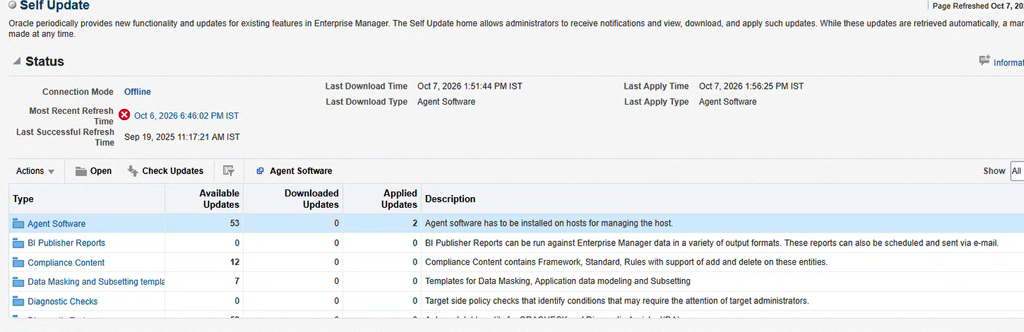
10. Verify Solaris SPARC Agent Software
The Agent Software page should now display an entry similar to:
Status:       Applied
OS Platform:  Oracle Solaris on SPARC (64-bit)
Version:      24.1.0.0.0
Vendor:       Oracle
Your environment shows:
Applied
Oracle Solaris on SPARC (64-bit)
24.1.0.0.0
Oracle
This confirms that the Solaris SPARC 24ai Agent Software has successfully been imported and applied.
The Self Update page can contain multiple Solaris Agent versions, for example:
24.1.0.0.0  Applied
13.5.0.0.0  Available
13.4.0.0.0  Available
13.3.0.0.0  Available
13.2.0.0.0  Available
For a new 24ai deployment, the important entry is:
24.1.0.0.011. Verify using EM CLI
You can also verify that Enterprise Manager has Agent Software available for Solaris SPARC.
Run:
./emcli get_supported_platformsLook for:
Version = 24.1.0.0.0
Platform Name = Oracle Solaris on SPARC (64-bit)
Oracle documents get_supported_platforms as a way to identify platforms for which Management Agent software is available in the Software Library.
Agent Software still says “Unavailable”
Check:
./emcli get_supported_platformsIf Solaris SPARC is missing, verify that the Agent Software was successfully Applied in Self Update.
The required status is:
Appliednot merely:
AvailableOracle’s documentation explicitly requires the Agent Software to be downloaded and applied before the Add Host Targets wizard can deploy the Agent.
Complete Command Summary
The complete offline procedure used in this example is:
cd $OMS_HOME/binLogin:
./emcli login -username=sysmanSynchronize:
./emcli syncImport Solaris SPARC Agent:
./emcli import_update \
-omslocal \
-file=/u01/binaries/p37347674_112000_Generic.zip
Synchronize again:
./emcli syncVerify available platforms:
./emcli get_supported_platformsThen confirm in:
Setup
 → Extensibility
 → Self Update
 → Agent Software
The target should show:
Applied
Oracle Solaris on SPARC (64-bit)
24.1.0.0.0
Conclusion
Installing a Management Agent on a Solaris SPARC host from an offline Oracle Enterprise Manager 24ai environment requires an additional step compared with a standard online deployment.
The overall process is:
Enterprise Manager 24ai
        │
        ▼
Self Update
        │
        ▼
Agent Software
        │
        ▼
Oracle Solaris SPARC 24ai
        │
        ▼
Download ZIP from Internet-enabled system
        │
        ▼
Copy ZIP to OMS
        │
        ▼
emcli import_update
        │
        ▼
emcli sync
        │
        ▼
Self Update → Apply
        │
        ▼
Agent Software = Applied
        │
        ▼
Add Host Targets
        │
        ▼
Deploy 24ai Agent to Solaris SPARC
This approach is particularly useful for environments where the Enterprise Manager OMS is intentionally isolated from the Internet but administrators still need to deploy Management Agents to different operating system platforms.
Oracle’s official 24ai documentation confirms that Solaris SPARC is supported and that the required platform-specific Agent Software must be downloaded and applied through Self Update before Agent deployment.


