
Oracle Database uses time zone files to maintain regional time zone and daylight-saving-time rules. When newer time zone definitions become available, database administrators may need to upgrade the RDBMS Daylight Saving Time (DST) version to ensure the database uses the latest installed time zone information.
This article demonstrates a real-world Oracle Database 19c time zone upgrade from DSTv32 to DSTv44, using Oracle’s utltz_upg_check.sql and utltz_upg_apply.sql scripts.


The example was performed on an Oracle 19c Enterprise Edition database running 19.29.0.0.0 in a Multitenant environment.
Environment
| Component | Details |
|---|---|
| Database | Oracle Database 19c Enterprise Edition |
| Database Version | 19.29.0.0.0 |
| Architecture | Multitenant |
| Container | CDB$ROOT |
| Current DST Version | DSTv32 |
| Target DST Version | DSTv44 |
| Open PDBs | 1 |
| Upgrade Scripts | utltz_upg_check.sql, utltz_upg_apply.sql |
For Oracle Database releases after 12cR2, the time zone upgrade scripts are included in the target Oracle Home under the rdbms/admin directory. These include utltz_upg_check.sql and utltz_upg_apply.sql.
What Is an Oracle RDBMS DST Version?
Oracle maintains time zone information in time zone files. The RDBMS DST version identifies the version of time zone rules currently used by the database.
For example:
DSTv32
DSTv44
In this example, the database was using:
DSTv32
while Oracle detected:
DSTv44
as the newest available version in the Oracle Home.
Therefore, the required upgrade was:
DSTv32 → DSTv44
Why Is a Time Zone Upgrade Required?
Time zone rules can change because of changes to regional daylight-saving-time policies and other time zone definitions.
A newer time zone file may therefore be required when:
- A newer DST patch or time zone file is installed.
- The database is upgraded to a newer Oracle release.
- An application requires updated time zone rules.
- A database migration requires consistent time zone versions.
- Oracle recommends a newer DST version.
- The database contains
TIMESTAMP WITH TIME ZONE(TSTZ) data.
The time zone upgrade process is particularly important for databases containing significant amounts of TSTZ data because Oracle may need to process existing rows during the upgrade.
Oracle Time Zone Upgrade Scripts
For Oracle 19c, the required scripts are available under:
$ORACLE_HOME/rdbms/admin
The important scripts are:
utltz_countstats.sql
utltz_countstar.sql
utltz_upg_check.sql
utltz_upg_apply.sql
The two count scripts are optional and can be used to estimate the amount of TSTZ data that may need processing. The check and apply scripts perform the actual preparation and upgrade process.
Understanding the Four Scripts
1. utltz_countstats.sql
This optional script uses table statistics to estimate the amount of TSTZ data.
It can help identify tables containing large amounts of TSTZ data before the upgrade.
2. utltz_countstar.sql
This optional script performs COUNT(*) operations against tables containing TSTZ columns.
Because it actually counts rows, it can take considerably longer than using statistics.
The count scripts are not required for the DST upgrade. They are primarily useful for estimating the amount of data that may need processing.
3. utltz_upg_check.sql
This is the preparation and validation script.
It:
- Checks known DST upgrade issues.
- Detects the highest installed DST version.
- Checks TSTZ data.
- Prepares the database for the actual upgrade.
The check script does not perform the actual DST upgrade.
4. utltz_upg_apply.sql
This script performs the actual DST upgrade.
It processes:
- SYS-owned TSTZ data.
- Non-SYS TSTZ data.
- The database DST version.
The apply script must be executed only after the check script has completed successfully.
Step 1: Connect as SYSDBA
Connect to the database:
sqlplus "/as sysdba"
Example:
SQL*Plus: Release 19.0.0.0.0 - Production
Version 19.29.0.0.0

Connected to:
Oracle Database 19c Enterprise Edition Release 19.0.0.0.0 - Production
Version 19.29.0.0.0
The scripts should be executed from the Oracle Home and using a SYSDBA connection.
Step 2: Check the Current DST Version
Before starting the upgrade, check the current time zone file version:
SELECT version
FROM v$timezone_file;
You can also check the DST-related database properties:
SELECT property_name,
       SUBSTR(property_value, 1, 30) value
FROM database_properties
WHERE property_name LIKE 'DST_%'
ORDER BY property_name;
The DST_PRIMARY_TT_VERSION should normally correspond to the version reported by V$TIMEZONE_FILE, while DST_UPGRADE_STATE should normally be NONE when the database is not in the middle of a DST upgrade.
For this environment, the existing version was:
DSTv32
Step 3: Check TSTZ Data
Before running the upgrade, you can optionally estimate the amount of TSTZ data.
For example:
@?/rdbms/admin/utltz_countstats.sql
The count scripts are particularly useful when you have a large database and want to estimate the amount of data that may need to be processed.
A large amount of TSTZ data can increase the execution time of the DST upgrade.
Step 4: Run utltz_upg_check.sql
The first mandatory upgrade step is:
@?/rdbms/admin/utltz_upg_check.sql
In this environment:
@/u01/app/oracle/product/19.0.0.0/dbhome_1/rdbms/admin/utltz_upg_check.sql
The script started with:
INFO: Starting with RDBMS DST update preparation.
INFO: NO actual RDBMS DST update will be done by this script.
This confirms that the check script is a preparation phase rather than the actual DST update.
Step 5: Check the Database Architecture
The script identified the database as Multitenant:
INFO: Database version is 19.0.0.0 .
INFO: This database is a Multitenant database.
INFO: Current container is CDB$ROOT .
It also reported:
INFO: Updating the RDBMS DST version of the CDB / CDB$ROOT database
INFO: will NOT update the RDBMS DST version of PDB databases in this CDB.
This is an important consideration for Oracle Multitenant databases.
Updating the DST version of the CDB does not automatically update the DST version of every PDB. Similarly, updating one PDB does not automatically change the DST version of other PDBs or the CDB.
Step 6: Check Open PDBs
The check script reported:
WARNING: There are 1 open PDBs .
WARNING: They will be closed when running utltz_upg_apply.sql .
This is important when planning the maintenance window.
The DBA should identify:
- Which PDBs are open.
- Which PDBs require DST upgrades.
- Which applications use each PDB.
- The expected PDB state after the upgrade.
Step 7: Detect the New DST Version
The check script reported:
INFO: Database RDBMS DST version is DSTv32 .
It then detected:
INFO: Newest RDBMS DST version detected is DSTv44 .
Therefore:
Current DST Version : DSTv32
New DST Version     : DSTv44
The script then checked the TSTZ data:
INFO: Next step is checking all TSTZ data.
INFO: It might take a while before any further output is seen ...
The preparation window completed successfully:
A prepare window has been successfully ended.
Finally, Oracle confirmed:
INFO: A newer RDBMS DST version than the one currently used is found.
INFO: Note that NO DST update was yet done.
INFO: Now run utltz_upg_apply.sql to do the actual RDBMS DST update.
This is the point at which the DBA can proceed to the actual upgrade.
Step 8: Schedule the Maintenance Window
The DST apply operation requires downtime.
The preparation/check phase does not require database downtime, but the actual DST update does because the database must be restarted as part of the process.
Before running the apply script:
- Stop applications that use TSTZ data.
- Confirm database downtime.
- Confirm PDB downtime.
- For RAC, plan for the required single-instance operation.
- Inform application teams.
- Confirm backup/recovery readiness.
Step 9: Run utltz_upg_apply.sql
After the check script completes successfully:
@?/rdbms/admin/utltz_upg_apply.sql
In this environment:
@/u01/app/oracle/product/19.0.0.0/dbhome_1/rdbms/admin/utltz_upg_apply.sql
The script confirmed:
INFO: The database RDBMS DST version will be updated to DSTv44 .
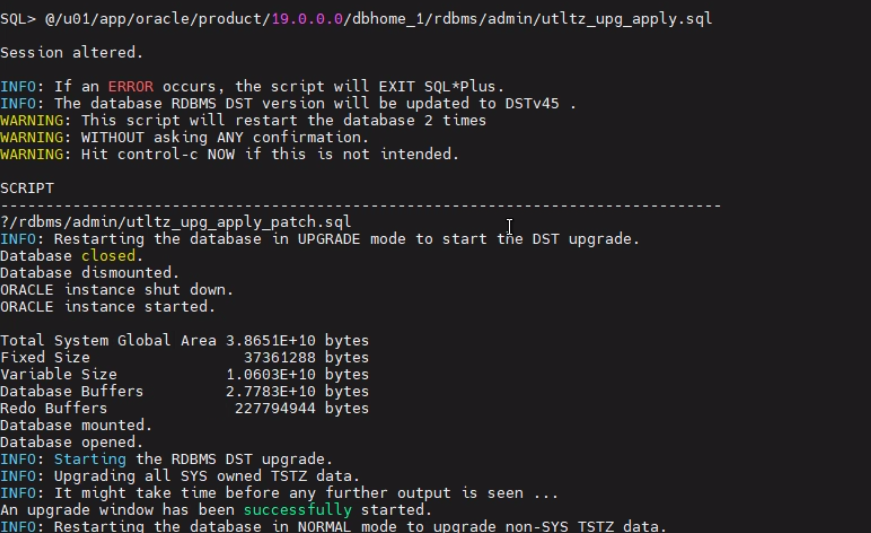
Important: The Apply Script Restarts the Database Twice
One of the most important messages was:
WARNING: This script will restart the database 2 times
WARNING: WITHOUT asking ANY confirmation.
The DBA must therefore ensure that the apply script is executed only during an approved maintenance window.
The documented Oracle procedure also states that the apply script restarts the database twice without requesting confirmation.
Step 10: Database Restart in UPGRADE Mode
The script first restarted the database:
INFO: Restarting the database in UPGRADE mode to start the DST upgrade.

Database closed.
Database dismounted.
ORACLE instance shut down.
ORACLE instance started.
The database was then mounted and opened.
Oracle started processing SYS-owned TSTZ data:
INFO: Starting the RDBMS DST upgrade.
INFO: Upgrading all SYS owned TSTZ data.
The upgrade window was successfully started:
An upgrade window has been successfully started.
Step 11: Restart in NORMAL Mode
After processing SYS-owned TSTZ data, Oracle restarted the database again:
INFO: Restarting the database in NORMAL mode to upgrade non-SYS TSTZ data.
The database was opened normally and Oracle continued:
INFO: Upgrading all non-SYS TSTZ data.
Important Application Warning
During this stage Oracle displayed:
INFO: Do NOT start any application yet that uses TSTZ data!
This is important because the DST upgrade can take exclusive locks on non-SYS tables while they are being processed. Applications accessing those tables can potentially cause locking or other issues.
Therefore, it is recommended to keep applications that use the affected TSTZ tables stopped until the complete DST upgrade has finished.
Step 12: Review the Upgraded Tables
Oracle reported the tables processed during the upgrade:
Table list: "GSMADMIN_INTERNAL"."AQ$_CHANGE_LOG_QUEUE_TABLE_S"
Number of failures: 0

Table list: "GSMADMIN_INTERNAL"."AQ$_CHANGE_LOG_QUEUE_TABLE_L"
Number of failures: 0

Table list: "MDSYS"."SDO_DIAG_MESSAGES_TABLE"
Number of failures: 0

Table list: "DVSYS"."AUDIT_TRAIL$"
Number of failures: 0

Table list: "DVSYS"."SIMULATION_LOG$"
Number of failures: 0

Table list: "C##OGG_ADMIN"."AQ$_OGG$Q_TAB_EXTUP_S"
Number of failures: 0

Table list: "C##OGG_ADMIN"."AQ$_OGG$Q_TAB_EXTUP_L"
Number of failures: 0
The important result was:
INFO: Total failures during update of TSTZ data: 0 .
This confirms that Oracle did not report any TSTZ conversion failures during this execution.
Step 13: Confirm the New DST Version
The script completed successfully:
An upgrade window has been successfully ended.

INFO: Your new Server RDBMS DST version is DSTv44 .
INFO: The RDBMS DST update is successfully finished.
The final result was:
DSTv32 → DSTv44
with:
TSTZ Upgrade Failures = 0
Step 14: Verify the DST Version
After the upgrade, start a new SQL*Plus session and verify the time zone version:
SELECT version
FROM v$timezone_file;
Expected result:
VERSION
-------
44
You can also check:
SELECT property_name,
       property_value
FROM database_properties
WHERE property_name LIKE 'DST_%'
ORDER BY property_name;
The upgrade script specifically recommends exiting the SQL*Plus session used for the upgrade and not using that same session for timezone-related queries.
Monitoring a Long-Running DST Upgrade
A DST upgrade can take considerable time when the database contains large amounts of TSTZ data.
If the process appears to be taking a long time, do not immediately assume it is hung.
Oracle provides monitoring information through V$SESSION_LONGOPS.
Run from another SYSDBA session:
SET PAGES 1000

SELECT TARGET,
       TO_CHAR(START_TIME,'HH24:MI:SS - DD-MM-YY'),
       TIME_REMAINING,
       SOFAR,
       TOTALWORK,
       SID,
       SERIAL#,
       OPNAME
FROM V$SESSION_LONGOPS
WHERE SID IN
(
    SELECT SID
    FROM V$SESSION
    WHERE CLIENT_INFO = 'upg_tzv'
)
AND SOFAR < TOTALWORK
ORDER BY START_TIME;
The source procedure recommends using V$SESSION_LONGOPS to determine whether the DST operation is making progress.
Check TSTZ Upgrade Progress
During the non-SYS TSTZ upgrade, you can also check:
SELECT COUNT(*)
FROM ALL_TSTZ_TABLES
WHERE UPGRADE_IN_PROGRESS = 'YES';
If the count continues to decrease, the upgrade is progressing through the affected data.
If the count does not decrease, investigate possible application access or locking issues.
Check for Blocking Sessions
Another useful diagnostic query is:
SELECT S.SID,
       S.SERIAL#,
       S.SQL_ID,
       S.PREV_SQL_ID,
       S.EVENT#,
       S.EVENT,
       S.BLOCKING_SESSION,
       BS.PROGRAM AS "Blocking Program",
       Q1.SQL_TEXT AS "Current SQL",
       Q2.SQL_TEXT AS "Previous SQL"
FROM V$SESSION S,
     V$SQLAREA Q1,
     V$SQLAREA Q2,
     V$SESSION BS
WHERE S.SQL_ID = Q1.SQL_ID(+)
AND S.PREV_SQL_ID = Q2.SQL_ID(+)
AND S.BLOCKING_SESSION = BS.SID(+)
AND S.CLIENT_INFO = 'upg_tzv';
This can help identify sessions that may be interfering with the upgrade.
Oracle RAC Considerations
For RAC databases, the actual DST upgrade requires special consideration.
The documented procedure states that the database needs to be started as a single instance for the upgrade because the database must be started in upgrade mode.
Therefore, for a RAC environment, the implementation plan should include:
RAC
 ↓
Stop application
 ↓
Stop RAC services/instances as required
 ↓
Start database as single instance
 ↓
Run DST upgrade
 ↓
Validate DST version
 ↓
Return database to RAC operation
 ↓
Start application
Do not treat the DST upgrade as a rolling RAC operation.
Multitenant Database Considerations
Oracle Multitenant environments require additional planning.
The DST version of the CDB and PDBs is maintained separately.
For example:
CDB$ROOT
   |
   +-- PDB1
   |
   +-- PDB2
   |
   +-- PDB3
Updating the CDB DST version does not automatically update the DST version of the PDBs. Similarly, updating one PDB does not update the other PDBs or the CDB.
Therefore, after a CDB upgrade, verify each relevant PDB independently.
Optional: Reducing the Amount of TSTZ Data
The optional utltz_countstats.sql and utltz_countstar.sql scripts can help identify tables containing significant amounts of TSTZ data.
Some Oracle internal tables can contain large amounts of historical data.
For example, scheduler logging information can contribute to the amount of data processed. If appropriate for the environment, scheduler logs can be purged using:
EXEC DBMS_SCHEDULER.PURGE_LOG;
The source also identifies optimizer statistics history tables as examples of tables that may contain significant amounts of historical data.
Important: Do not purge database data simply to reduce DST upgrade duration without understanding the operational and retention requirements.
Complete Upgrade Flow
The Oracle 19c DST upgrade process can be summarized as:
                Oracle 19c Database
                        |
                        v
             Check Current DST Version
                        |
                        v
                     DSTv32
                        |
                        v
            Optional TSTZ Data Count
                        |
                        v
             utltz_upg_check.sql
                        |
                        v
              Known Issue Checks
                        |
                        v
              Detect New DST Version
                        |
                        v
                     DSTv44
                        |
                        v
              Check TSTZ Data
                        |
                        v
             Maintenance Window
                        |
                        v
             Stop Applications
                        |
                        v
             utltz_upg_apply.sql
                        |
                        v
          Restart in UPGRADE Mode
                        |
                        v
            Upgrade SYS TSTZ Data
                        |
                        v
          Restart in NORMAL Mode
                        |
                        v
          Upgrade Non-SYS TSTZ Data
                        |
                        v
              Validate Failures
                        |
                        v
                    0 Failures
                        |
                        v
                  Verify DSTv44
                        |
                        v
             Start Applications
Pre-Upgrade Checklist
Before running the apply script:
- Confirm Oracle Database version
- Confirm current DST version
- Identify target DST version
- Check
DATABASE_PROPERTIES - Run optional TSTZ data estimation if required
- Run
utltz_upg_check.sql - Confirm no blocking known issues
- Check CDB/PDB configuration
- For RAC, plan single-instance operation
- Take/verify database backup
- Confirm maintenance window
- Stop applications using TSTZ data
- Notify application and infrastructure teams
Post-Upgrade Checklist
After utltz_upg_apply.sql completes:
- Confirm database is OPEN
- Confirm PDBs are in the expected state
- Start a new SQL*Plus session
- Verify
V$TIMEZONE_FILE - Verify
DATABASE_PROPERTIES - Confirm DST version is DSTv44
- Confirm TSTZ failures = 0
- Review database alert log
- Check database errors
- Validate application connectivity
- Validate date/time functionality
- Validate scheduler jobs
- Validate replication/GoldenGate components where applicable
- Return RAC services/instances to normal operation if applicable
- Start applications
Common Mistakes to Avoid
Running the Apply Script Without the Check Script
Do not run:
@utltz_upg_apply.sql
before successfully running:
@utltz_upg_check.sql
The apply process depends on the successful preparation performed by the check script.
Starting Applications During TSTZ Processing
Avoid starting applications that access affected TSTZ tables while the upgrade is still processing.
Oracle explicitly warns:
Do NOT start any application yet that uses TSTZ data!
Assuming a Long-Running Process Is Hung
The TSTZ processing phase can take time depending on the amount of data.
Use:
SELECT *
FROM V$SESSION_LONGOPS;
and:
SELECT COUNT(*)
FROM ALL_TSTZ_TABLES
WHERE UPGRADE_IN_PROGRESS = 'YES';
to determine whether the operation is progressing.
Forgetting PDBs
Upgrading the CDB does not automatically mean that every PDB has the same DST version.
Always include PDB validation and, where required, PDB-specific DST upgrade activities in the implementation plan.
Real-World Upgrade Result
The Oracle 19c environment used in this example started with:
Oracle Database 19c
Version 19.29.0.0.0
The initial DST version was:
DSTv32
Oracle detected:
DSTv44
as the newest installed version.
After running:
@utltz_upg_check.sql
the database successfully completed the preparation and TSTZ checks.
The actual upgrade was then performed using:
@utltz_upg_apply.sql
Oracle restarted the database twice, processed SYS and non-SYS TSTZ data, and reported:
INFO: Total failures during update of TSTZ data: 0 .
The final result was:
INFO: Your new Server RDBMS DST version is DSTv44 .
INFO: The RDBMS DST update is successfully finished.
Therefore:
DSTv32 → DSTv44
Upgrade Status: Successful
TSTZ Data Failures: 0
Conclusion
An Oracle Database time zone upgrade is more than simply changing a version number. Oracle may need to process existing TIMESTAMP WITH TIME ZONE data, restart the database, and handle SYS and non-SYS objects.
For Oracle 19c, the recommended workflow is:
Check
  ↓
Estimate TSTZ Data
  ↓
Validate
  ↓
Plan Downtime
  ↓
Stop Applications
  ↓
Apply DST Upgrade
  ↓
Restart Database
  ↓
Upgrade TSTZ Data
  ↓
Validate
  ↓
Start Applications
In this real-world Oracle 19c example, the database was successfully upgraded from DSTv32 to DSTv44, with zero TSTZ data conversion failures.
The most important operational points are to run the check script first, plan for the two automatic database restarts, stop applications that use TSTZ data, carefully handle CDB/PDB environments, and verify the final DST version from a new SQL*Plus session.
Oracle 19c Database Upgrade from 11.2.0.4 to 19c Using Manual Method


