
When MySQL fails to start on Red Hat Enterprise Linux 9 or Oracle Linux 9, the error message may initially look like a normal Linux file-permission problem.
One common example is:


[ERROR] [MY-012592] [InnoDB] Operating system error number 13 in a file operation.
[ERROR] [MY-012595] [InnoDB] The error means mysqld does not have the access rights to the directory.
However, even when the Linux ownership and permissions appear correct, SELinux can still prevent MySQL from accessing its data files.
This article explains how to identify and resolve this issue using a real MySQL 8.4.11 startup failure.
Environment
- Operating System: RHEL 9 / Oracle Linux 9
- MySQL: 8.4.11
- Service:
mysqld - Storage Engine: InnoDB
- Security Framework: SELinux
1. MySQL Startup Failure
The MySQL server failed during startup with the following messages:
2026-10-01T07:56:01.706394Z 0 [System] [MY-015015] [Server] MySQL Server - start.
2026-10-01T07:56:03.006348Z 0 [Warning] [MY-011070] [Server] 'binlog_format' is deprecated and will be removed in a future release.
2026-10-01T07:56:03.047261Z 0 [System] [MY-010116] [Server] /usr/libexec/mysqld (mysqld 8.4.11) starting as process 5469
2026-10-01T07:56:03.128004Z 1 [System] [MY-013576] [InnoDB] InnoDB initialization has started.
2026-10-01T07:56:03.133956Z 1 [ERROR] [MY-012592] [InnoDB] Operating system error number 13 in a file operation.
2026-10-01T07:56:03.135446Z 1 [ERROR] [MY-012595] [InnoDB] The error means mysqld does not have the access rights to the directory.
2026-10-01T07:56:03.136533Z 1 [ERROR] [MY-012270] [InnoDB] os_file_get_status() failed on './ibdata1'. Can't determine file permissions
2026-10-01T07:56:03.138310Z 1 [ERROR] [MY-010334] [Server] Failed to initialize DD Storage Engine
2026-10-01T07:56:03.139972Z 0 [ERROR] [MY-010020] [Server] Data Dictionary initialization failed.
2026-10-01T07:56:03.141814Z 0 [ERROR] [MY-010119] [Server] Aborting
2026-10-01T07:56:03.156716Z 0 [System] [MY-010910] [Server] /usr/libexec/mysqld: Shutdown complete (mysqld 8.4.11)  Source distribution.
2026-10-01T07:56:03.158623Z 0 [System] [MY-015016] [Server] MySQL Server - end.
The important part is:
Operating system error number 13Linux error 13 means:
Permission deniedThe error occurs while InnoDB is attempting to access:
./ibdata12. Understanding the Error Chain
The startup failure follows this sequence:
MySQL starts
     |
     v
InnoDB initialization
     |
     v
Access ibdata1
     |
     v
OS error 13
     |
     v
Permission denied
     |
     v
InnoDB initialization fails
     |
     v
Data Dictionary initialization fails
     |
     v
MySQL aborts
The critical messages are:
Operating system error number 13and:
The error means mysqld does not have the access rights to the directory.followed by:
Failed to initialize DD Storage Engineand:
Data Dictionary initialization failed.Therefore, the problem is occurring before MySQL can complete its normal database initialization.
3. Is This Always a Normal Linux Permission Problem?
No.
This is an important point when troubleshooting MySQL on RHEL 9 or Oracle Linux 9.
Linux file access can be controlled by multiple security layers.
For example:
Filesystem permissions
        +
File ownership
        +
ACLs
        +
SELinux
A directory can have apparently correct ownership:
mysql:mysqland permissions such as:
drwxr-x---but SELinux can still deny access to the MySQL process.
In this case, the problem was caused by SELinux.
4. Check the MySQL Data Directory
First identify the MySQL data directory.
For a standard RPM installation, it is commonly:
/var/lib/mysqlCheck its permissions:
ls -ld /var/lib/mysqlCheck the files:
ls -l /var/lib/mysqlYou should normally see MySQL-owned files and directories.
For example:
drwxr-x--- mysql mysql /var/lib/mysqlCheck the InnoDB files:
ls -l /var/lib/mysql/ibdata1Also check ownership:
stat /var/lib/mysql/ibdata15. Check SELinux Status
The next important step is to check whether SELinux is enabled.
Run:
getenforcePossible results are:
EnforcingPermissiveor:
DisabledIf the result is:
EnforcingSELinux is actively enforcing its security policies.
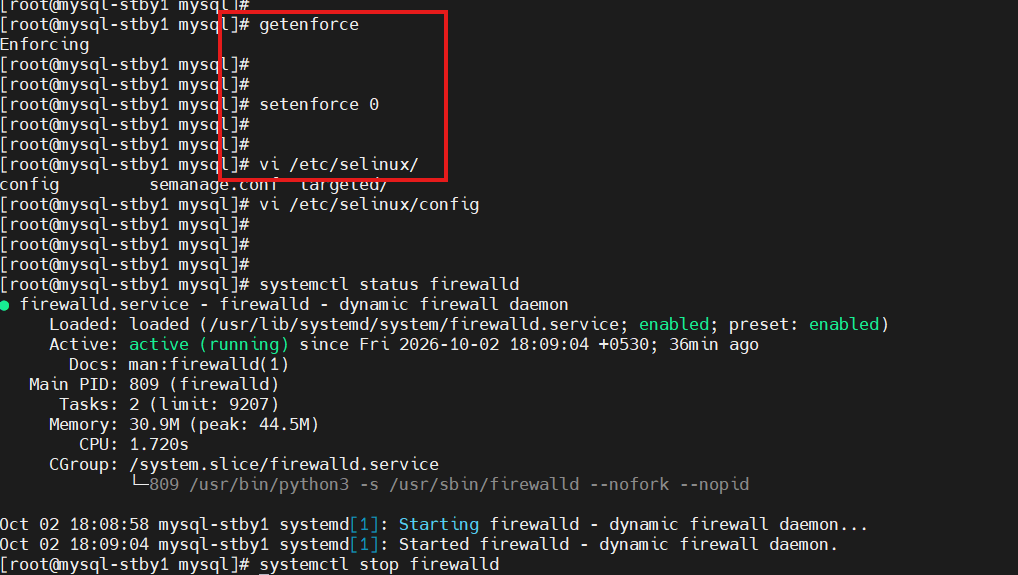
In this case, SELinux should be investigated before changing Linux permissions or disabling security controls.
6. Check SELinux Contexts
Use:
ls -Zd /var/lib/mysqland:
ls -Z /var/lib/mysqlThe SELinux context is important.
For MySQL database files, the expected SELinux type is generally:
mysqld_db_tFor example, you may see something similar to:
system_u:object_r:mysqld_db_t:s0The exact user and role fields can vary, but the important part is the SELinux type:
mysqld_db_t7. Check the InnoDB File SELinux Context
Check ibdata1 specifically:
ls -Z /var/lib/mysql/ibdata1If the file has an incorrect SELinux type, mysqld may be prevented from accessing it.
For example, an incorrectly labelled file might have a generic type instead of:
mysqld_db_tThis can happen after:
- Moving the MySQL data directory
- Restoring database files
- Copying files from another server
- Restoring files from backup
- Creating a new data directory
- Changing storage locations
- Manually copying InnoDB files
8. Check for SELinux Denials
SELinux logs denied operations in the audit log.
You can search for recent SELinux denials using:
ausearch -m AVC -ts recentYou can also search specifically for MySQL:
ausearch -m AVC -ts recent | grep mysqldAnother useful command is:
journalctl -t setroubleshoot --since "10 minutes ago"If SELinux is responsible, you may find an AVC denial indicating that the mysqld process attempted to access a file or directory that was not labelled correctly.
9. Restore the Correct SELinux Context
If the standard MySQL data directory is:
/var/lib/mysqlyou can restore the default SELinux contexts using:
restorecon -Rv /var/lib/mysqlExample:
restorecon reset /var/lib/mysql context ...
restorecon reset /var/lib/mysql/ibdata1 context ...
Afterward, verify:
ls -Zd /var/lib/mysqland:
ls -Z /var/lib/mysql/ibdata1The database files should have the appropriate MySQL SELinux type.
10. Check the MySQL Directory Ownership
SELinux is not a replacement for normal Linux permissions.
You should also verify that the files belong to the MySQL operating-system account:
chown -R mysql:mysql /var/lib/mysqlHowever, do not blindly run recursive chown commands on an existing production database without first understanding the directory structure and ownership requirements.
A safer approach is to inspect first:
ls -la /var/lib/mysqland:
find /var/lib/mysql -maxdepth 1 -lsThen correct only the files that require correction.
11. If You Use a Custom MySQL Data Directory
This problem is particularly common when the MySQL data directory is moved from:
/var/lib/mysqlto another filesystem.
For example:
/mysql/dataor:
/u01/mysql/dataChanging the Linux path does not automatically mean SELinux understands that the directory is intended for MySQL database files.
You should assign the appropriate SELinux file context to the custom directory.
First check whether semanage is available:
which semanageIf required, install the appropriate SELinux management package for your EL9 environment.
Then define the context:
semanage fcontext -a -t mysqld_db_t "/mysql/data(/.*)?"Apply the context:
restorecon -Rv /mysql/dataVerify:
ls -Zd /mysql/dataand:
ls -Z /mysql/dataThe database directory and files should have the appropriate MySQL SELinux type.
12. Restart MySQL
After correcting the SELinux context and verifying filesystem permissions, restart MySQL:
systemctl restart mysqldCheck the service:
systemctl status mysqldYou can also monitor the MySQL error log:
tail -f /var/log/mysqld.logA successful startup should eventually contain:
mysqld: ready for connections.13. Verify MySQL Connectivity
Once the service is running:
mysql -u root -pThen verify:
SELECT VERSION();For this environment, the expected version is:
8.4.11You can also verify the data directory:
SHOW VARIABLES LIKE 'datadir';Example:
+---------------+-----------------+
| Variable_name | Value           |
+---------------+-----------------+
| datadir       | /var/lib/mysql/ |
+---------------+-----------------+
14. The binlog_format Warning Is Not the Startup Failure
The log also contains:
[Warning] [MY-011070] [Server] 'binlog_format' is deprecated and will be removed in a future release.This is a warning, not the reason MySQL stopped.
The actual startup failure is:
Operating system error number 13followed by:
Failed to initialize DD Storage Engineand:
Data Dictionary initialization failed.Therefore, these two issues should be treated separately:
| Message | Meaning |
|---|---|
binlog_format is deprecated | Configuration/deprecation warning |
OS error number 13 | Permission/access problem |
Failed to initialize DD Storage Engine | Consequence of the access failure |
Data Dictionary initialization failed | Consequence of InnoDB initialization failure |
Server - Aborting | MySQL shuts down because initialization failed |
15. Recommended Troubleshooting Sequence
When MySQL reports:
Operating system error number 13use the following troubleshooting sequence.
Step 1 — Check service status
systemctl status mysqldStep 2 — Check the MySQL error log
tail -100 /var/log/mysqld.logStep 3 — Check the data directory
ls -ld /var/lib/mysqlStep 4 — Check ownership
ls -l /var/lib/mysqlStep 5 — Check SELinux
getenforceStep 6 — Check SELinux context
ls -Zd /var/lib/mysql
ls -Z /var/lib/mysql/ibdata1
Step 7 — Check SELinux audit messages
ausearch -m AVC -ts recent | grep mysqldStep 8 — Restore the context
For the default data directory:
restorecon -Rv /var/lib/mysqlFor a custom data directory, configure the appropriate mysqld_db_t context with semanage fcontext, then run restorecon.
Step 9 — Start MySQL
systemctl start mysqldStep 10 — Verify
systemctl status mysqld
mysql -u root -p
16. Should You Disable SELinux?
A common workaround for SELinux-related problems is:
setenforce 0This changes SELinux from enforcing mode to permissive mode temporarily.
Although this can be useful as a diagnostic test, it should not be treated as the permanent solution for a production database server.
For example:
setenforce 0
systemctl start mysqld
If MySQL starts successfully after changing SELinux to permissive mode, this is strong evidence that an SELinux policy or file-context issue needs to be investigated.
The preferred solution is to correct the SELinux configuration rather than permanently disabling SELinux.
17. Why SELinux Caused the MySQL Failure
The important concept is that Linux access control and SELinux access control work together.
Even if:
Owner = mysql
Group = mysql
Permissions = correct
SELinux can still deny the operation if the file has an inappropriate security context.
For MySQL database files, the SELinux policy expects an appropriate MySQL database file type, commonly:
mysqld_db_tTherefore:
Correct Linux permissions
        +
Correct SELinux context
        =
MySQL can access the database files
If the SELinux context is incorrect:
Correct Linux permissions
        +
Incorrect SELinux context
        =
Access denied
This explains why a MySQL installation can appear correctly configured from the traditional Linux permission perspective while still failing to start.
Conclusion
The MySQL 8.4.11 startup failure in this case was caused by SELinux preventing mysqld from accessing the database files.
The key error was:
[ERROR] [MY-012592] [InnoDB] Operating system error number 13 in a file operation.followed by:
The error means mysqld does not have the access rights to the directory.and:
os_file_get_status() failed on './ibdata1'.The important troubleshooting lesson is that OS error 13 does not necessarily mean that traditional Linux file permissions are wrong.
When MySQL is running on RHEL 9 or Oracle Linux 9 with SELinux enabled, always check:
getenforce
ls -Z /var/lib/mysql
ausearch -m AVC -ts recent | grep mysqld
For correctly labelled standard MySQL data directories, restorecon can restore the expected SELinux contexts:
restorecon -Rv /var/lib/mysqlFor custom data directories, configure the appropriate SELinux file context and then apply it.
Do not disable SELinux as the permanent solution. Identify the denied operation, correct the file context or policy, and keep the server protected by SELinux wherever possible.
This troubleshooting approach is especially important when deploying MySQL on RHEL 9 / Oracle Linux 9, moving MySQL data directories, restoring database files, or implementing MySQL DR environments.

