

Installing the Oracle Database 23.4 AI Client on Linux is a common task for DBAs who need lightweight connectivity tools like sqlplus, client libraries, and network utilities—without deploying a full database server.
In this guide, we’ll walk through a clean Oracle 23ai Client installation, validate prerequisites, review each installer screen, and confirm the setup using SQL*Plus. This walkthrough is based on a real production-style installation and verified output.


Whether you’re upgrading from an older client or setting up a new environment, this guide will help you get it right the first time.
Why Choose Oracle Database 23.4 AI Client?
Oracle Database 23ai introduces AI-enhanced capabilities, better performance optimizations, and long-term stability. Installing the client gives you:
- SQL*Plus and Oracle client utilities
- Secure connectivity to Oracle 19c, 21c, and 23ai databases
- Lightweight footprint (no database instance required)
- Compatibility with modern Linux kernels
It’s ideal for:
- Application servers
- Jump servers / bastion hosts
- DBA laptops and admin nodes
Pre-Installation Checklist
Before launching the installer, make sure the following are in place:
- Linux OS (Oracle Linux / RHEL / compatible distro)
- Oracle user and groups configured
- Required OS packages installed
- Minimum 256 MB RAM (realistically much more)
- Adequate free space in
/u01
In our setup:
- Oracle Base:
/u01/app/oracle - Oracle Home:
/u01/app/oracle/client_1
Step 1: Specify Installation Location
The installer begins by asking for the Oracle Base directory.
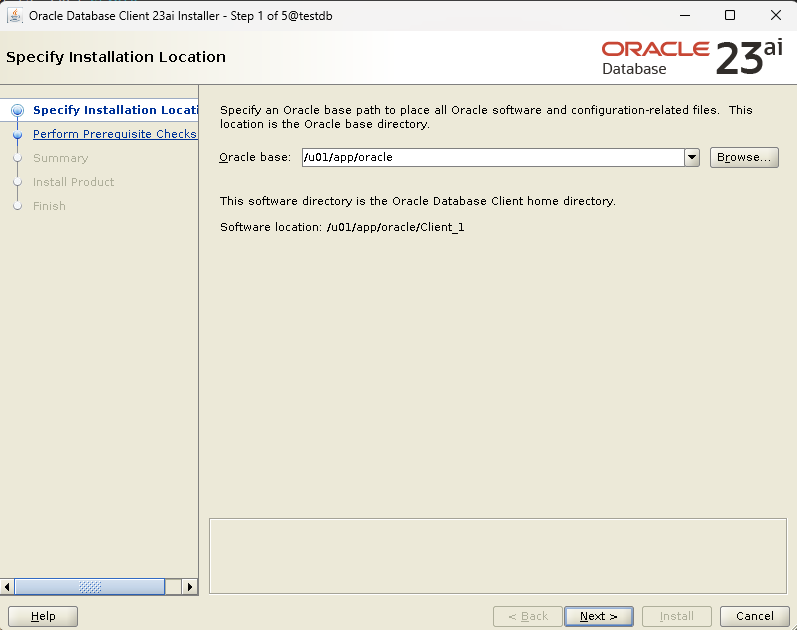
Configured values:
- Oracle Base:
/u01/app/oracle - Oracle Home:
/u01/app/oracle/client_1
This directory will contain all client binaries and configuration files. Using a standard Oracle directory layout helps with maintenance, patching, and automation later.
👉 Click Next to continue.
Step 2: Perform Prerequisite Checks
Oracle automatically validates system requirements, including:

- Physical memory
- Available disk space
- OS kernel version
- Kernel parameters (
semmni,shmmax,file-max, etc.)
Result:
✅ All minimum requirements are satisfied.
Example from the check:
- Required memory: 256 MB
- Actual memory: ~19 GB
This confirms the system is well-prepared for the client installation.
👉 Click Next.
Step 3: Review Installation Summary
The Summary screen provides a final confirmation before installation starts.

Key details shown:
- Oracle Base:
/u01/app/oracle - Oracle Home:
/u01/app/oracle/client_1 - Product: Oracle Database Client 23ai
At this stage, you can:
- Edit paths if required
- Save a response file for silent installations
- Proceed with confidence
👉 Click Install.
Step 4: Install Product
The installer now performs the actual installation steps:

- Prepare local node
- Link binaries
- Setup Oracle Base
- Configure Oracle Client
You can monitor progress in real time using the Details button. This step typically completes within a few minutes, depending on system performance.
No manual intervention is required.
Step 5: Installation Complete
Once completed, you’ll see the confirmation message:

The installation of Oracle Client was successful.
This confirms that the Oracle 23.4 AI Client binaries and configuration files were installed correctly.
👉 Click Close to exit the installer.
Post-Installation Validation
After installation, always validate using SQL*Plus.
[oracle@testdb ~]$ sqlplus "/as sysdba"
Output:
SQL*Plus: Release 23.0.0.0.0 - Production
Version 23.4.0.24.05
✅ This confirms:
- SQL*Plus is accessible
- Oracle Client version 23.4 is active
- Environment variables are set correctly
Recommended Environment Variables
Add the following to the Oracle user profile (.bash_profile):
export ORACLE_BASE=/u01/app/oracle
export ORACLE_HOME=/u01/app/oracle/client_1
export PATH=$ORACLE_HOME/bin:$PATH
export LD_LIBRARY_PATH=$ORACLE_HOME/lib
Reload the profile:
source ~/.bash_profile
Common Use Cases for Oracle 23.4 AI Client
- Connecting to Oracle 19c / 21c / 23ai databases
- Running SQL scripts and health checks
- Application runtime dependencies
- Data migration and validation tasks
- Monitoring and automation jobs
Final Thoughts
Installing the Oracle Database 23.4 AI Client on Linux is a smooth and reliable process when prerequisites are met and Oracle best practices are followed.
With its lightweight footprint, AI-ready architecture, and long-term support, Oracle 23ai Client is an excellent choice for modern database environments.
If you’re managing multiple Oracle versions, consider keeping the client patched and isolated using separate Oracle Homes.
Oracle Instant Client Downloads
How to Patch Oracle Database Client 19c to Release Update (RU) 19.32 on Windows – Step-by-Step Guide


