

Connecting Oracle and IBM DB2 databases can seem like a complex task—but Oracle has made it easy with the Oracle Database Gateway for DRDA. This gateway allows seamless integration between Oracle Database and DB2, enabling data exchange and cross-platform queries.
In this guide, we’ll walk you through the step-by-step process of installing Oracle 19c Database Gateway and configuring it to connect with IBM DB2. We’ll use screenshots from a real installation to make the process as simple as possible.

What is Oracle Database Gateway for DRDA?
Oracle Database Gateway for DRDA (Distributed Relational Database Architecture) is a bridge that enables Oracle Database to communicate with IBM DB2 systems. It allows Oracle applications to access DB2 data as if it were an Oracle table.
This is especially useful for:
- Integrating Oracle applications with DB2.
- Running SQL queries across different database systems.
- Migrating data or creating reporting dashboards without replication.
Prerequisites
Before starting, make sure you have:
✅ Oracle Database 19c software (installed or available for download).
✅ IBM DB2 server details – Hostname/IP, Port, and Database name.
✅ Operating System – Linux or Windows (64-bit).
✅ Sufficient privileges to install Oracle software.
✅ Oracle Gateway installation media (usually part of the Oracle Database distribution).
Step 1: Launch the Oracle 19c Gateway Installer
Once you have the installation files extracted, launch the Oracle Universal Installer (OUI). The first screen you’ll see is:

Here, specify the Oracle directories for installation.
- Oracle Base:
/u01/app/oracle - Software Location:
/u01/app/oracle/gw
💡 Tip: Keep the Oracle base directory consistent with your database installation for better manageability.
Click Next to continue.
Step 2: Choose the Gateway Product Component
On the next screen, you’ll be asked to select which gateway you want to install.

Select “Oracle Database Gateway for DRDA”.
This component supports connections between Oracle and IBM DB2 databases.
Click Next once selected.
Step 3: Enter DB2 Connection Details
In this step, the installer will prompt for your DB2 connection information.

Fill in the following fields:
- DB2 UDB Server Host Name or IP Address:
172.25.164.174 - DB2 UDB DRDA Server Listener Port Number:
50000 - DB2 UDB Database Name:
sample - DB2 UDB Target Type:
LUW (Linux, Unix, Windows)
This tells the gateway where to find your DB2 instance.
Click Next to proceed.
Step 4: Perform Prerequisite Checks
The installer now performs system and environment checks to ensure compatibility.

It will verify your OS architecture, disk space, and other configuration parameters.
Wait for the checks to reach 100%.
If any errors appear, review the logs and correct issues such as missing libraries or insufficient privileges.
Step 5: Install the Gateway Software
Once all checks pass, the installer proceeds with the actual installation.

You’ll see steps like:
- Prepare ✅
- Copy Files (in progress)
- Link Binaries
- Setup
- Oracle Gateway Configuration
- Execute Root Scripts

Allow the process to finish.
When prompted, execute any required root scripts as the root user to complete permissions setup.
Step 6: Post-Installation Configuration
After installation, a few configuration steps are necessary to connect Oracle to DB2.
Step 6.1 — Create Gateway Listener
export ORACLE_HOME=/u01/app/oracle/gw
export PATH=$ORACLE_HOME/bin:$PATH

NETCA

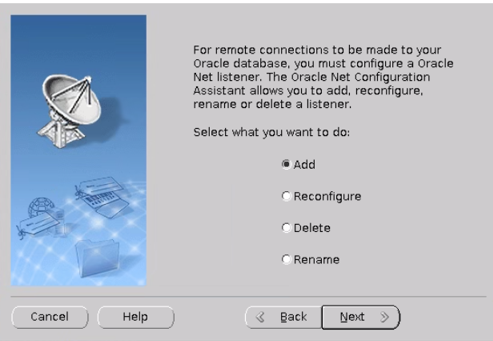
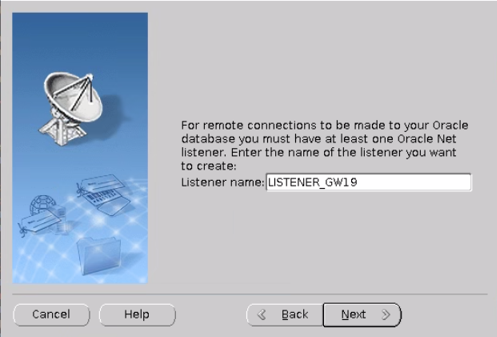
After installation, ensure that the Oracle 19c Database Gateway is configured properly for optimal performance.
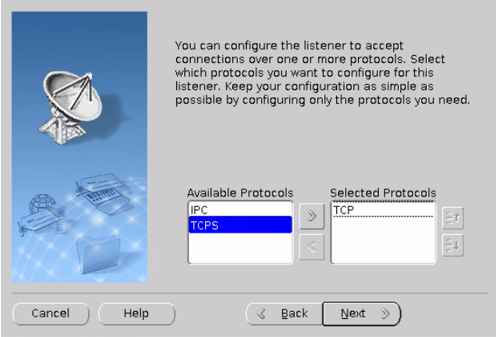
Make sure the port number not used on that server.
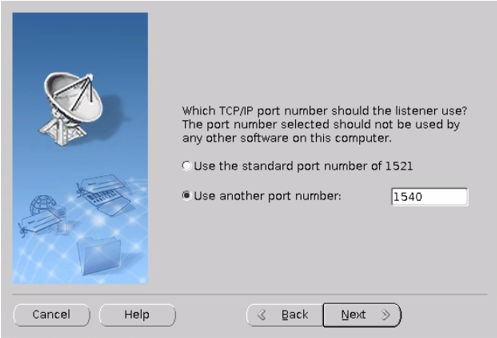

Step 6.2 — Update Listener.ora
Edit the Oracle listener.ora file, typically located at:
/u01/app/oracle/gw/network/admin/listener.ora
Add an entry for the gateway:
SID_LIST_LISTENER =
  (SID_LIST =
    (SID_DESC =
      (PROGRAM = dg4db2)
      (ORACLE_HOME = /u01/app/oracle/gw)
      (SID_NAME = dg4db2)
    )
  )
Restart the listener:
lsnrctl stop
lsnrctl start

-- lsnrctl reload
Step 6.2 — Configure tnsnames.ora
Now, create an entry in tnsnames.ora (same directory):
DB2GATEWAY =
  (DESCRIPTION =
    (ADDRESS = (PROTOCOL = TCP)(HOST = localhost)(PORT = 1531))
    (CONNECT_DATA = (SID = dg4db2))
    (HS = OK)
  )
This entry defines how Oracle connects to the gateway service.
Step 6.3 — Configure initdg4drda.ora
Go to:
$ORACLE_HOME/dg4db2/admin
Create or modify the file named initdg4drda.ora:
HS_FDS_CONNECT_INFO=172.25.164.174:50000/sample
HS_FDS_TRACE_LEVEL=OFF
HS_FDS_SHAREABLE_NAME=/u01/app/oracle/gw/lib/libdg4drda.so
HS_LANGUAGE=AMERICAN_AMERICA.AL32UTF8
This configuration tells the gateway how to reach DB2.
Step 7: Test the Connection
Start SQL*Plus and test your connection to DB2 through the gateway.
sqlplus system@DB2GATEWAY

CREATE DATABASE LINK link_name
CONNECT TO remote_username IDENTIFIED BY remote_password
USING 'DB2GATEWAY';
If everything is configured properly, you should be able to query DB2 tables directly from Oracle using:
SELECT * FROM "DB2SCHEMA"."EMPLOYEE"@DB2GATEWAY;
✅ If you get data back from DB2 — congratulations! Your Oracle 19c Database Gateway for DRDA is successfully installed and connected.
💡 Note: After setting up the gateway, you can also apply the latest Oracle patch for enhanced stability and performance.
Learn more in our related article — How to Apply Oracle 19.29 Patch in Oracle Gateway
Troubleshooting Tips
If you encounter issues, check:
- Listener status:
lsnrctl status - Gateway log file:
$ORACLE_HOME/dg4db2/log - DB2 port accessibility: Verify with
telnet <DB2_HOST> 50000 - Firewall rules: Ensure Oracle can reach the DB2 server.
Final Thoughts
You’ve now learned how to install Oracle 19c Database Gateway for DRDA and configure it to communicate with IBM DB2 using simple, repeatable steps.
This setup enables you to:
- Access DB2 data seamlessly from Oracle.
- Run federated queries.
- Migrate or synchronize data efficiently.
Whether you’re an Oracle DBA or just starting with database integration, this gateway is a powerful and reliable tool to bridge two enterprise database worlds.
External Links
Oracle Official Documentation
Oracle Database Gateway Installation Guide 19c
Official step-by-step documentation for Oracle Database Gateways.
Oracle Database Heterogeneous Connectivity Overview
Learn about how Oracle Gateways connect with non-Oracle databases like DB2.


