

Upgrading your Oracle Database from 11.2.0.3 to 11.2.0.4 is one of the most common and stable patch upgrades for Oracle 11g environments. Using the Database Upgrade Assistant (DBUA) makes this process simple, visual, and less error-prone. In this tutorial, we walk through the complete upgrade process with screenshots, practical tips, and post-upgrade verification steps.
Why Upgrade to 11.2.0.4?
Oracle 11.2.0.4 is the terminal patch set release for Oracle 11gR2, offering major stability and security improvements. Upgrading ensures:


- Long-term patch and security support
- Better performance and optimizer stability
- Enhanced TLS and data protection
- Compatibility with future Oracle upgrades (like 12c or 19c)
Pre-Upgrade Preparation
Before launching DBUA, ensure your environment is properly set up:
Backup Your Database
rman target /
RMAN> BACKUP DATABASE PLUS ARCHIVELOG;
Verify Database and Space
Run the pre-upgrade script from the 11.2.0.4 home:
@preupgrd.sqlEnsure you have enough disk space in /u01/app/oracle and /tmp.
Set Environment Variables
export ORACLE_HOME=/u01/app/oracle/product/11.2.0.4/dbhome_1
export PATH=$ORACLE_HOME/bin:$PATH
Step 1: Launching the Oracle Universal Installer
The first step is to install the 11.2.0.4 Oracle software. Follow these steps:
Configure Security Updates
Skip this step if you’re not connecting to Oracle Support.

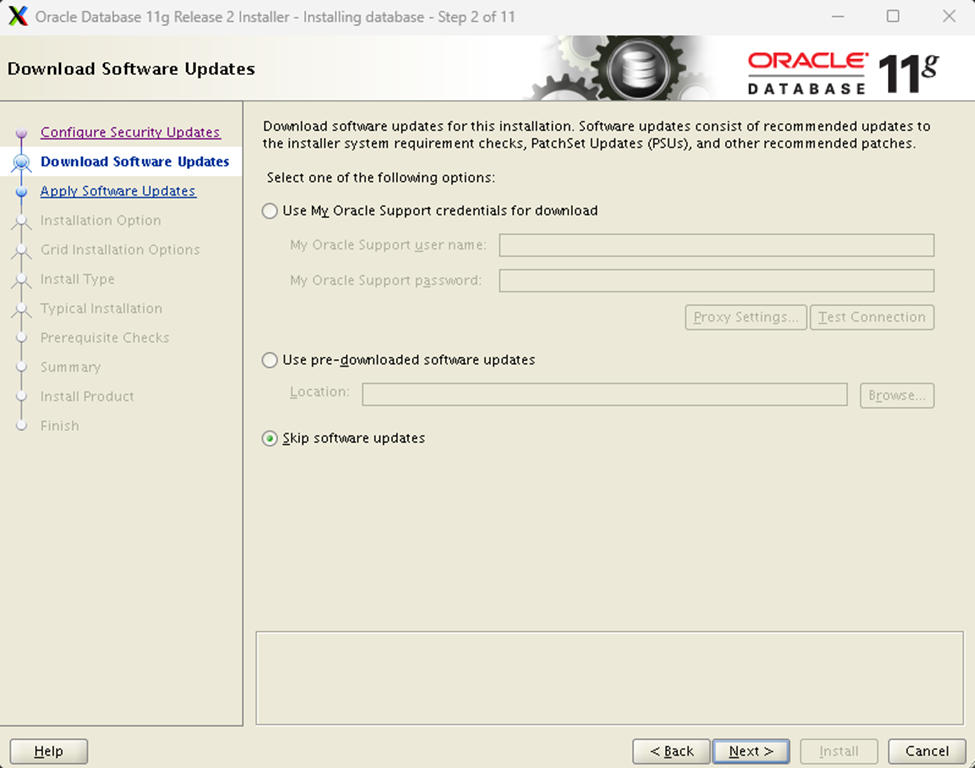
Skip Software Updates
Choose Skip software updates to proceed faster.
Choose Installation Type
Select Upgrade an existing database.

Select Product Language
Choose English (or add any additional required languages).

Choose Database Edition
Select Enterprise Edition (4.7GB) for production-grade environments.

Specify Installation Location
Set the Oracle Base and Software Location:
Oracle Base: /u01/app/oracle
Software Location: /u01/app/oracle/product/11.2.0.4/dbhome_1

Define OS Groups
Ensure dba and oper groups are selected correctly.

Prerequisite Checks
Oracle will verify OS kernel parameters.

Review Summary
Confirm configurations and click Install.

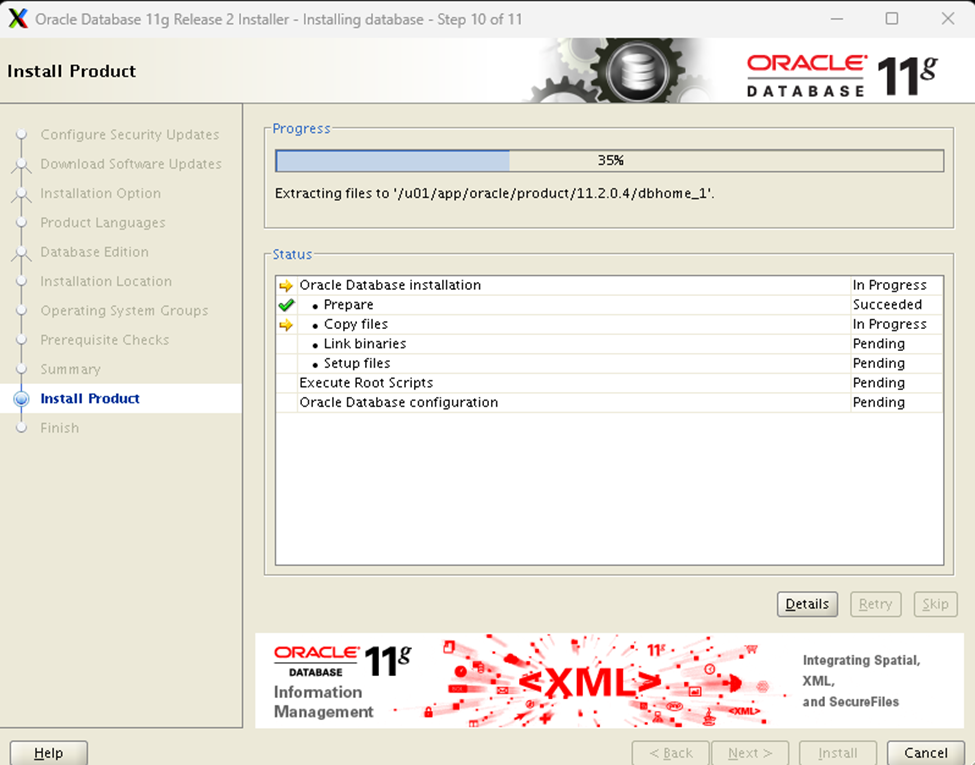
Installation Progress
Let the installer complete all required steps.
Related Resource: Fix Oracle 11.2.0.4 ins_emagent.mk Error on Linux — if you encounter an ins_emagent.mk linking error during installation, follow this guide to resolve it quickly.
Step 2: Upgrading Database Using DBUA
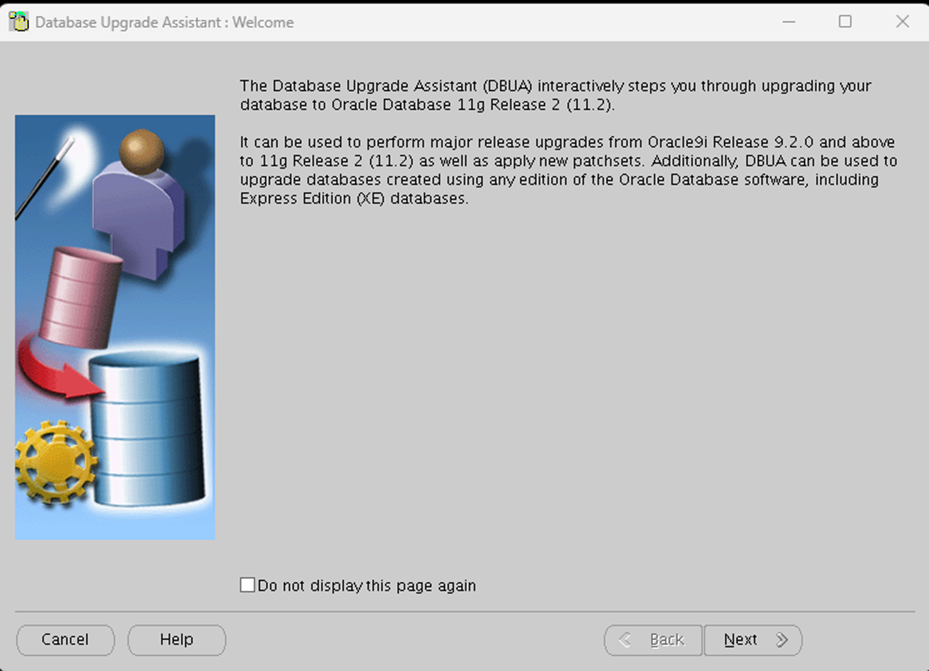
Once the software installation is complete, use Database Upgrade Assistant (DBUA) to upgrade your existing database.
Select Database
Choose the 11.2.0.3 database you wish to upgrade.

Review Warnings
DBUA will display pre-upgrade warnings. Resolve or accept them to continue.

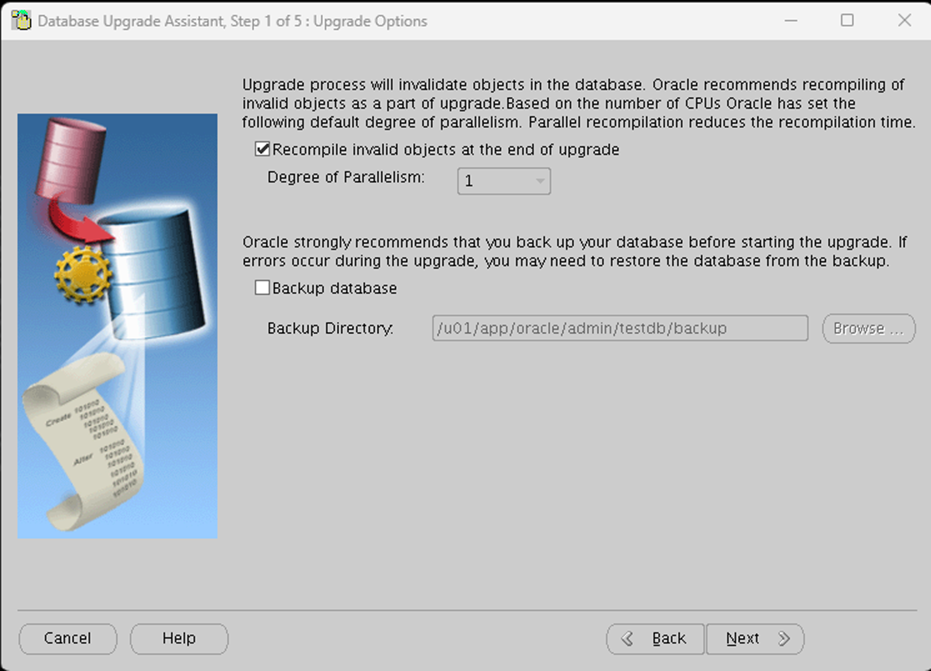
Upgrade Options
Choose Recompile invalid objects at the end of the upgrade.
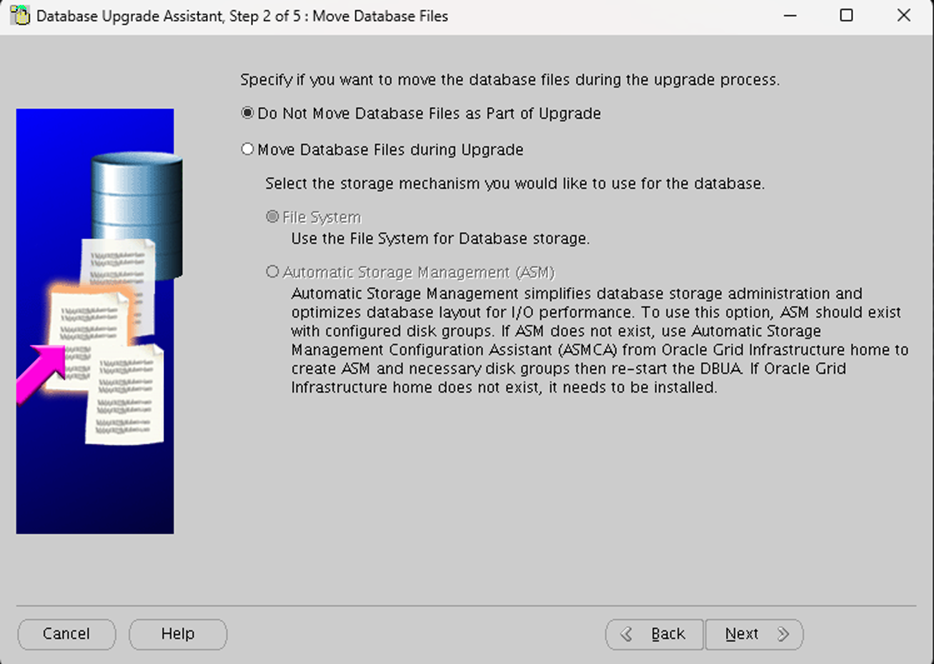
Move Database Files
Select Do Not Move Database Files.
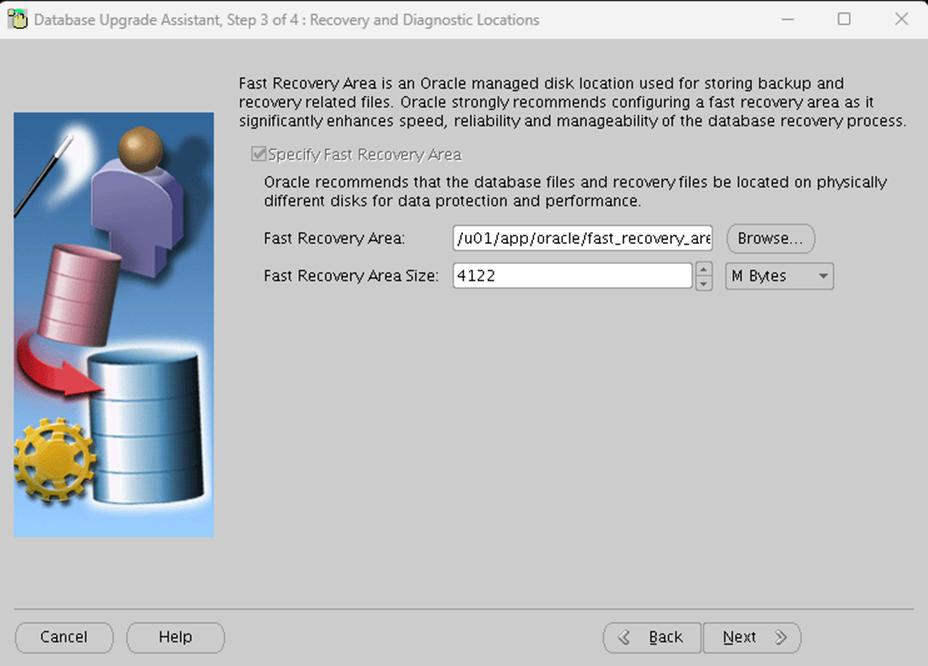
Configure Fast Recovery Area
Specify the Fast Recovery Area path and size.
Review Upgrade Summary
Verify database name, version, and Oracle home paths.

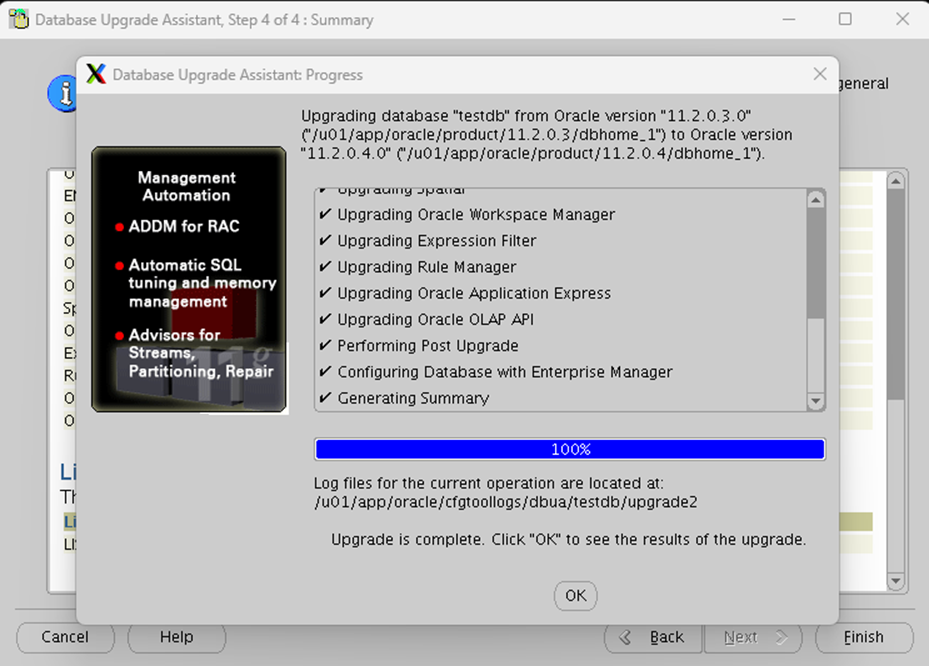
Monitor Upgrade Progress
DBUA will perform all upgrade operations automatically.
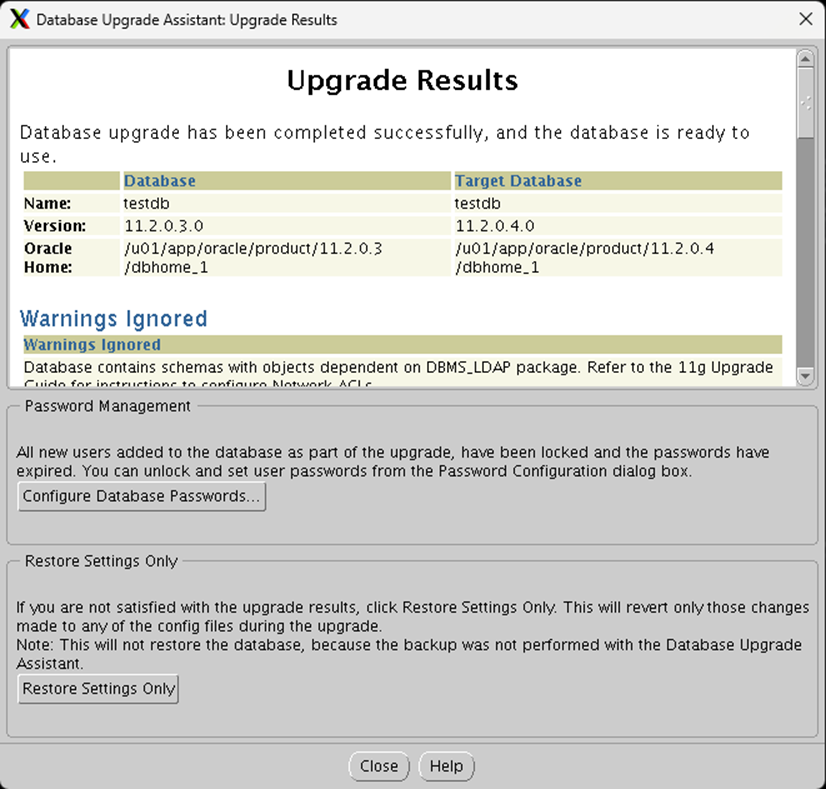
Verify Upgrade Results
Congratulations! Your database has been successfully upgraded to 11.2.0.4.0.
Step 3: Post-Upgrade Tasks
Recompile Invalid Objects
@utlrp.sqlVerify Component Status
SELECT COMP_ID, STATUS FROM DBA_REGISTRY;All components should show VALID.
Check Database Version
SELECT * FROM v$version;Output should display:
[oracle@prod ~]$ sqlplus "/as sysdba"

SQL*Plus: Release 11.2.0.4.0 Production on Mon Oct 27 13:07:06 2025

Copyright (c) 1982, 2013, Oracle.  All rights reserved.


Connected to:
Oracle Database 11g Enterprise Edition Release 11.2.0.4.0 - 64bit Production
With the Partitioning, OLAP, Data Mining and Real Application Testing options

SQL>
Review Logs
$ORACLE_BASE/cfgtoollogs/dbua/<dbname>/upgradeTips & Recommendations
- Always perform a cold backup before upgrading.
- Use DBUA logs to troubleshoot any issues.
- Test the upgrade in a staging environment before production.
- After upgrade, run AWR and ADDM reports to benchmark performance.
Conclusion
Upgrading from Oracle Database 11.2.0.3 to 11.2.0.4 using Database Upgrade Assistant (DBUA) is a reliable and efficient method to modernize your database without extensive manual effort. The visual interface and built-in pre-checks make it beginner-friendly while ensuring all necessary validations are automatically performed.
This upgrade not only provides improved stability and performance but also keeps your Oracle environment compliant with the latest security updates and patches. DBUA simplifies the process by handling complex steps like recompiling invalid objects, validating components, and ensuring dictionary upgrades are completed successfully.
From installation to verification, following this structured guide ensures a smooth transition with minimal downtime. Whether you’re managing a development database or a mission-critical production system, adopting the DBUA method gives you confidence in the integrity of your upgrade.
If you plan to move toward Oracle 12c or 19c in the future, completing the 11.2.0.4 upgrade first establishes a solid foundation. Always document each stage, maintain reliable backups, and validate the results thoroughly after the upgrade.
Ultimately, a well-executed upgrade through DBUA not only extends database lifecycle support but also strengthens your system’s performance, reliability, and security — ensuring your Oracle infrastructure remains future-ready.



Comments 1