
Introduction
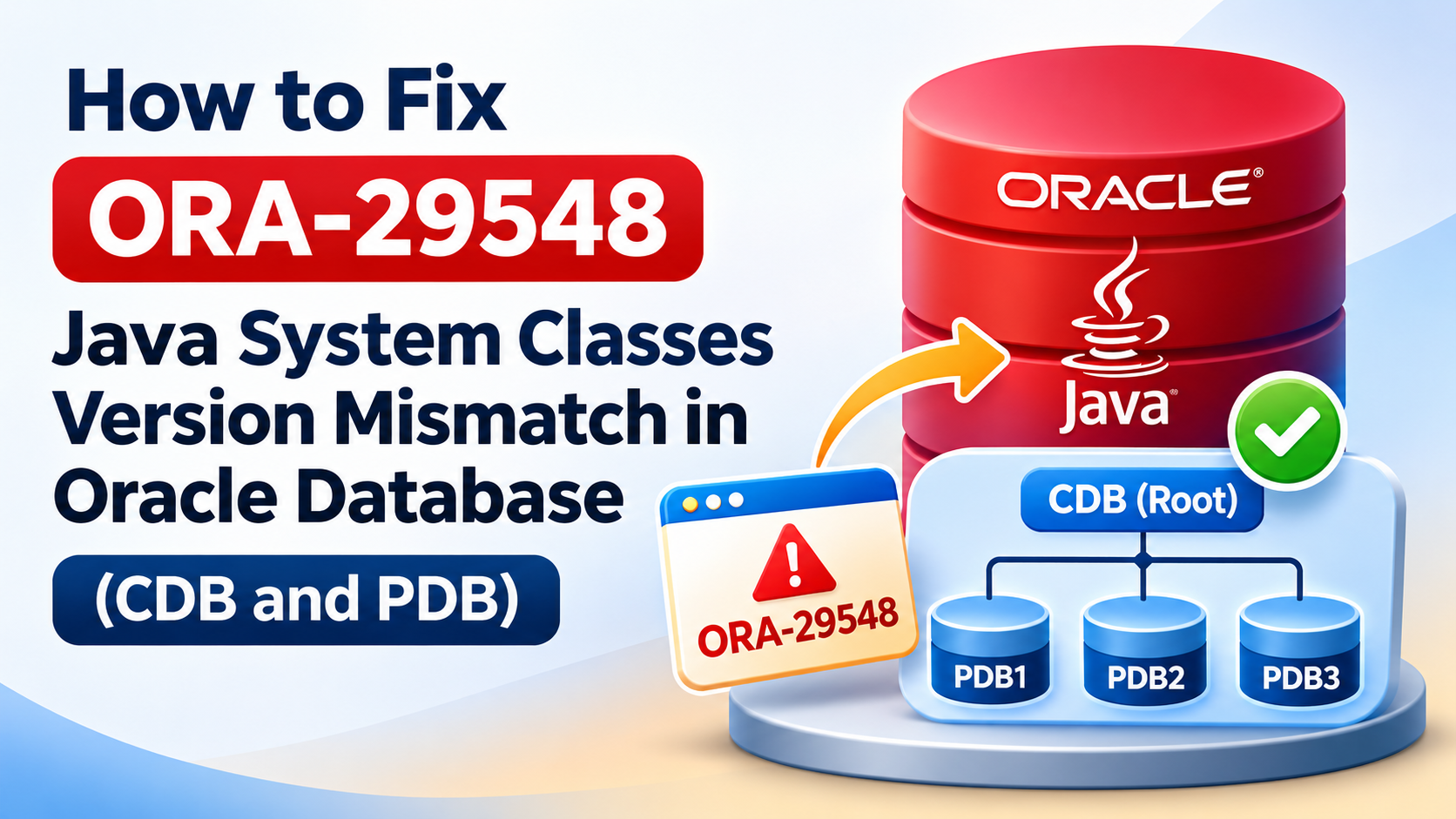
The Oracle Database error ORA-29548: Java system class reported occurs when the Java system classes stored inside the database do not match the Java version available in the Oracle Database software home.
This issue is commonly encountered after applying Oracle Database Release Updates (RUs), Oracle JVM (OJVM) patches, or performing database patching activities where the Java components are not updated consistently.
For example, the following error indicates a mismatch between the Java system classes stored in the database and the Oracle executable:
ORA-29548: Java system class reported:
release of Java system classes in the database
(12.1.0.2.160419 1.6) does not match that of
the oracle executable (12.1.0.2.170117 1.6)
In this example:
- Database Java system classes:
12.1.0.2.160419 - Oracle executable Java version:
12.1.0.2.170117
The mismatch indicates that the Java system classes in the database are not synchronized with the Java version expected by the Oracle executable.
This article explains how to investigate and resolve ORA-29548 in Oracle Multitenant environments, including CDB and PDB databases.
1. Understanding ORA-29548
Oracle JVM (OJVM) is an integrated component of Oracle Database that allows Java applications and Java stored procedures to execute within the database.
The Java system classes are maintained inside the database. When an OJVM patch or database patch is applied, the corresponding database components may also need to be updated.
If the Oracle executable contains a newer Java version than the Java system classes stored in the database, Oracle may report ORA-29548.
Common causes
- Applying an OJVM patch without completing the required database post-installation steps.
- Incomplete OJVM patching.
- Oracle Home and database component version mismatches.
- Inconsistent patching across RAC nodes.
- Failure to update Java components in individual PDBs.
- Incomplete execution of Oracle-provided Java VM update scripts.
2. Check Oracle Java Component Status
Before performing any corrective action, check the installed database components.
Execute the following query as SYSDBA:
SET LINESIZE 200
SET PAGESIZE 100

SELECT comp_id,
       comp_name,
       version,
       status
FROM   dba_registry
ORDER BY comp_name;
Pay particular attention to the following components:
- JAVAVM
- CATJAVA
- XML
Check whether these components are installed and whether their status is VALID.
Also verify Java functionality:
SELECT dbms_java.longname('TEST') AS long_name
FROM dual;
If the query returns ORA-29548, further investigation of the Java component versions is required.
3. Resolving ORA-29548 in CDB$ROOT
For certain Oracle Database releases and patching scenarios, recreating the Java system classes in the database may be used as a corrective procedure.
Before executing the Java recreation procedure, it is important to capture the existing values of the database parameters that will be modified. This ensures that the original configuration can be restored after completing the maintenance.
Step 1: Capture Existing Parameter Values
Connect to the CDB as SYSDBA and execute the following query:
SET LINESIZE 200
SET PAGESIZE 100

COLUMN name FORMAT A30
COLUMN value FORMAT A30
COLUMN display_value FORMAT A30

SELECT name,
       value,
       display_value,
       issys_modifiable,
       isdefault
FROM   v$parameter
WHERE  name IN (
       'java_jit_enabled',
       '_system_trig_enabled',
       'job_queue_processes'
)
ORDER BY name;
For Oracle RAC environments, capture parameter values across all instances:
SELECT inst_id,
       name,
       value,
       display_value,
       isdefault
FROM   gv$parameter
WHERE  name IN (
       'java_jit_enabled',
       '_system_trig_enabled',
       'job_queue_processes'
)
ORDER BY inst_id, name;
Additionally, capture the persistent parameter settings from the SPFILE:
SELECT sid,
       name,
       value,
       isspecified
FROM   v$spparameter
WHERE  name IN (
       'java_jit_enabled',
       '_system_trig_enabled',
       'job_queue_processes'
)
ORDER BY name, sid;
Save these outputs for reference before proceeding.
Step 2: Execute the Java Recreation Script
Create the following script as Create_Java.sql:
SPOOL Create_Java.log

SET ECHO ON

CONNECT / AS SYSDBA

ALTER SYSTEM SET JAVA_JIT_ENABLED=FALSE SCOPE=BOTH;

ALTER SYSTEM SET "_system_trig_enabled"=FALSE SCOPE=MEMORY;

ALTER SYSTEM SET JOB_QUEUE_PROCESSES=0;

CREATE OR REPLACE JAVA SYSTEM;
/

@?/rdbms/admin/utlrp.sql

SET ECHO OFF

SPOOL OFF

EXIT
Execute the script:
sqlplus / as sysdba @Create_Java.sqlExplanation of the Script
JAVA_JIT_ENABLED=FALSE
Disables Java Just-In-Time compilation.
_system_trig_enabled=FALSE
Temporarily disables system triggers. This is a hidden Oracle parameter and should only be changed when specifically directed by Oracle Support.
JOB_QUEUE_PROCESSES=0
Temporarily disables job queue processes during the maintenance operation.
CREATE OR REPLACE JAVA SYSTEM
Recreates the Java system classes in the database.
utlrp.sql
Recompiles invalid database objects after the Java system recreation.
Important: This procedure is not a universal fix for every ORA-29548 occurrence. The use of hidden parameters and recreation of Java system classes can affect database operations. Confirm the procedure with Oracle Support for the exact database release and patch combination before executing it in production.
Step 3: Restore Original Parameter Values
After completing the Java recreation and recompilation, restore the parameters to their original values captured in Step 1.
For example, if the original parameter values were:
| Parameter | Original value |
|---|---|
| JAVA_JIT_ENABLED | TRUE |
| _system_trig_enabled | TRUE |
| JOB_QUEUE_PROCESSES | 1000 |
The restoration commands would be:
ALTER SYSTEM SET JAVA_JIT_ENABLED=TRUE SCOPE=BOTH;

ALTER SYSTEM SET "_system_trig_enabled"=TRUE SCOPE=MEMORY;

ALTER SYSTEM SET JOB_QUEUE_PROCESSES=1000 SCOPE=BOTH;
The above values are examples. Always restore the actual original values from your environment.
Important considerations:
- Restore instance-specific settings appropriately in Oracle RAC environments.
- The hidden parameter
_system_trig_enabledshould only be modified and restored according to the applicable Oracle Support instructions. - Setting
JOB_QUEUE_PROCESSES=0disables scheduled job execution. Confirm that scheduled jobs can safely resume after maintenance. - Verify all parameter values after restoration.
- If a parameter was originally using its default value, preserve that configuration rather than unnecessarily introducing an explicit setting.
Step 4: Verify Parameter Values
Execute the following query to confirm that the original settings have been restored:
SELECT name,
       value,
       display_value
FROM   v$parameter
WHERE  name IN (
       'java_jit_enabled',
       '_system_trig_enabled',
       'job_queue_processes'
)
ORDER BY name;
4. Resolving ORA-29548 in PDB Databases
In Oracle Multitenant architecture, Java components must also be checked and maintained within individual Pluggable Databases (PDBs).
If the Java component mismatch exists within a PDB, Oracle provides Java VM database update scripts as part of the Oracle Database software installation.
Step 1: Connect to the affected PDB
Connect to the CDB as SYSDBA and switch to the affected PDB:
ALTER SESSION SET CONTAINER = PDB_NAME;Verify the current container:
SHOW CON_NAME;Step 2: Execute the Java VM Update Script
Execute the following script using the appropriate SYSDBA privileges:
@?/javavm/install/update_javavm_db.sqlThis script performs the Java VM database update procedure.
Repeat the validation and appropriate update procedure for each affected PDB.
Note: The exact update procedure depends on the Oracle Database release and installed OJVM patch level. Follow the corresponding Oracle patch README and Oracle Support instructions.
5. Recompile Invalid Database Objects
After completing the Java component update, execute the Oracle recompilation script:
@?/rdbms/admin/utlrp.sqlFor a multitenant database, ensure that recompilation is performed in the appropriate containers.
6. Validate the Java Components
After completing the corrective procedure, verify the component status.
Step 1: Check Database Component Status
SELECT comp_id,
       comp_name,
       version,
       status
FROM   dba_registry
ORDER BY comp_name;
Pay particular attention to JAVAVM and CATJAVA.
Step 2: Verify Java Functionality
SELECT dbms_java.longname('TEST') AS long_name
FROM dual;
The query should execute successfully without ORA-29548.
Step 3: Check Java Version
SELECT dbms_java.get_jdk_version()
FROM dual;
Step 4: Check Invalid Database Objects
SELECT owner,
       object_type,
       COUNT(*) AS invalid_count
FROM   dba_objects
WHERE  status = 'INVALID'
GROUP BY owner, object_type
ORDER BY owner, object_type;
Review any remaining invalid objects and investigate whether they are related to the Java component update.
7. Important Considerations for Oracle RAC and Multitenant Environments
When resolving ORA-29548 in an Oracle RAC environment, consider the following:
- Verify that the required Oracle patches have been applied consistently across all RAC nodes.
- Compare the OPatch inventory across the Oracle Homes.
- Verify the OJVM patch status and database SQL patch status.
- Check JAVAVM and CATJAVA component status in CDB$ROOT and all affected PDBs.
- Review the relevant Oracle patch README for post-installation instructions.
- Take a valid RMAN backup before making changes.
- Capture existing parameter values before modifying database configuration.
- Restore all modified parameters after maintenance.
- Perform the maintenance during an approved maintenance window.
- Validate Java functionality in every affected container.
Check Installed Oracle Patches
Execute the following command from the operating system:
$ORACLE_HOME/OPatch/opatch lsinventoryThis displays the installed patches in the Oracle Home.
Check SQL Patch History
Execute the following query:
SELECT patch_id,
       patch_type,
       action,
       status,
       action_time,
       description
FROM   dba_registry_sqlpatch
ORDER BY action_time DESC;
This helps identify the SQL patch installation and rollback history.
Conclusion
ORA-29548 is generally caused by a mismatch between the Java system classes stored in the Oracle Database and the Java version available in the Oracle software home.
In Oracle Multitenant environments, resolving this issue requires checking both the CDB root and individual PDBs. Ensuring that OJVM patching and database post-installation procedures are completed correctly is essential to maintaining consistent Java components.
Before executing any corrective procedure, capture the existing database parameter values and preserve the current configuration. After completing the maintenance, restore the original parameter settings and validate Java functionality across all affected containers.
Always verify the installed patch level, review the relevant Oracle patch documentation, and obtain the appropriate Oracle Support guidance before executing Java component recreation or update procedures in production environments.
Disclaimer: Database maintenance procedures described in this article are provided for educational purposes. Always review the official Oracle patch README and obtain the appropriate Oracle Support guidance before executing Java component recreation or update procedures in production environments.