

Oracle Data Guard provides continuous synchronization between primary and standby databases using Managed Recovery Process (MRP). However, administrators occasionally encounter the following error when attempting to restart managed recovery:
ORA-16157: media recovery not allowed following successful FINISH recovery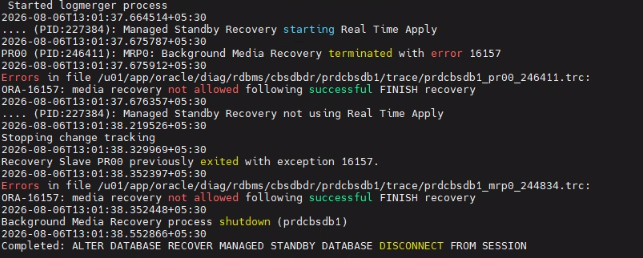
This error typically appears after executing the FINISH recovery command on a physical standby database.


In this article, we’ll explain why this happens, what Oracle recommends, and a practical method to restore the standby without rebuilding it.
When Does ORA-16157 Occur?
The error is usually encountered after running the following command on the physical standby database:
ALTER DATABASE RECOVER MANAGED STANDBY DATABASE FINISH;Later, when attempting to restart managed recovery:
ALTER DATABASE RECOVER MANAGED STANDBY DATABASE DISCONNECT;Oracle returns:
ORA-16157: media recovery not allowed following successful FINISH recoveryWhy Does This Error Occur?
The FINISH command is intended for Data Guard switchover or failover operations.
When this command completes successfully, Oracle updates the standby control file with an internal flag indicating that recovery has been finalized.
As a result:
- Managed Recovery Process (MRP) cannot be restarted.
- Archive logs are no longer applied.
- The standby database assumes recovery is complete.
Alternative Recovery Method
In many situations, the standby can be recovered by replacing the standby control file with a fresh standby control file generated from the primary database.
Since the FINISH command only modifies metadata within the control file, replacing it removes the internal flag that prevents MRP from starting.
Step-by-Step Resolution
Step 1 – Record Existing Datafiles
On the standby database:
SELECT name FROM v$datafile;Save the output for later verification.
Step 2 – Shutdown the Standby
SHUTDOWN IMMEDIATE;Step 3 – Backup the Standby Control File on Primary
On the primary database:
BACKUP CURRENT CONTROLFILE FOR STANDBY
FORMAT '/tmp/standby.bkp';
Step 4 – Copy the Backup
Transfer the backup to the standby server.
Example:
scp /tmp/standby.bkp standby_server:/tmp/Step 5 – Restore the Standby Control File
Start the standby instance:
STARTUP NOMOUNT;Restore the control file:
RESTORE STANDBY CONTROLFILE
FROM '/tmp/standby.bkp';
Step 6 – Mount the Database
ALTER DATABASE MOUNT;Verify datafiles:
SELECT name FROM v$datafile;Compare the output with Step 1.
If datafiles are missing:
CATALOG START WITH '<datafile_location>';Then:
SWITCH DATABASE TO COPY;Step 7 – Validate Datafiles
Check for any datafile errors:
SELECT error, name
FROM v$datafile_header;
The ERROR column should be NULL for every datafile.
Step 8 – Verify Standby Redo Logs
Ensure standby redo logs are configured correctly.
Example:
ALTER DATABASE ADD STANDBY LOGFILE
THREAD 1
GROUP 4
('/u01/oradata/STANDBYREDO04.log')
SIZE 200M;
Remove unnecessary standby log groups if required:
ALTER DATABASE DROP STANDBY LOGFILE GROUP 6;Step 9 – Restart Managed Recovery
If all validations are successful:
ALTER DATABASE RECOVER MANAGED STANDBY DATABASE DISCONNECT;Verify that MRP is running:
SELECT PROCESS, STATUS
FROM V$MANAGED_STANDBY;
or in newer Oracle versions:
SELECT PROCESS, STATUS
FROM V$DATAGUARD_PROCESS;
You should see the Managed Recovery Process active and applying redo.
Why Does This Work?
The command:
ALTER DATABASE RECOVER MANAGED STANDBY DATABASE FINISH;updates an internal flag inside the standby control file that tells Oracle recovery has permanently completed.
Replacing the standby control file with a newly generated standby control file from the primary removes this flag while preserving the existing datafiles.
Once the new control file is restored:
- Oracle no longer considers recovery finished.
- Managed Recovery Process (MRP) can start normally.
- Archive log apply resumes without rebuilding the standby database.
Best Practices
- Only execute the FINISH command during a planned switchover or failover.
- Avoid using FINISH for routine maintenance.
- Always maintain recent standby control file backups.
- Validate standby redo logs after restoring a control file.
- Verify datafile consistency before restarting MRP.
- Monitor Data Guard synchronization after recovery.
Conclusion
ORA-16157 occurs because the FINISH recovery command permanently marks the standby as having completed media recovery. Oracle’s documented solution is to recreate the standby database, but in many environments restoring a fresh standby control file from the primary is a much faster and less disruptive alternative.
By validating datafiles, restoring the standby control file, and restarting Managed Recovery, administrators can often return the standby database to normal operation without a full rebuild.


