

Oracle WebLogic Server 15c (15.1.1) introduces a modernized enterprise Java application platform with enhanced security, JDK 17 support, and a redesigned WebLogic Remote Console for simplified administration. This guide provides a complete step-by-step walkthrough for installing Oracle WebLogic Server 15c on Linux, configuring domains, creating managed servers, setting up Node Manager, and enabling modern remote administration.
If you’re a DBA, middleware administrator, or enterprise infrastructure engineer, this guide will help you build a production-ready WebLogic environment efficiently.


Why Choose Oracle WebLogic Server 15c?
Oracle WebLogic 15c offers several major improvements:
- Support for Oracle JDK 17
- Updated Fusion Middleware infrastructure
- Improved security architecture
- Modern WebLogic Remote Console
- Better cloud-native integration
- Enhanced scalability for enterprise applications
- Simplified domain management
- Future-ready Jakarta EE compatibility
System Prerequisites
Before beginning installation, ensure your environment includes:
Hardware:
- Linux server (Oracle Linux / CentOS / RHEL)
- Minimum 8 GB RAM
- 20 GB free disk space
Software:
- Oracle JDK 17.0.19
- WebLogic installer package:
fmw_15.1.1.0.0_wls_generic.zipRecommended Directories:
/u01/jdk/
/u01/Middleware/
Step 1: Install Oracle JDK 17
Extract the JDK package:
tar -xvf jdk-17.0.19_linux-x64_bin.tar.gzSet Java environment variables:
export JAVA_HOME=/u01/jdk/jdk-17.0.19
export PATH=$JAVA_HOME/bin:$PATH
Verify installation:
java -versionScreenshot Placeholder:
[Insert Screenshot: JDK Extraction and Java Version Verification]
Step 2: Prepare WebLogic Installer
Unzip WebLogic installation package:
unzip fmw_15.1.1.0.0_wls_generic.zipThis generates:
fmw_15.1.1.0.0_wls_generic.jarScreenshot Placeholder:
[Insert Screenshot: WebLogic Installer Extraction]
Step 3: Launch Oracle Fusion Middleware Installer
Start installation:
java -jar fmw_15.1.1.0.0_wls_generic.jarInstallation Wizard Steps:
- Skip Auto Updates
- Set Oracle Home:
/u01/Middleware/Oracle_Home- Select:
WebLogic ServerScreenshot Placeholders:
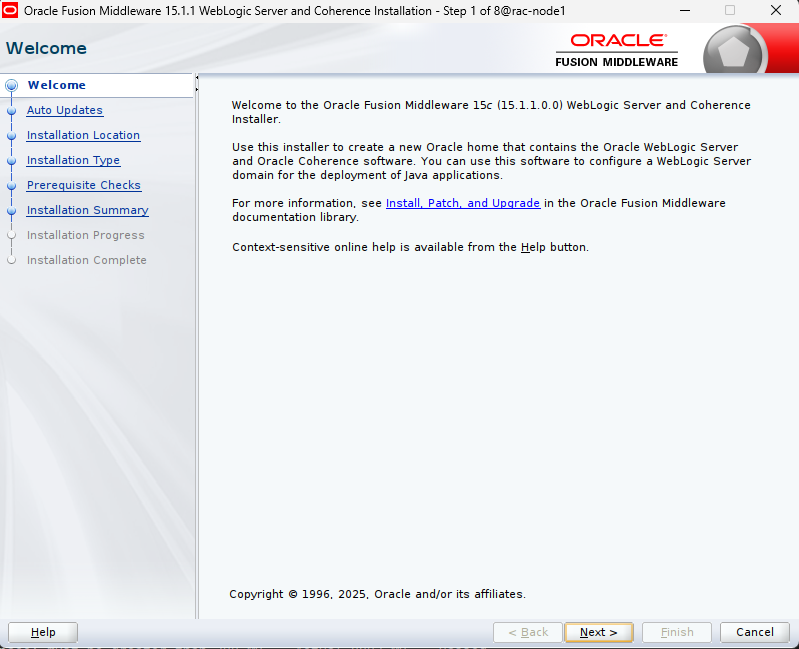
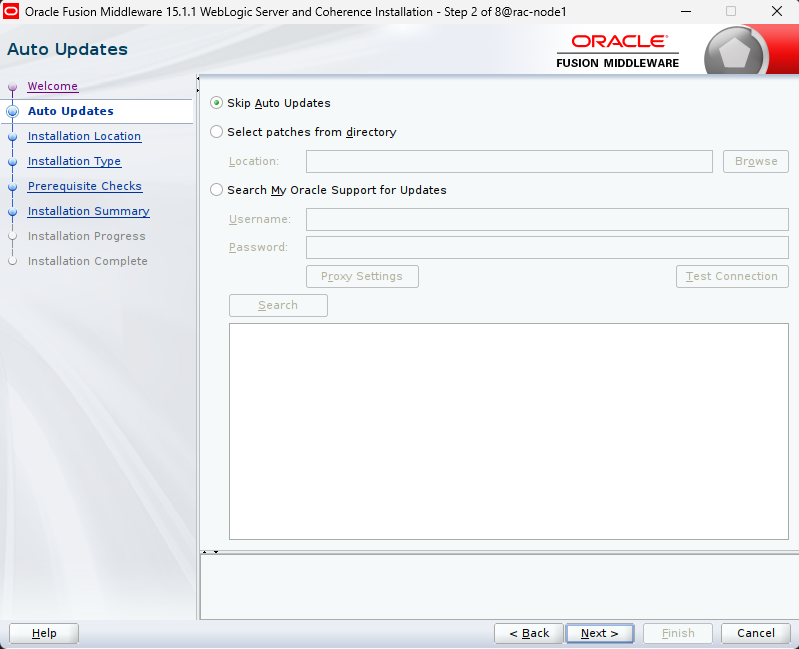
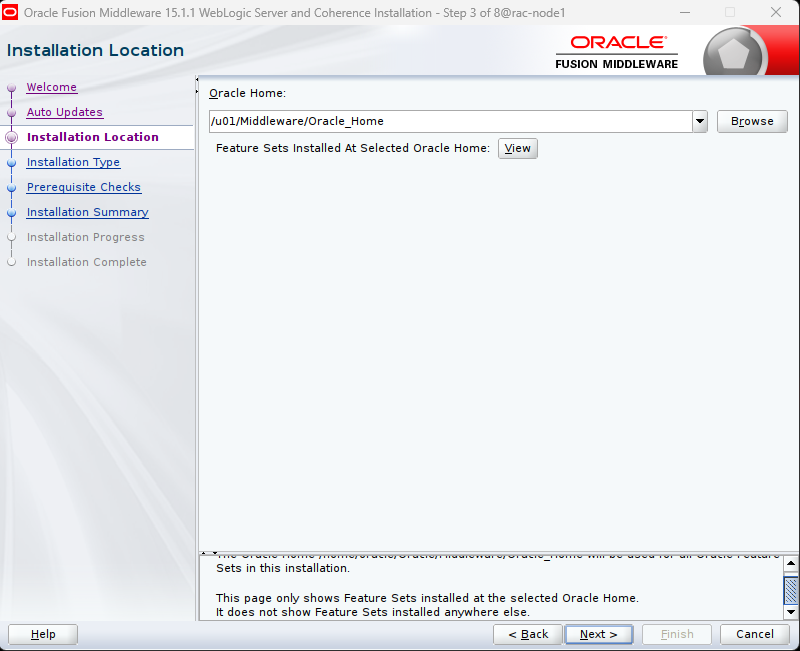
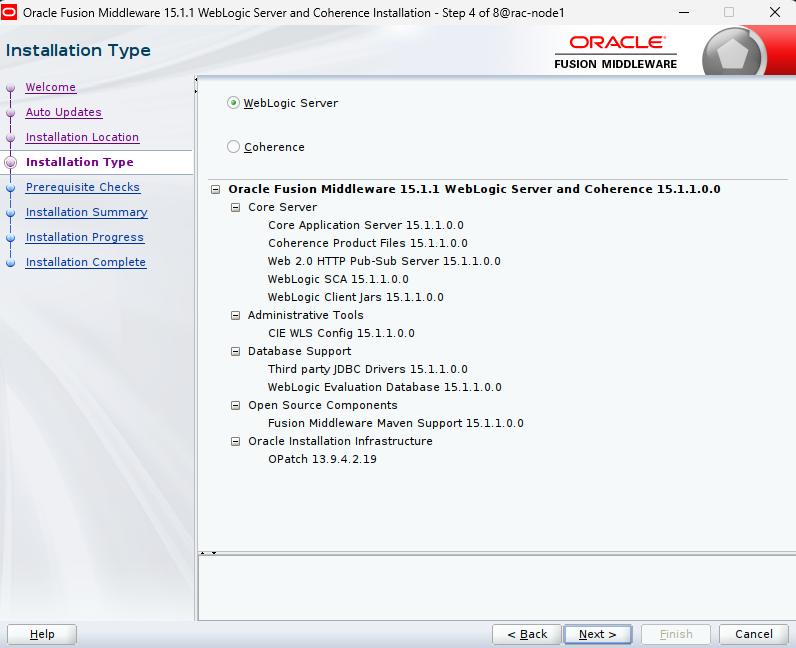
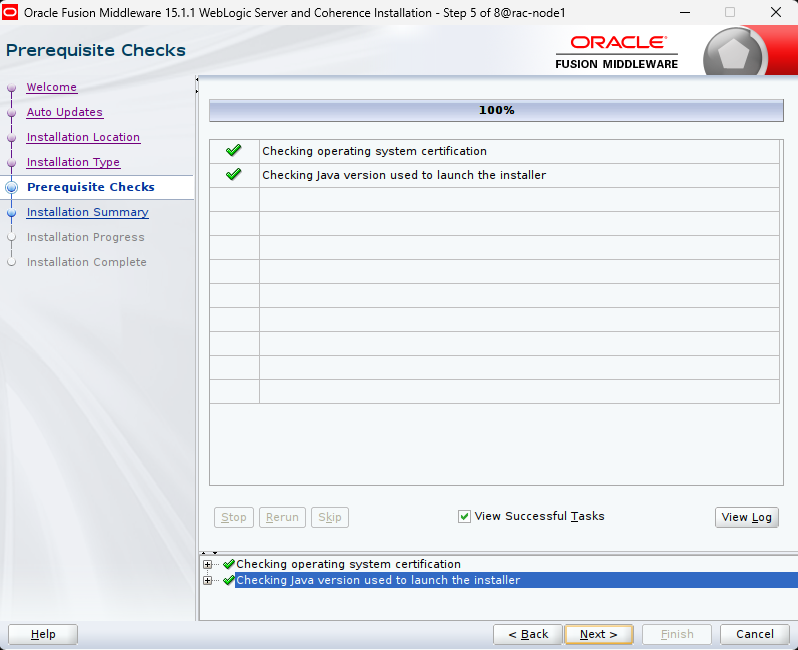
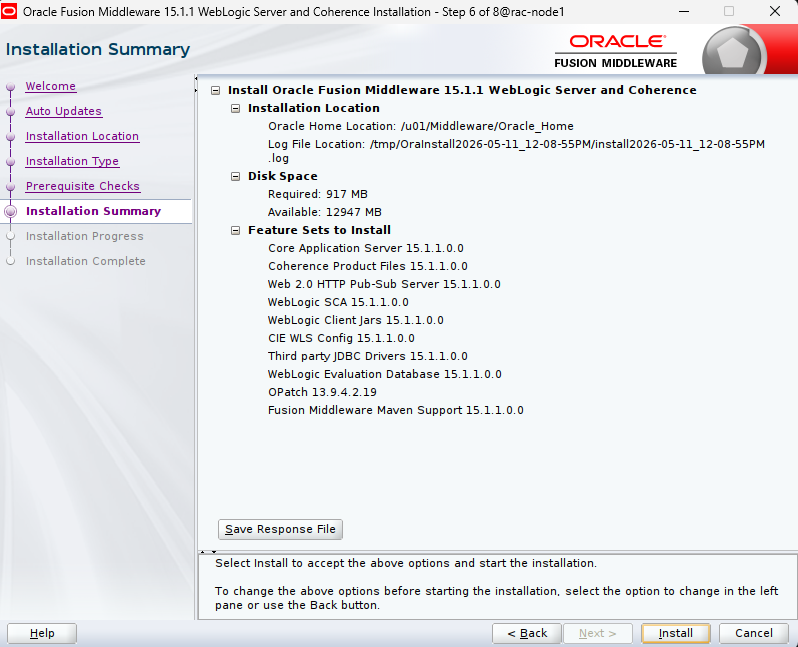
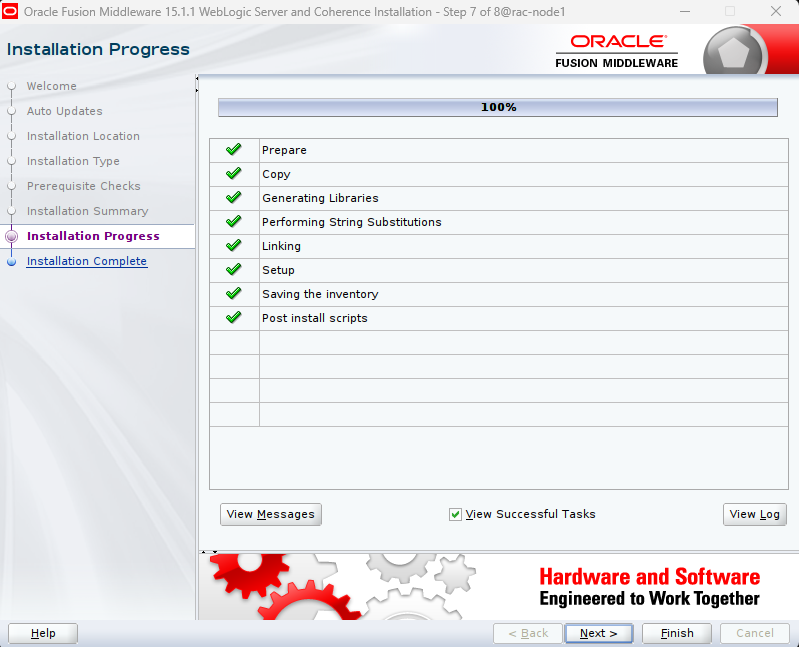
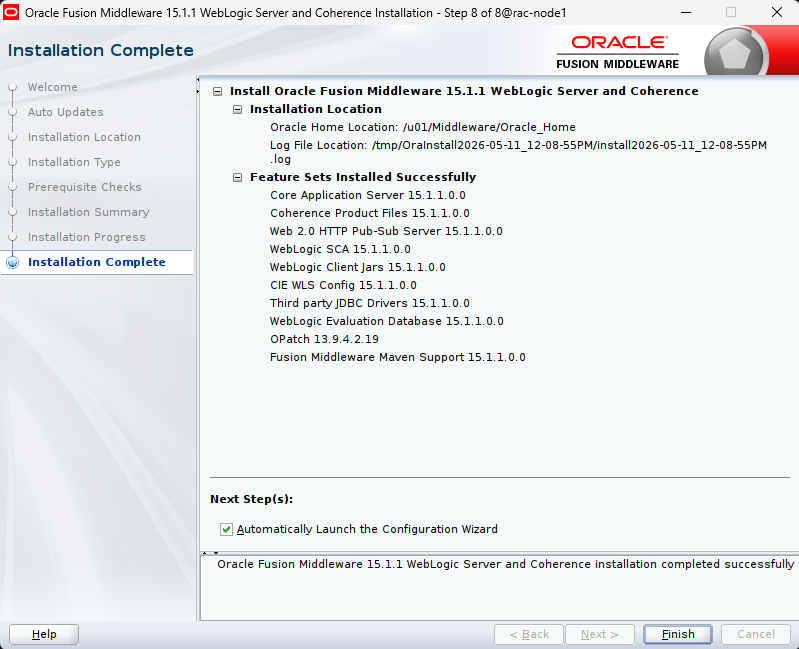
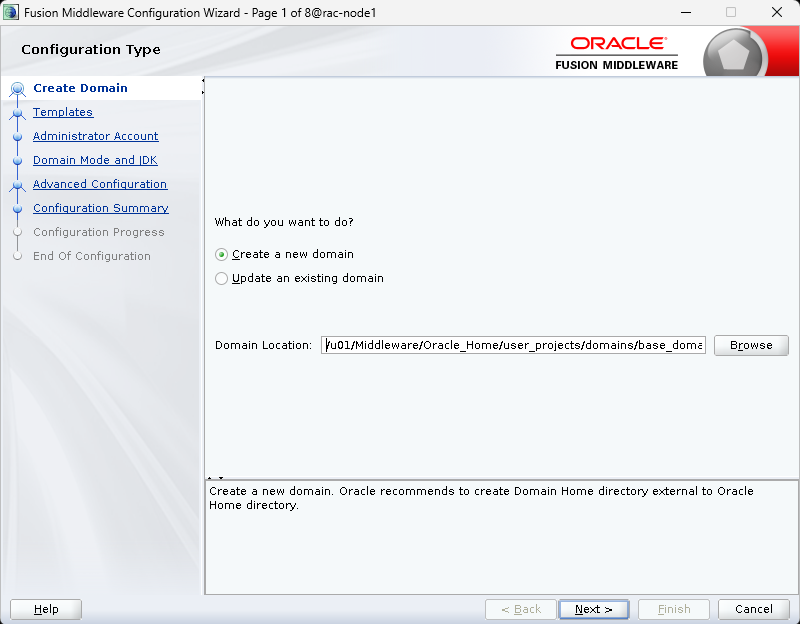
Step 4: Create a New WebLogic Domain
Once installation finishes, the Configuration Wizard launches automatically.
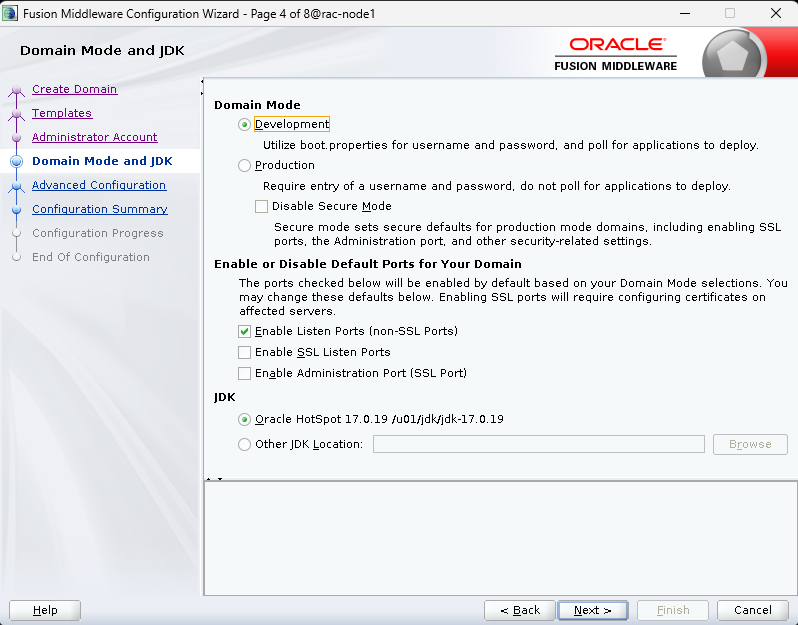
Domain Path:
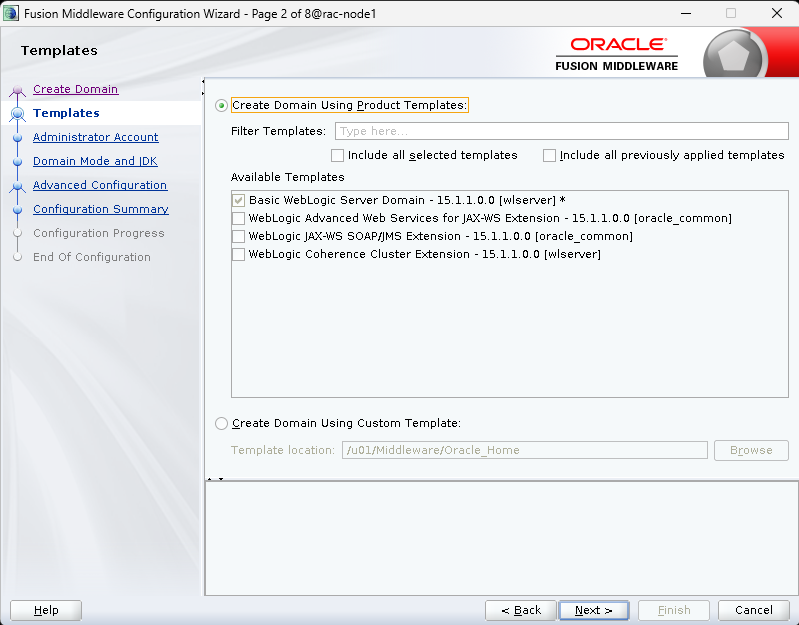
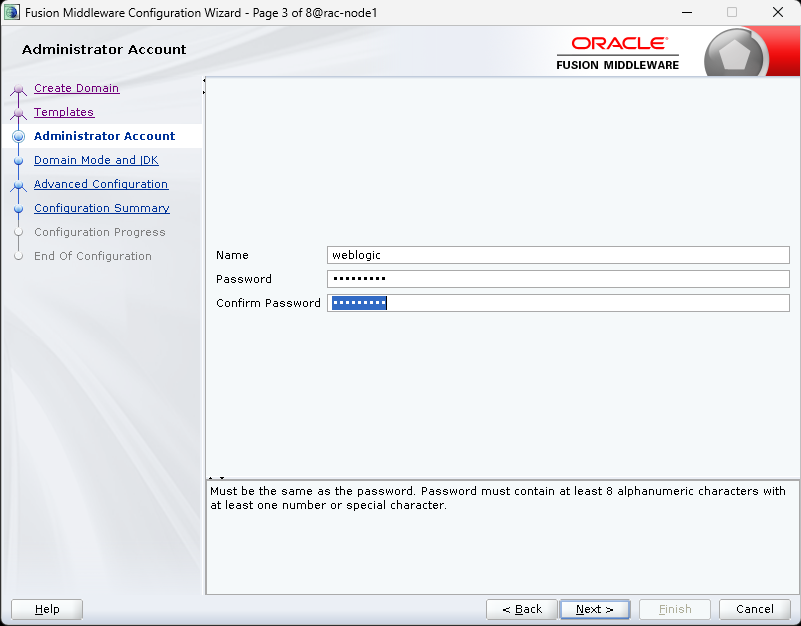
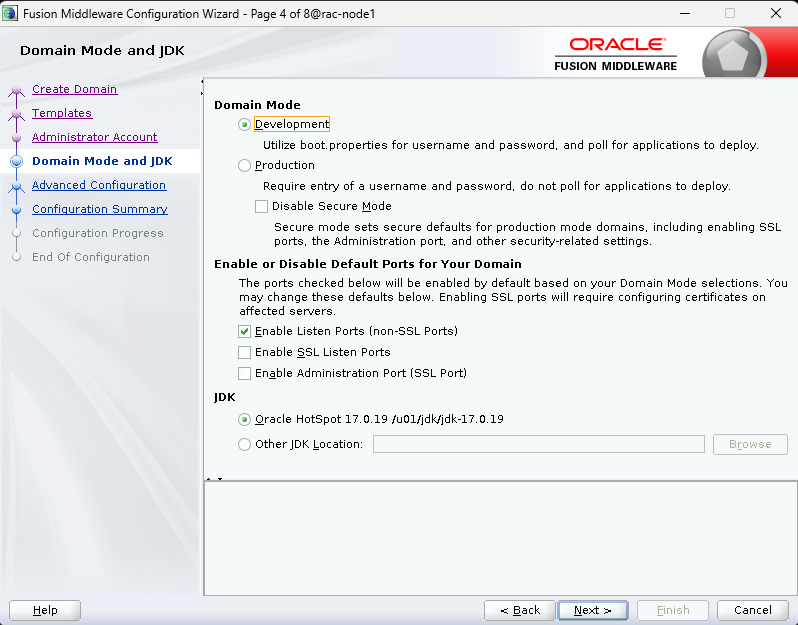
/u01/Middleware/Oracle_Home/user_projects/domains/base_domainConfiguration:
- Basic WebLogic Server Domain
- Administrator Username:
weblogic - Development Mode
- Oracle JDK 17
Screenshot Placeholders:
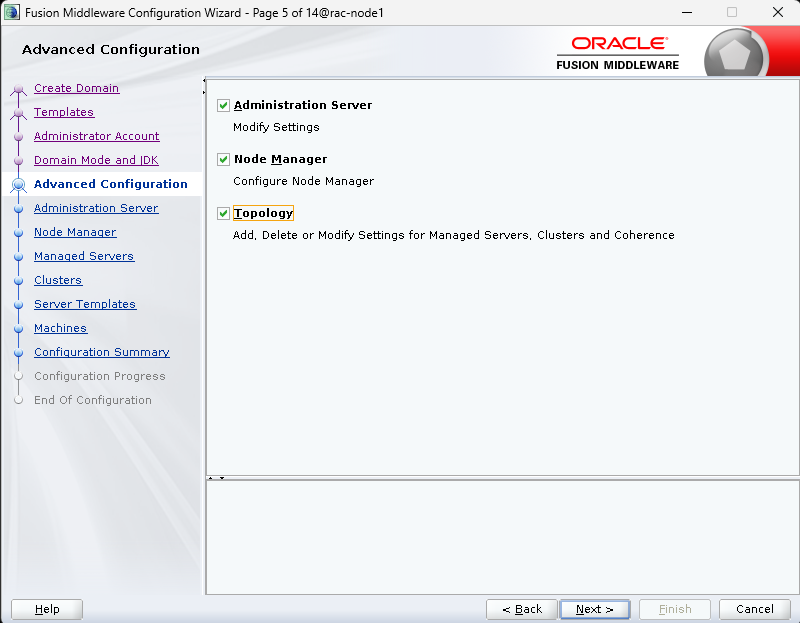
Step 5: Advanced Configuration
Enable:
- Administration Server
- Node Manager
- Topology
Step 6: Configure Administration Server
Recommended:
- Server Name:
AdminServer- Listen Address:
172.25.19.213- Port:
7001Screenshot Placeholder:
Step 7: Configure Node Manager
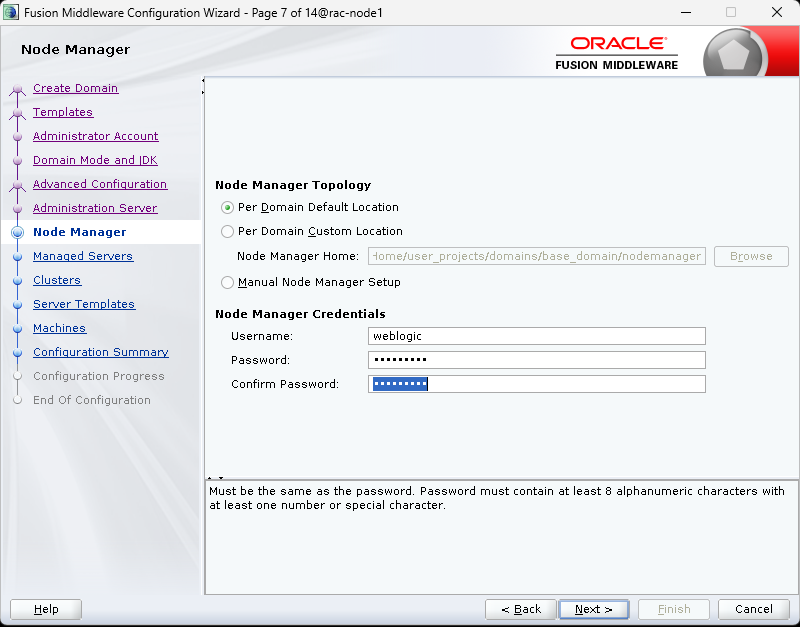
Recommended settings:
- Per Domain Default Location
- Secure credentials
Screenshot Placeholder:
[Insert Screenshot: Node Manager Configuration]
Step 8: Add Managed Server
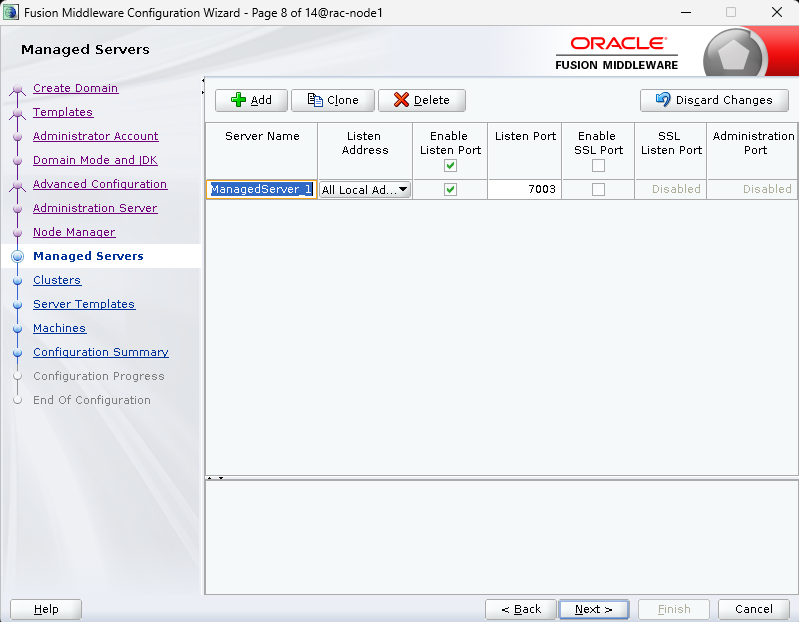
Example:
- Managed Server Name:
new_ManagedServer_1- Port:
7003Screenshot Placeholder:
Step 9: Configure Clusters and Server Templates
If clustering is not required:
- Leave blank
Screenshot Placeholders:
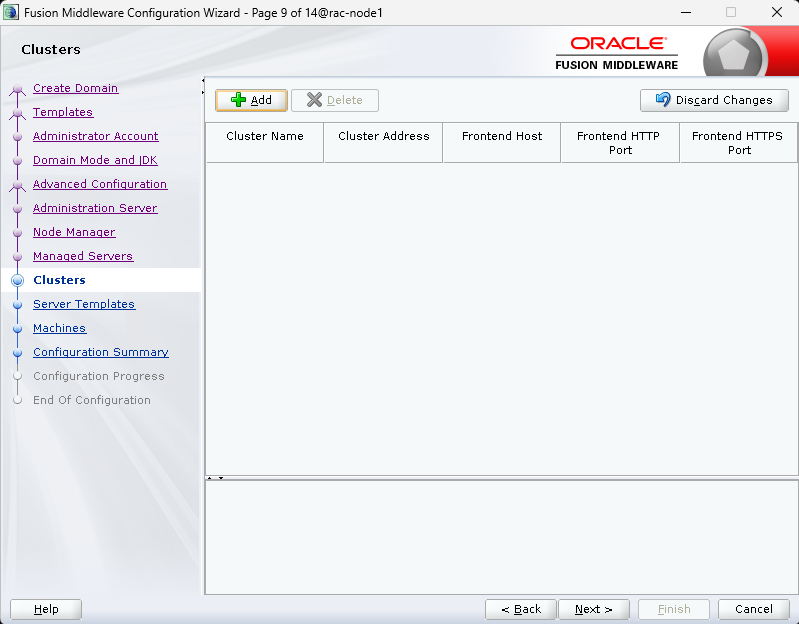
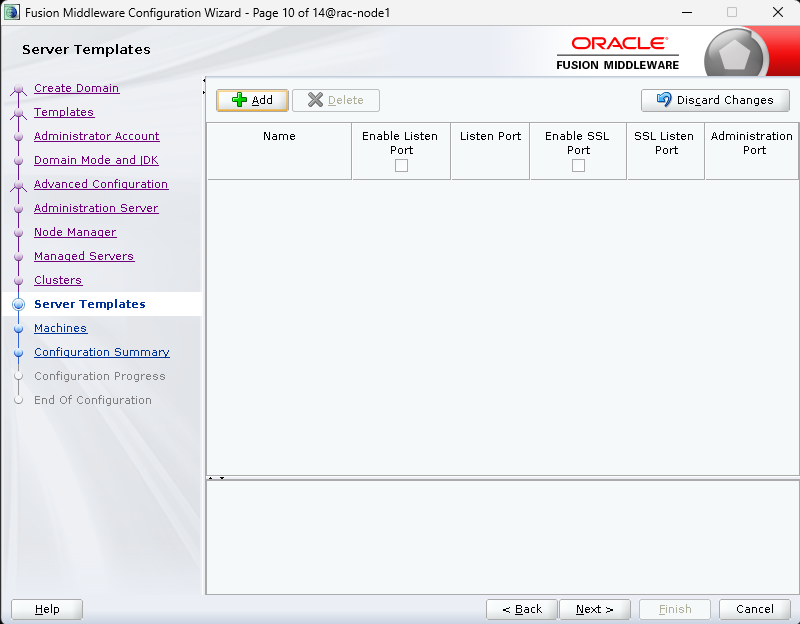
Step 10: Configure Machines
Create:
Machine_1Set:
- Node Manager Type: SSL
- Listen Port:
5556Screenshot Placeholder:
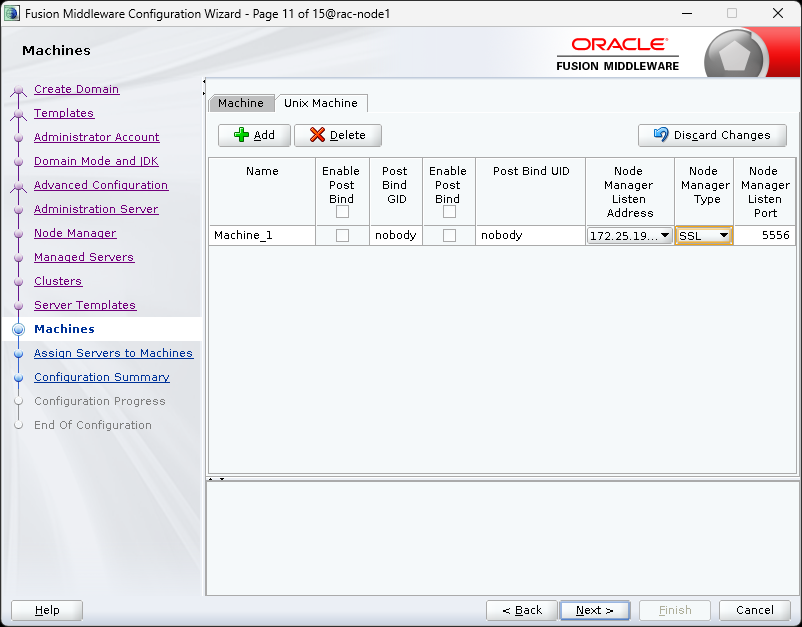
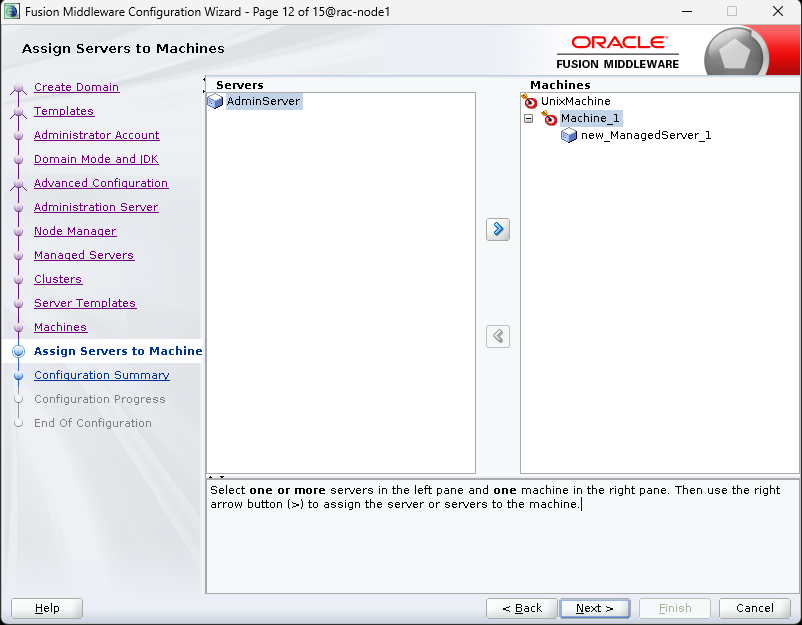
Step 11: Assign Servers to Machine
Assign:
- AdminServer
- Managed Server
Screenshot Placeholder:
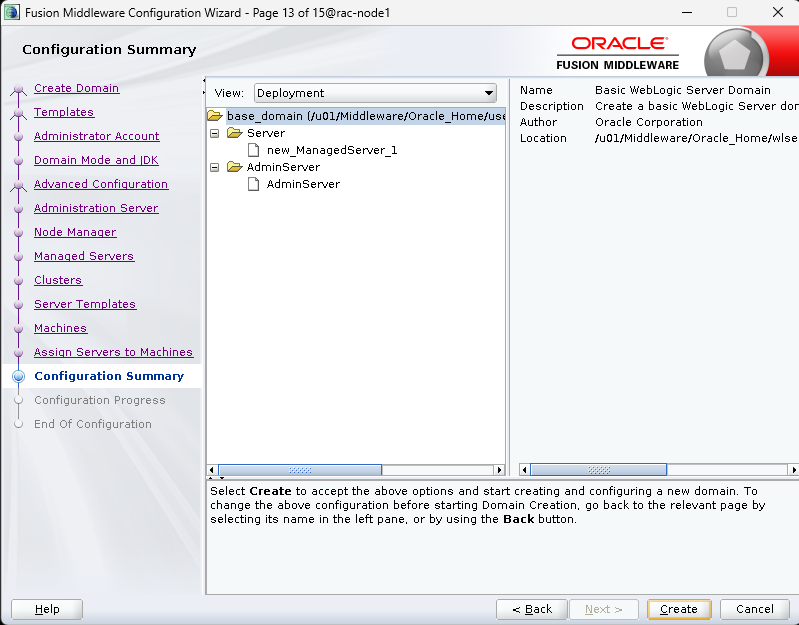
Step 12: Review Configuration Summary
Validate domain structure before creation.
Screenshot Placeholder:
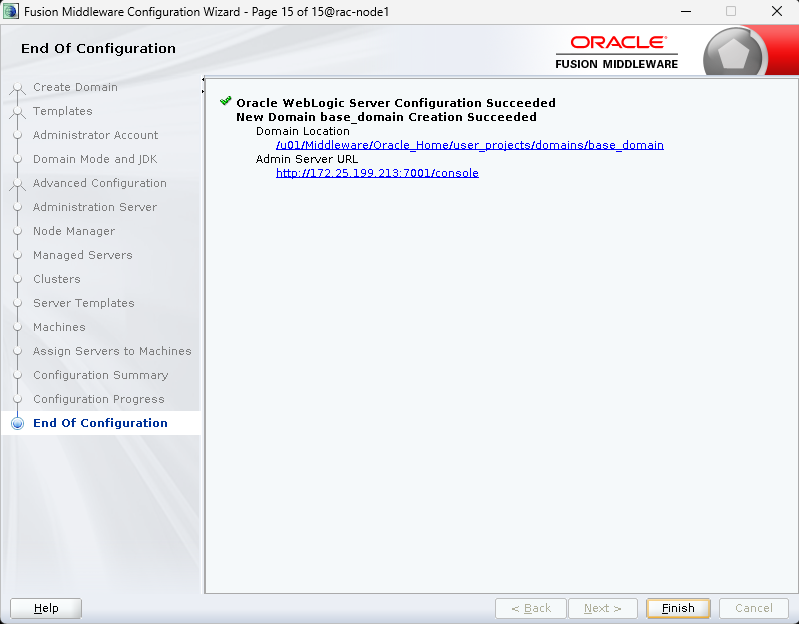
Step 13: Domain Creation Progress
Click Create and monitor:
Screenshot Placeholders:
Step 14: Start WebLogic Server
Navigate:
cd /u01/Middleware/Oracle_Home/user_projects/domains/base_domain/binStart server:
./startWebLogic.shOptional:
export CLASSPATH=$CLASSPATH:$MW_HOME/wlserver/server/lib/weblogic.jarScreenshot Placeholder:
[Insert Screenshot: WebLogic Startup Terminal Output]
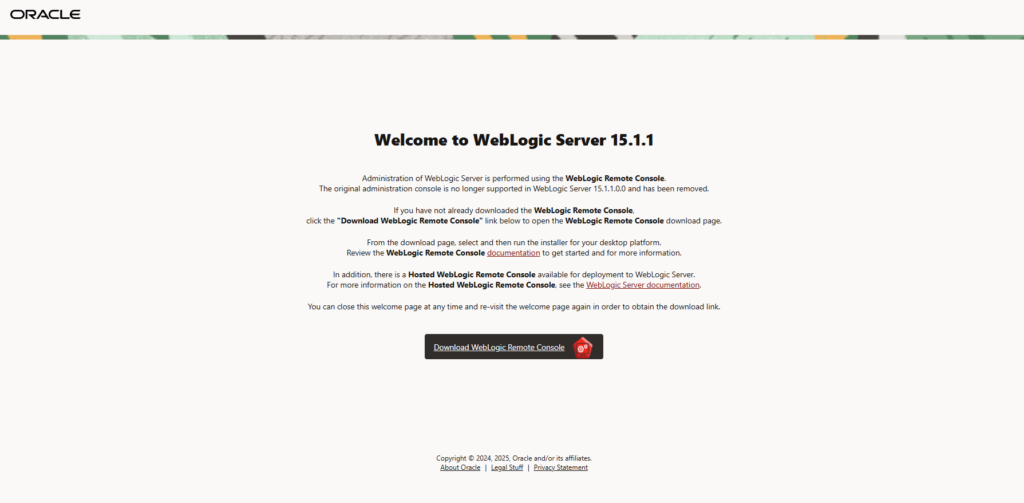
Step 15: Access WebLogic Administration
Traditional console URL:
http://172.25.19.213:7001/consoleOracle WebLogic 15c now recommends:
WebLogic Remote Console
Screenshot Placeholder:
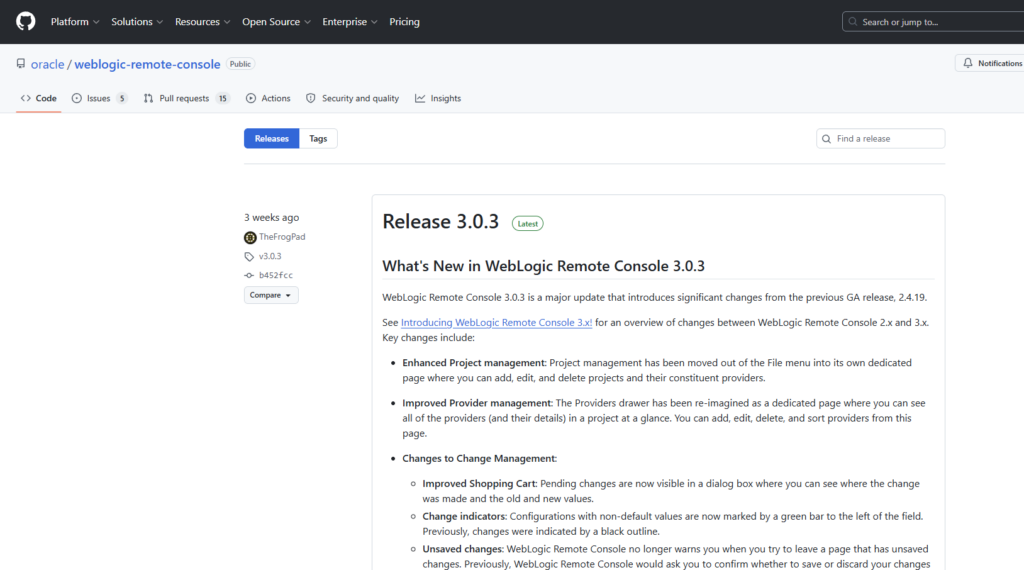
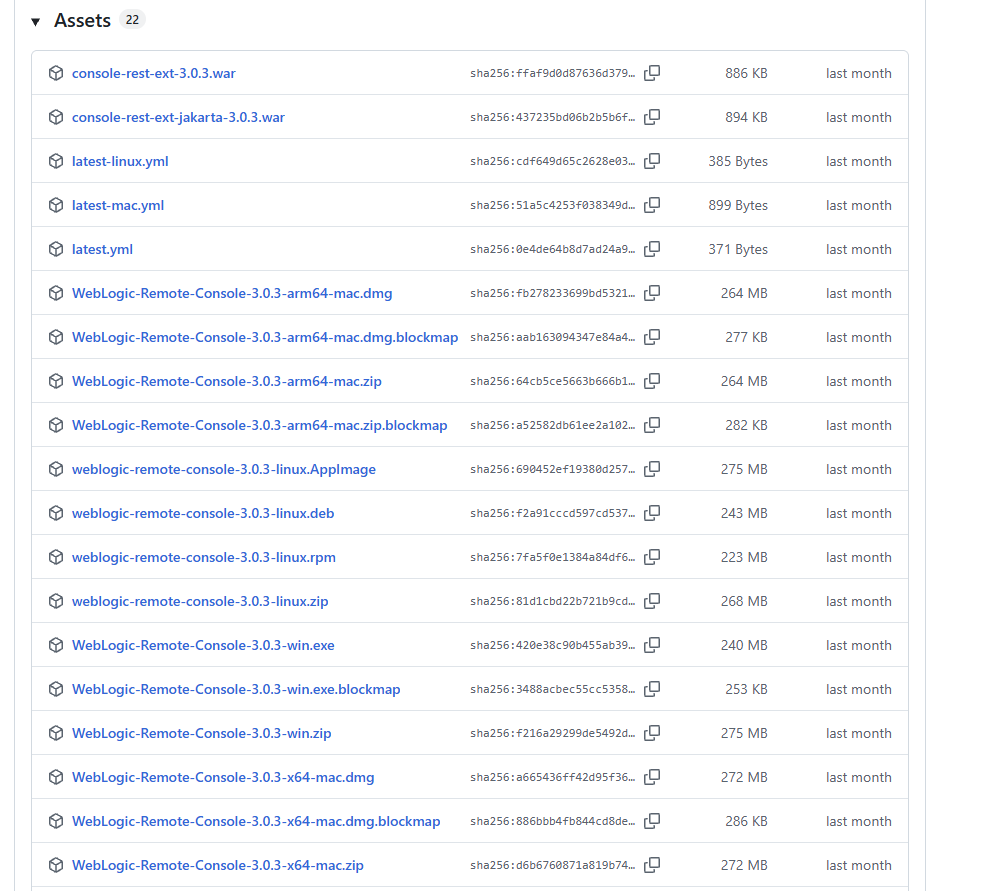
Step 16: Install WebLogic Remote Console 3.0.3
Download from GitHub release assets.
Recommended package:
WebLogic-Remote-Console-3.0.3-win.exeScreenshot Placeholders:
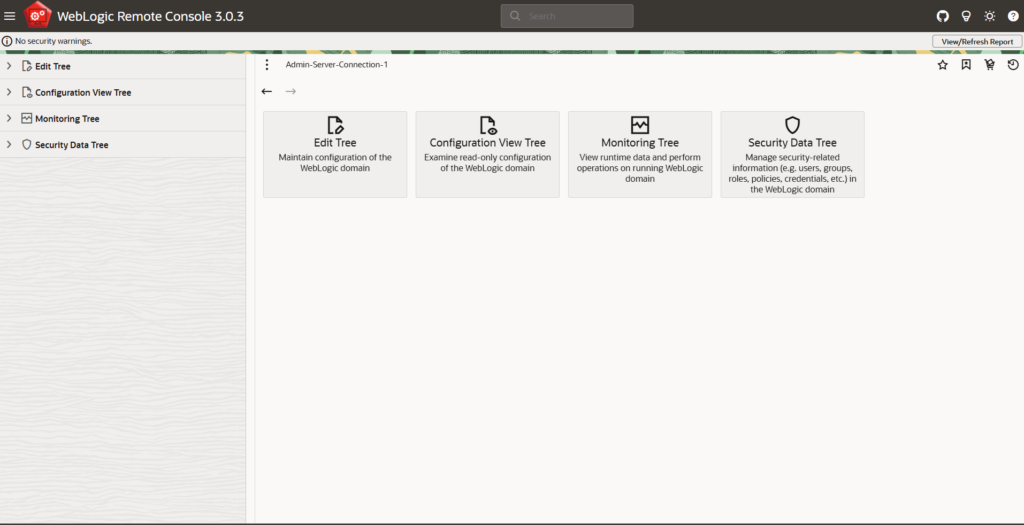
Step 17: Configure WebLogic Remote Console Provider
Inside Remote Console:
- Create Provider
- Connect Admin Server
Features include:
- Edit Tree
- Monitoring Tree
- Security Data Tree
- Configuration View Tree
Screenshot Placeholders:
Production Best Practices
Security:
- Use Production Mode
- Enable SSL
- Harden Node Manager
- Strong passwords
- Firewall rules
Performance:
- JVM tuning
- Heap optimization
- Monitoring integrations
- Load balancing
- Clustering for HA
Troubleshooting Tips
Common Issues:
- JDK mismatch
- Port conflicts
- Node Manager SSL failures
- Domain permission issues
- Remote Console provider misconfiguration
Critical Ports:
- AdminServer: 7001
- Managed Server: 7003
- Node Manager: 5556
Final Thoughts
Oracle WebLogic Server 15c is a powerful enterprise middleware platform that combines:
- Modern Java support
- Enterprise scalability
- Secure administration
- Flexible domain architecture
- Remote Console modernization
By following this guide, you can successfully deploy:
- Oracle JDK 17
- Oracle Fusion Middleware 15c
- WebLogic Admin Server
- Managed Servers
- Node Manager
- Machines
- WebLogic Remote Console
This deployment provides a secure, scalable, and future-ready middleware environment for enterprise applications.
Conclusion
Oracle WebLogic Server 15c modernizes enterprise Java application hosting with updated tooling, improved security, and a significantly enhanced administrative experience through WebLogic Remote Console. For organizations seeking scalable middleware infrastructure, WebLogic 15c remains one of Oracle’s most robust enterprise solutions.


