

Introduction
PostgreSQL is a powerful open-source relational database management system widely used for enterprise applications, web platforms, and data-intensive workloads.
This guide demonstrates how to install PostgreSQL 18 on Ubuntu 24.04 LTS, configure the official PostgreSQL package repository, initialize the database cluster, verify the service status, and apply database configuration parameters for a server with 7 GB RAM and 4 CPUs.


The procedures are based on a practical installation session on Ubuntu 24.04 (Noble).
Prerequisites
Before starting the installation, ensure that the following requirements are met.
| Component | Requirement |
|---|---|
| Operating system | Ubuntu 24.04 LTS |
| PostgreSQL version | PostgreSQL 18 |
| RAM | 7 GB |
| CPU | 4 cores |
| Storage | SSD |
| Privileges | Root or sudo access |
| Network | Internet access to Ubuntu and PostgreSQL repositories |
Step 1: Update Ubuntu package repositories
First, update the local package index to retrieve the latest available package information.
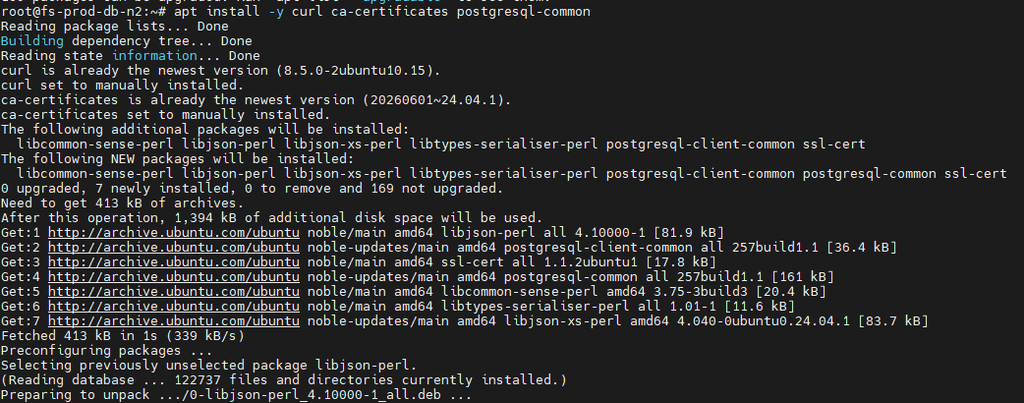
sudo apt updateInstall the required packages for HTTPS repository access and PostgreSQL repository management.
sudo apt install -y \
  curl \
  ca-certificates \
  postgresql-common
These packages provide the supporting tools and configuration required to add the official PostgreSQL repository.
Step 2: Configure the official PostgreSQL APT repository
Ubuntu’s default repositories may not provide the PostgreSQL major version required for a particular environment. The PostgreSQL Global Development Group (PGDG) maintains an official APT repository containing PostgreSQL releases.
Run the repository setup script supplied by the installed postgresql-common package:
sudo /usr/share/postgresql-common/pgdg/apt.postgresql.org.shFollow the on-screen instructions to enable the repository.
The setup script configures the PostgreSQL repository for Ubuntu 24.04 using the noble-pgdg distribution and refreshes the package index.
You can then verify that the repository is configured:
cat /etc/apt/sources.list.d/pgdg.sourcesRefresh the package list again:
sudo apt update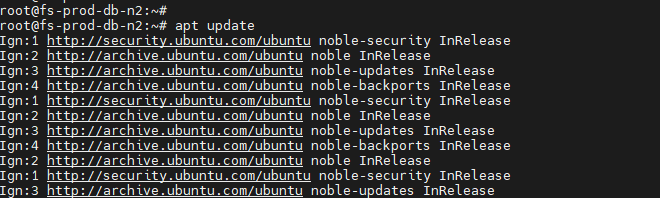
apt install -y curl ca-certificates postgresql-common
Step 3: Install PostgreSQL 18
Install the PostgreSQL 18 server and client packages.
sudo apt install -y \
  postgresql-18 \
  postgresql-client-18
The server package provides the database engine, while the client package provides utilities such as psql.
The installation also creates a default PostgreSQL cluster named 18/main unless cluster creation has been disabled or otherwise customized.
During the installation, the following cluster initialization command was executed automatically:
/usr/lib/postgresql/18/bin/initdb \
  -D /var/lib/postgresql/18/main \
  --auth-local peer \
  --auth-host scram-sha-256
The default data directory is:
/var/lib/postgresql/18/mainThe installation initializes the cluster with UTF-8 encoding and the default English text-search configuration.
Important: The commands above describe the default installation behavior observed in the supplied logs. If you need to place the database files on a separate storage volume, configure the target location before initializing a new cluster.
Step 4: Verify the PostgreSQL installation
Check the installed PostgreSQL version:
psql --versionExpected version output should identify PostgreSQL 18.
Check the installed cluster:
pg_lsclustersExample output format:
Ver Cluster Port Status Owner    Data directory
18  main    5432 online postgres /var/lib/postgresql/18/main
The status should be online if the cluster is running.
You can also check the cluster-specific service:
sudo systemctl status postgresql@18-mainTo start the cluster if it is stopped:
sudo pg_ctlcluster 18 main startTo enable the PostgreSQL service for automatic startup at boot:
sudo systemctl enable postgresqlUnderstanding the PostgreSQL service status
During the installation, the following command returned active (exited):
sudo systemctl status postgresql.serviceThis can be normal on Ubuntu. The postgresql.service unit is a wrapper unit and may exit successfully after triggering cluster management. Its status alone does not prove that the PostgreSQL database instance is running.
Use pg_lsclusters and the cluster-specific service status to confirm that the actual database instance is online.
Step 5: Connect to PostgreSQL
Switch to the PostgreSQL operating system account:
sudo -iu postgresConnect to the default database:
psqlVerify the server version:
SELECT version();Check the database server port:
SHOW port;Check the data directory:
SHOW data_directory;Exit the PostgreSQL command-line interface:
\qThese checks confirm that the database engine is accessible and that the expected configuration is being used.
Step 6: Configure PostgreSQL performance parameters
The supplied configuration example targets a server with the following characteristics: Postgres Parameter Tunning
- Database version: PostgreSQL 18
- Workload type: Web application
- RAM: 7 GB
- CPUs: 4
- Connections: 1,000
- Storage: SSD
The following parameters were provided in the configuration template.
# Connection settings
max_connections = 1000

# Memory settings
shared_buffers = 1792MB
effective_cache_size = 5376MB
maintenance_work_mem = 448MB
work_mem = 4MB

# Checkpoint and WAL settings
checkpoint_completion_target = 0.9
wal_buffers = 16MB
min_wal_size = 1GB
max_wal_size = 4GB

# Query planner and storage settings
default_statistics_target = 100
random_page_cost = 1.1
effective_io_concurrency = 200

# Parallel processing
max_worker_processes = 4
max_parallel_workers_per_gather = 2
max_parallel_workers = 4
max_parallel_maintenance_workers = 2

# Other settings
huge_pages = off
jit = off
wal_compression = lz4
io_method = io_uring
Where to apply the configuration
For the default PostgreSQL 18 cluster, the configuration file is normally:
/etc/postgresql/18/main/postgresql.confBack up the configuration file before modifying it:
sudo cp /etc/postgresql/18/main/postgresql.conf \
  /etc/postgresql/18/main/postgresql.conf.bak
Edit the configuration file:
sudo nano /etc/postgresql/18/main/postgresql.confUpdate the required parameters, ensuring that each parameter is defined only once or that the effective value is unambiguous.
Important considerations for performance tuning
max_connections = 1000
A high connection limit can increase memory consumption, especially when many connections execute memory-intensive queries simultaneously. Consider connection pooling and actual application demand before adopting this value.
shared_buffers = 1792MB
This allocates approximately 1.75 GiB of memory for PostgreSQL shared buffers. It is a starting point for the stated server size, not a universally optimal value.
effective_cache_size = 5376MB
This informs the query planner about the estimated memory available for caching database pages. It is an estimate, not a direct memory allocation.
work_mem = 4MB
This setting applies to individual query operations such as sorts and hash operations. A query can use multiple operations, so aggregate memory usage can exceed the value significantly.
SSD-related settings
The values for random_page_cost and effective_io_concurrency are workload-dependent. Validate them against real query plans and storage performance rather than applying them indiscriminately.
Step 7: Validate PostgreSQL 18 I/O settings
The supplied configuration contains two parameters that require special attention:
wal_compression = lz4
io_method = io_uring
The installation log includes warnings explaining that LZ4 compression requires PostgreSQL to be compiled with LZ4 support and that io_uring requires liburing support.
Before enabling these options, verify the capabilities of the installed PostgreSQL build and the supported configuration parameters.
Check whether the parameters are recognized:
SELECT name, setting, source
FROM pg_settings
WHERE name IN ('wal_compression', 'io_method');
If a parameter does not appear, it may not be supported by that build or version.
For io_uring, also verify the available operating-system and PostgreSQL support. Installing a library alone does not guarantee that the PostgreSQL server supports the requested I/O method.
If the configuration produces an error during startup, remove or adjust the unsupported setting before restarting the database.
Step 8: Restart PostgreSQL and validate the configuration
After making configuration changes, restart the cluster when required.
sudo pg_ctlcluster 18 main restartCheck the cluster status:
pg_lsclustersCheck the service logs if the database does not start:
sudo journalctl -u postgresql@18-main \
  -n 100 --no-pager
You can also inspect the PostgreSQL log files, depending on the configured logging destination.
Connect to the database and confirm the effective values:
SHOW max_connections;
SHOW shared_buffers;
SHOW effective_cache_size;
SHOW work_mem;
SHOW wal_compression;
For PostgreSQL 18, inspect the supported I/O method parameter if available:
SHOW io_method;Some configuration parameters require a restart, while others can be reloaded dynamically. Check the context and pending_restart columns in pg_settings to determine whether a restart is required.
SELECT name,
       setting,
       context,
       pending_restart
FROM pg_settings
WHERE name IN (
    'max_connections',
    'shared_buffers',
    'wal_compression',
    'io_method'
);
Step 9: Check the Ubuntu kernel upgrade notice
The installation output reported that the running kernel was:
6.8.0-31-genericwhile the expected installed kernel was:
6.8.0-146-genericThis indicates that a kernel update was pending and that a reboot should be considered to load the newer kernel.
Check the currently running kernel:
uname -rCheck the installed kernel packages:
dpkg -l 'linux-image*' | grep '^ii'If a reboot is required, schedule it during an approved maintenance window, especially if the server hosts production databases or other critical services.
A kernel reboot should be coordinated separately from PostgreSQL installation and configuration changes.
Conclusion
Installing PostgreSQL 18 on Ubuntu 24.04 involves preparing the operating system, enabling the official PGDG repository, installing the server and client packages, and verifying that the database cluster is online.
Performance tuning should be based on available memory, CPU capacity, connection requirements, storage characteristics, and actual workload behavior. In particular, high connection limits and optional I/O features should be validated carefully before deployment in production.
Following these steps provides a practical starting point for deploying PostgreSQL 18 on Ubuntu while maintaining a clear verification and troubleshooting process.
How to Install PostgreSQL on Red Hat Enterprise Linux and Oracle Linux

