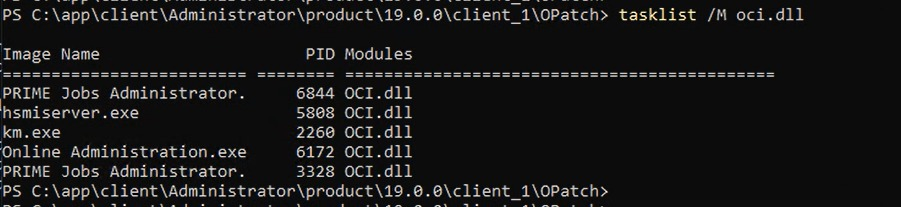
Important: Ensure these applications are safe to stop and coordinate with the application owners before terminating production services.
Step 3 – Verify No Oracle DLLs Are Locked
Run the command again:
tasklist /M oci.dll
If no processes are returned (or only expected ones remain), the Oracle Home is no longer in use.
Step 4 – Apply the Patch Again
Re-run OPatch:
cd C:\Users\administrator.PEOPLESBANK\Desktop\Patch\38818049

C:\app\client\Administrator\product\19.0.0\client_1\OPatch\opatch apply
This time, the patch should proceed successfully.
Why This Happens
Oracle Client DLLs such as OCI.dll are shared libraries used by many third-party applications. Any application connected to an Oracle database using the Oracle Client will load these DLLs into memory.
Common examples include:
Custom Windows services
Banking or enterprise applications
SQL*Plus
Toad
PL/SQL Developer
SQL Developer (OCI connections)
Middleware or integration services
As long as these DLLs remain loaded, Windows prevents OPatch from replacing them.
Useful Commands
Find processes using OCI.dll
tasklist /M oci.dll
Find processes using another Oracle DLL
tasklist /M oraons.dll
Kill a process by PID
taskkill /PID <PID> /F
Kill a process by name
taskkill /IM processname.exe /F
Conclusion
The CheckActiveFilesAndExecutables prerequisite failure is one of the most common issues encountered when patching Oracle Client on Windows. Instead of rebooting the server, you can quickly identify the applications locking the Oracle Home by using:
tasklist /M oci.dll
After stopping or terminating the identified processes, rerun OPatch and the patch installation should complete successfully. This simple troubleshooting method can save valuable maintenance time and minimize downtime during Oracle Client patching.